Exit
  • Global community
    • Language:
      • Deutsch
      • English
      • Español
      • Français
      • Português
  • 日本語コミュニティ
  • 한국 커뮤니티
0

Brush strokes and Gradients aren't displayed correctly (showing artifacts)

New Here ,
Oct 22, 2025 Oct 22, 2025

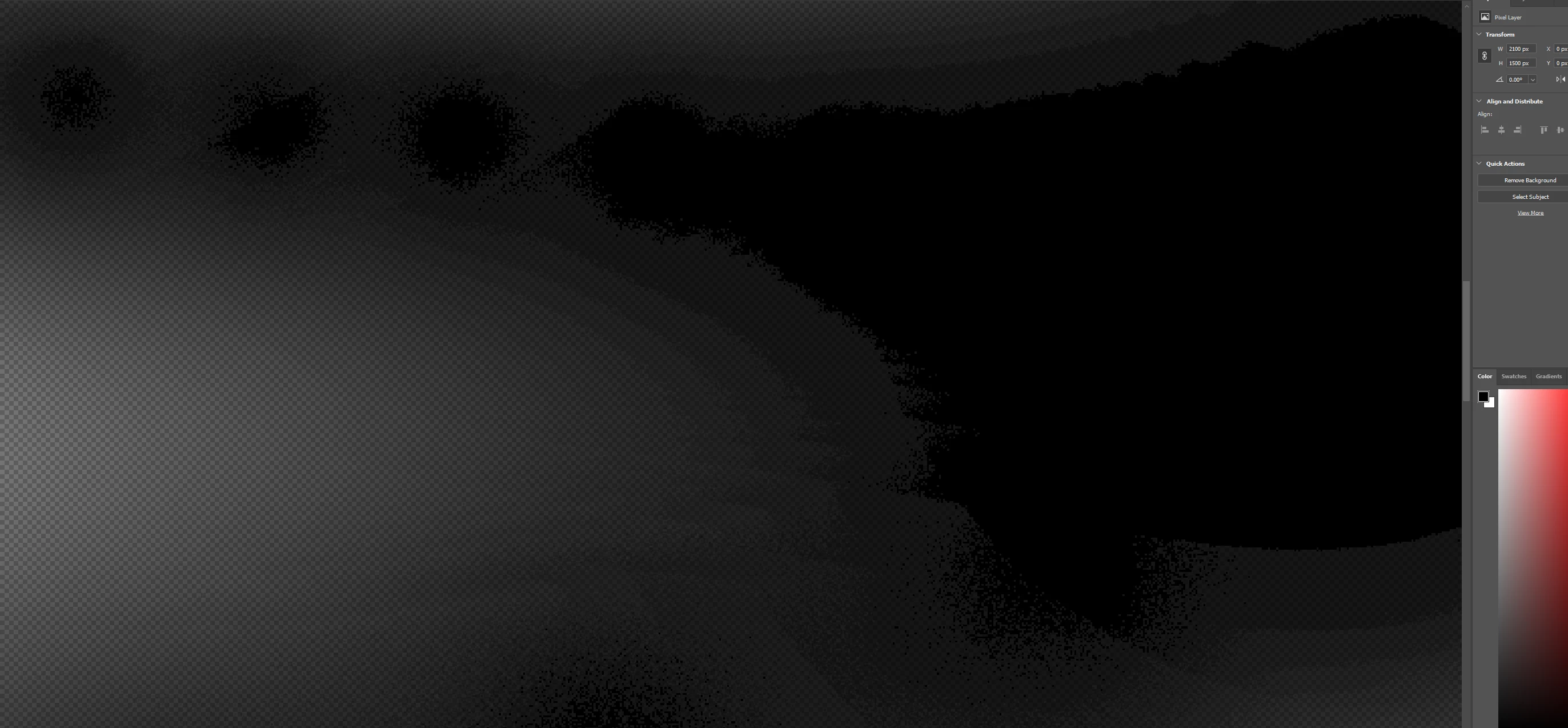
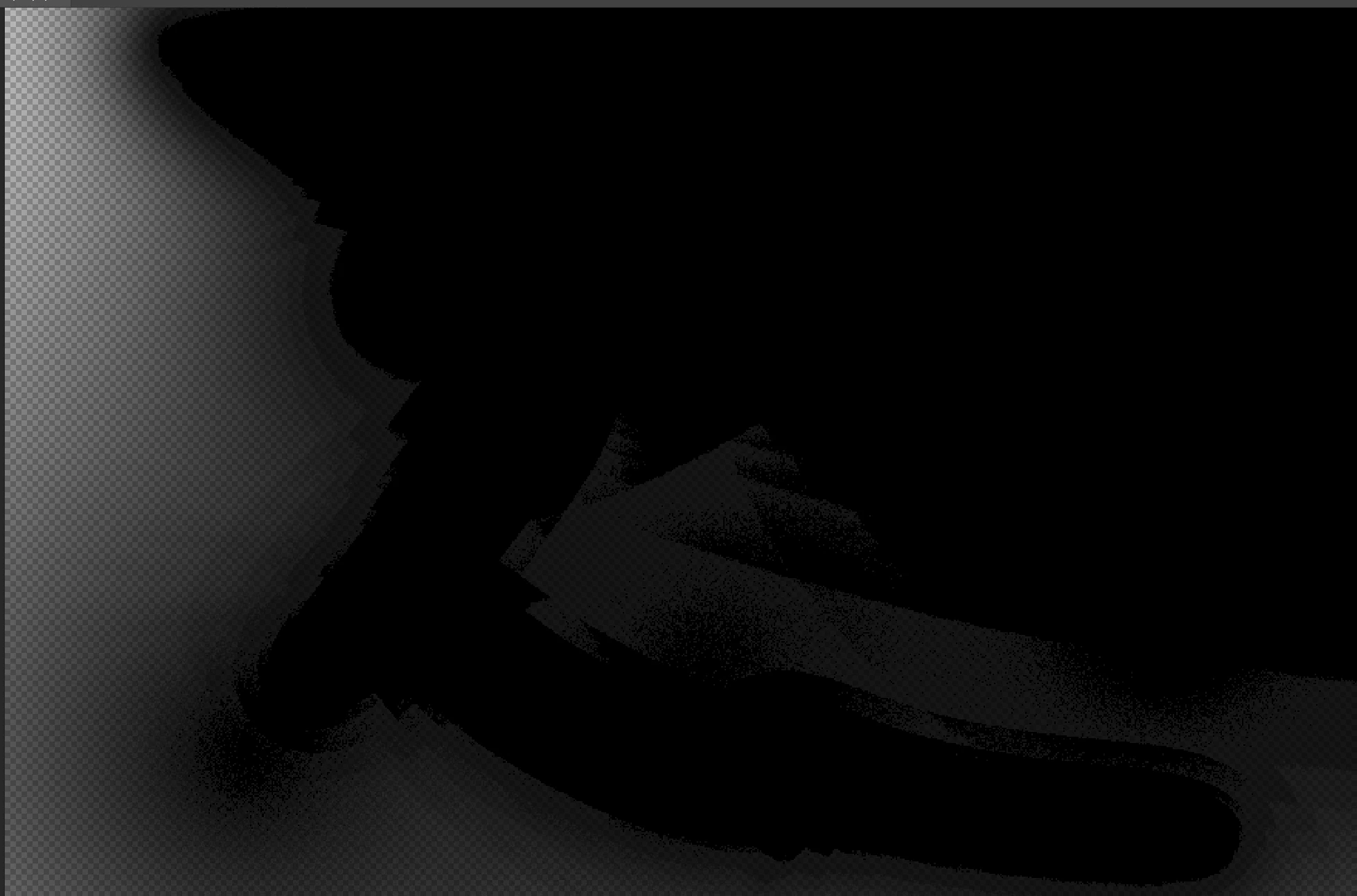
When I draw in Photoshop, the paint doesn’t blend smoothly, it leaves a sharp edge in the middle of the brush stroke instead of a soft transition. Everything just ends up looking rough and patchy. (see images)

-

I’m working in 8-bit sRGB and have tried both a mouse (MX Master 3s) and a tablet (XP-Pen Deco 01 v2), but the results are the same.

I’ve reinstalled Photoshop, updated to the 2024 and 2025 versions, and even downgraded to 2017, 2018, 2019, 2020, 2021, and 2022, same issue everywhere. It’s still happening even with 16/32-bit files.

blending mode is set to Normal, the brush is default soft brush.
I'VE ALSO RE-INSTALLED WINDOWS BUT THE ISSUE IS STILL THERE.
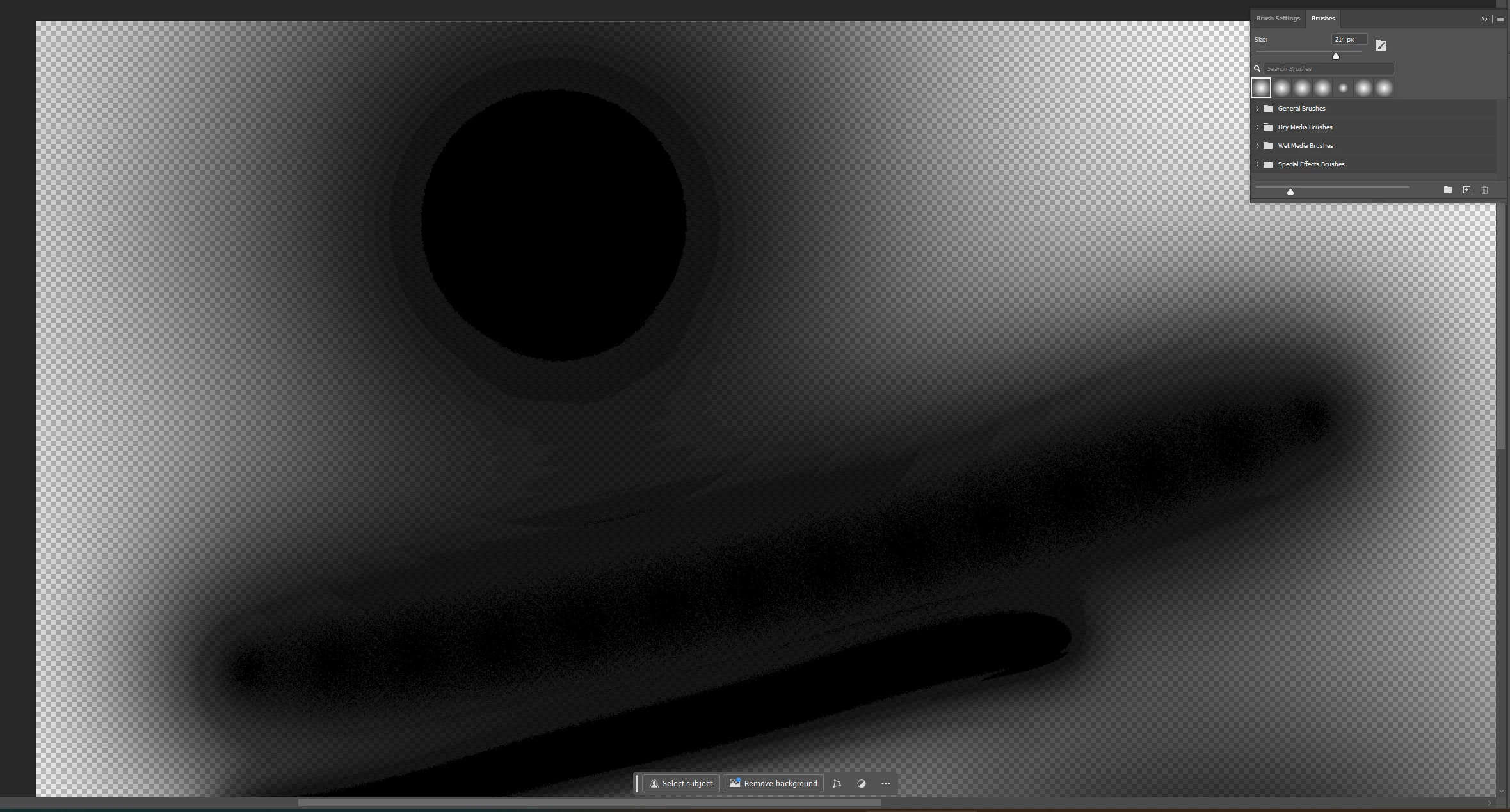
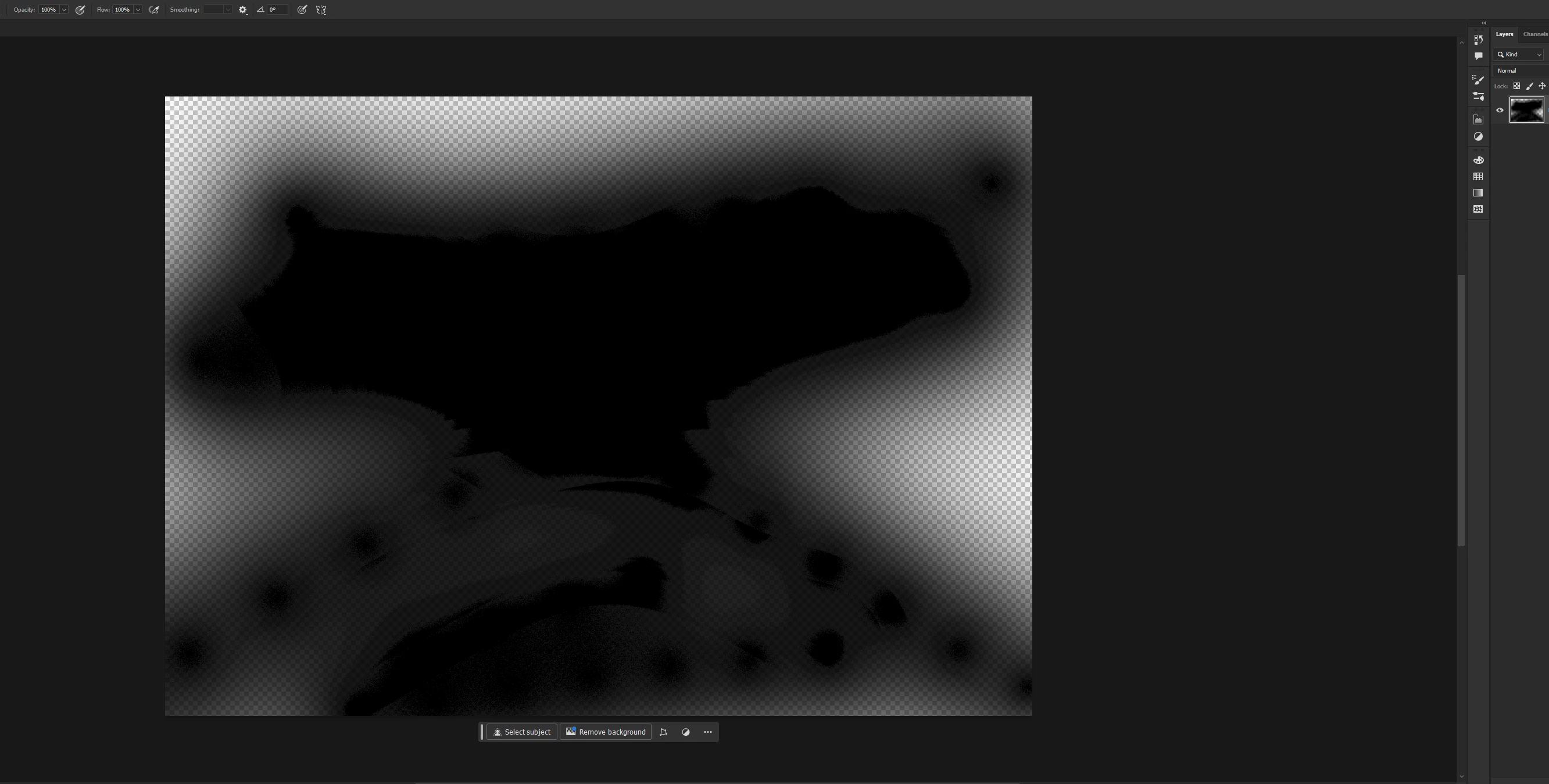
Screenshot 2025-10-17 012108.pngScreenshot 2025-10-17 141055.pngScreenshot 2025-10-18 005413.pngScreenshot 2025-10-22 225158.png

TOPICS
Windows
200
Translate
Report
Community guidelines
Be kind and respectful, give credit to the original source of content, and search for duplicates before posting. Learn more
community guidelines
Adobe
New Here ,
Oct 22, 2025 Oct 22, 2025

The issue shows up on both of my devices, a PC (Ryzen 9 5950X, 64GB RAM, RTX 3070) and a laptop (ASUS Vivobook Flip 14).
I’ve also sent the file to multiple people, and the same issue appears every time they open it, so it has nothing to do with my PC or its settings. It’s definitely a Photoshop issue.


Test file here: https://drive.google.com/drive/folders/137S0ajLZHePkXODDuBMkaIW4c08K14oB?usp=sharing

Translate
Report
Community guidelines
Be kind and respectful, give credit to the original source of content, and search for duplicates before posting. Learn more
community guidelines
Valorous Hero ,
Oct 22, 2025 Oct 22, 2025

Please post a screenshot of the entire program when this happens, like whatyou see below.

2025-10-22_140831.png

Translate
Report
Community guidelines
Be kind and respectful, give credit to the original source of content, and search for duplicates before posting. Learn more
community guidelines
New Here ,
Oct 24, 2025 Oct 24, 2025

MaazSaleem_0-1761302261498.png


Translate
Report
Community guidelines
Be kind and respectful, give credit to the original source of content, and search for duplicates before posting. Learn more
community guidelines
Community Expert ,
Oct 22, 2025 Oct 22, 2025

First of all, when using soft brushes, you need to work in 16 bit depth. 8 bit depth only has 256 discrete steps from black to white, and that will give visual banding. No way to avoid that except masking it with noise.


How does it look if you put a layer underneath? There is something called transparency blend gamma, but that only applies if there actually is something to blend with. In other words, a background or underlying layer. Transparency blend is normally gamma 1.0 (linear), but if there is no background the document gamma is applied (2.2 or 1.8).


transparent_brush_02.png

If you still see banding in 16 bit depth, and an underlying layer, it's in your display system, which only works at 8 bit depth. Also note that banding is cumulative, so multiple 8 bit steps will stack banding on top of each other.

Translate
Report
Community guidelines
Be kind and respectful, give credit to the original source of content, and search for duplicates before posting. Learn more
community guidelines
Community Expert ,
Oct 24, 2025 Oct 24, 2025

Thanks for the explanation on transparency gamma @D Fosse . I have always seen it is a long standing display artifact, that has been around as long as I can remember, when using a transparent background that is easily worked around by inserting a temporary solid background. Your further explanation makes sense.
Dave

Translate
Report
Community guidelines
Be kind and respectful, give credit to the original source of content, and search for duplicates before posting. Learn more
community guidelines
Community Expert ,
Oct 24, 2025 Oct 24, 2025
LATEST

Yes, you can actually see how the document gamma affects the brush on transparent background. Just make two of the above, one in Adobe RGB and the other in ProPhoto. On solid background the two brushstrokes are identical, but on transparent clearly different.

Translate
Report
Community guidelines
Be kind and respectful, give credit to the original source of content, and search for duplicates before posting. Learn more
community guidelines