Known Participant
April 2, 2014
Answered

Brush strokes become jagged after a few seconds

  • April 2, 2014
  • 13 replies
  • 31094 views

I've tried just about everything to narrow down and eliminate this problem, with no luck.

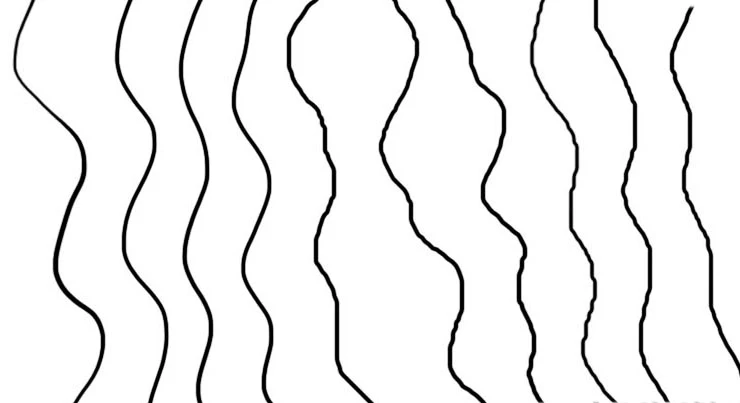
When I first start PS and paint a line with a simple hard round brush, it's nice and smooth. After about 15 seconds (or 4-5 lines), the lines become jagged.They're not pixely - it's more like what happens if you have smoothing turned off. The effect is more pronounced when I paint zoomed out, as if the input data is constrained to the zoomed out pixel size.

This is not a tablet problem - it happens with the mouse as well.

It does not happen with the lasso selection tool, so it seems limited to the brush tool.

Here's an image showing a series of brushstrokes, going from left to right.  You can see how the stroke quality degrades from the first stroke (on the left) which is nice and smooth, to the strokes on the right which are jagged.  You need to view the image at 100% to see what's happening clearly.

The fact that this problem doesn't appear when I first start the program, then creeps in, is really perplexing!  Once it starts it never goes away.

    Correct answer JJMack

    Trevor, not true!  You need to think about how mouse and stylus input data works to understand that, I'm pretty sure, this is a brush smoothing issue. It's not brush wobble.  It's not jitter.  In fact I think the program is working properly, but the notion of smoothing is kind of unintuitive so we don't always understand how important it is.

    With physical pencil, as you try to draw a smooth line slowly, if the pencil tip moves very slightly, the mark will also do that in exactly the same amount.But with a stylus, a small movement may not register if you have not moved to the next screen pixel, or may register disproportionately if you were already close to the edge of that pixel where a very slight movement (less than a pixel) puts you over the edge.  So you move the equivalent of 1/4 of a pixel, but the stylus jumps a whole pixel, or you move almost a whole pixel (3/4) but the stylus doesn't move at all.  Anyone can see this quite easily for him/herself.   The stylus movement on screen is constrained to the (relatively coarse) grid of screen pixels.  This is why the effect is magnified when painting zoomed out. At 25% the above example would be you move 1/4 of a screen pixel, and the cursor jumps a whole (screen) pixel, which is actually 4 bitmap pixels.

    So for example If you try to paint a vertical line, you will often see something that it looks like this:

    |

      |

    |

    |

    because you didn't move perfectly vertically, staying within one column of (screen) pixels.

    How is PS to know whether you want this, or whether you are really trying to draw a smoothish vertical line?  I say smoothISH because I, for example, do not want a perfect vertical line, but I do want a smooth line, like what would happen with a real pencil or brush.  That's what smoothing takes care of, but in programs like Painter (where it's called "damping") you can set its level, whereas in PS it's just a check box. 

    Damping and smoothing essentially round off the stylus input, so things like the stray bit of line in the above example don't appear.  The same thing happens when you use the shift key to make straight lines - PS only receives the first and last positions of the cursor, then connects them with a smooth line. This is the same as how painting very quickly creates a smoother line - there is simply less granularity, timewise, in the input.  I think that might, ironically, be why this "problem" does not appear right away. When you first start a program stuff is still loading and going on in the background and the stylus input may not have full granularity yet.

    BTW, If I wanted to draw a perfect vertical line I would use the shift key, but that's not how I usually want my work to look. Sometimes I do and it's fine, but typically I want a more "freehand" but smooth quality.

    Thank you all so much for giving ideas on this.  Honestly my best workaround is to rely heavily on "rotate view" so I can make marks more quickly and accurately.


    Then I think you may want to look for something like http://lazynezumi.com/home

    http://rahll.deviantart.com/journal/Lazy-Nezumi-stroke-smoothing-for-Photoshop-408711470

    13 replies

    Participant
    July 3, 2014

    I have exactly the same symptoms on Intuos4 CS6 windows 7, typing this while I wait for 6.2 download

    I too have bought LN in vain, and that's when I discovered that it had the delay effect on window switching because everytime I touch  setting in LN the brushstroke was beautiful until a couple of strokes later

    if this works for me I suspect the older wacom drivers have something which compensates for windows 7's mouse interpolation problems, because this particular  kind of jiggle turns up in MS paint with a mouse as well (even if you use a ruler) minus the first few good strokes.

    Participating Frequently
    April 2, 2014

    Does it always happen when drawing things on the right side? It could be interference from a monitor, speakers, or some other device. On an old Wacom I had, the cursor would jitter when I drew up near the top of the tablet, because it was placed too close to the monitor and interfering with the signal. Try moving your tablet and (wireless?) mouse away from any other electronic device and see if it helps.

    Known Participant
    April 3, 2014

    It actually happens when drawing with a mouse, so I don't think it could be caused by interference with the tablet.  FYI the tablet is a Cintiq, so it's not monitor interference either.

    JJMack
    Community Expert
    Community Expert
    April 3, 2014

    perhaps its your mouse then...what kind do you have. How are you mouse settings set etc.

    JJMack
    JJMack
    Community Expert
    Community Expert
    April 2, 2014

    So can you clue us in. Are you using a PC or a Mac.  Windows 95 or 8 os 7 or osx ps 1 or ps cc little ram much ram propcessor type ! 

    JJMack
    Known Participant
    April 2, 2014

    Sorry, I'm using a PC with Win 7 SP1, CS6.

    8GB Ram; processor is AMD A6-3650 APU

    Radeon 5500 card

    Interestingly, if I draw a single line,very slowly for about two minutes, then a few more like that, the problem does not kick in until the fourth or fifth line. So it's entirly dependent on the number of marks made, not elapsed time.

    Known Participant
    April 2, 2014

    I have no idea other then resetting your Photoshop Tools and your Photoshop  preferences and try turning off GPU support. Does this happen on all document sizes or just documents with a large number of pixels? Here what I see on a screen size document 1920x1080 12Px brush spacing 1% 


    Thanks for thinking about it anyway.  Looking back I can see there is evidence for this problem for many years, different users, different versions of PS. I think a lot of people may not notice it, if they're not trying to do a really clean line or ink drawing. It happens even with very small files, one layer.

    I have of course tried all different settings related to GPU, restarting each time.

    I am pretty certain it is actually a brush smoothing issue - with smoothing turned off the result is indistinguishable from this problem.

    If you draw a near vertical line, a very low angle off of the vertical, slowly, at 25% zoom, you will see the cursor or crosshair jump as it crosses the threshold for the next column of pixels, because the cursor must be constrained to the screen pixels. But the line does not need to be so constrained. So when smoothing is working correctly, the cursor may appear to jitter left and right as you try to draw a perfectly vertical line, but the line will be smooth with a slight curve - when it's working correctly. When it's not working, the near vertical line will jump from left to right just like the cursor.

    The best workaround I have so far is to use the rotate view command so I'm not drawing near vertical or near horizontal lines. The problem is least bad when drawing a diagonal.

    Also if I move the cursor very quickly the problem practically goes away, and again, by rotating the canvas I can make the stroke direction more comfortable so I can paint more accurately at higher speed.

    The thing about the speed seems paradoxical, but in fact it's not - at higher speeds the cursor location is not updated as frequently (in terms of positions along the stroke), so it HAS to smooth.