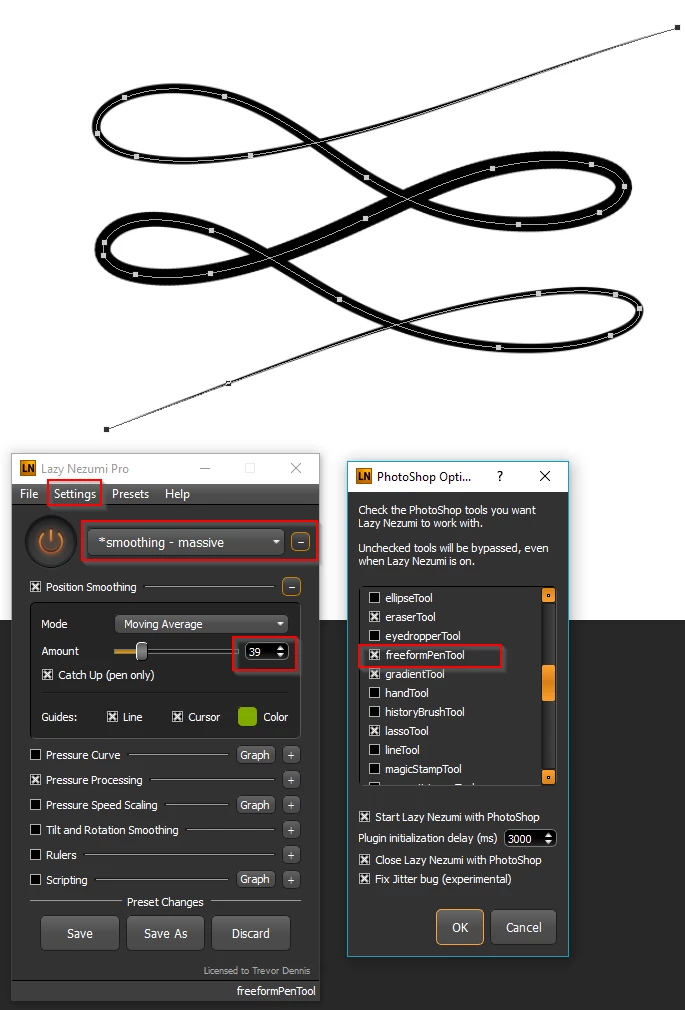
A variation on stroking a path would be to use the Freeform Pen tool, and to make it nicer, do so together with Lazy Nezumi Pro. The Freeform Pen tool is not enabled with LNP by default, but you can do so via Settings > Edit Photoshop Options. I use the Freeform Pen tool a lot, and got the idea of using it more from Bert Monroy, but it does not produce particularly nice lines as standard. Of course you can remove a lot of the points and fine tune, but LNP reduces the need for that to virtually nill.
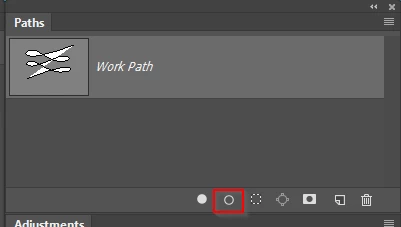
Remember to drag each path to the New Path icon after making it it save it. After setting Stroke path to the Brush tool, and deciding whether to use Simulate Pressure or not, you can there after run your strokes byt clicking on the relevant icon at the bottom of the path panel
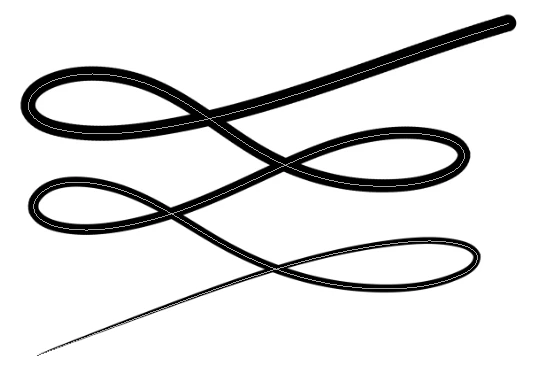
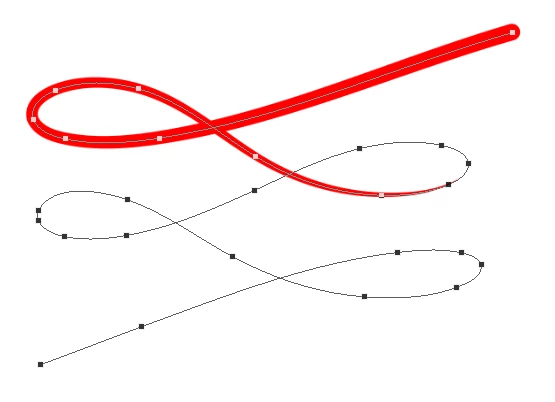
You also have the option of Stroking with the brush size jitter set to Fade. This used a value of 1200, with spacing set to the default 25% (fade works with each stamp down of the brush, so brush spacing set to 10% would only stretch to 2/5ths of the path as in the red line example.

 AdChoices