Participant
April 10, 2025
Answered

Brush won't center in photoshop

  • April 10, 2025
  • 4 replies
  • 823 views

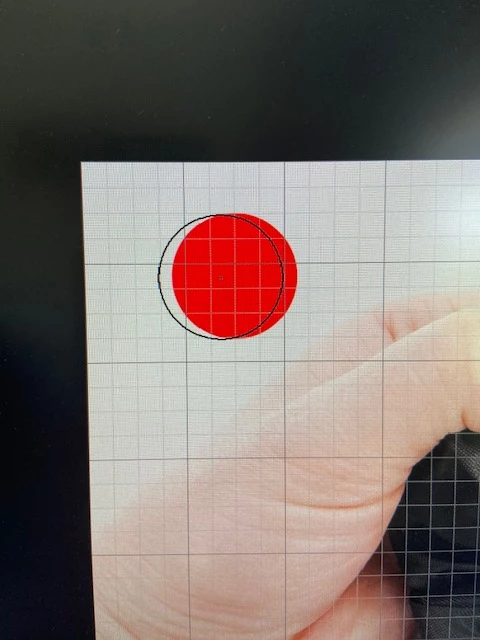
Randomly my brushes stop being centered in Photoshop.  Usually happens after some sort of update.  I've tried resetting the brush settings.  Closing Photoshop and restarting and it will not correct.  It doesn't always off center in the same place either. Sometimes it's to the left, right, top or bottom.  Here is an example image and an image of the brush settings. Please help! Thank you!

    Correct answer Jeff Arola

    You can go to View and uncheck Snap or View>Snap To and uncheck Grid

    4 replies

    Jeff Arola
    Community Expert
    Jeff ArolaCommunity ExpertCorrect answer
    Community Expert
    April 14, 2025

    You can go to View and uncheck Snap or View>Snap To and uncheck Grid

    Jeff Arola
    Community Expert
    Community Expert
    April 11, 2025

    I wonder if having the Grid enabled is making the brushes try to snap to the nearest gridline thus "uncentering" the brush in relation to the cursor.


    Does turning off the Grid make any difference?

    (View>Show>Grid)

    KariDewkAuthor
    Participant
    April 14, 2025

    Yes @Jeff Arola turning off the grid did stop the offcentering issue.  Thank you for pointing that out. So is there away to keep the grid on and keep it from trying to snap to the nearest gridline?  Thanks!

    Community Manager
    April 10, 2025

    Hi @KariDewk! Welcome to the community! 😊

    Could you let us know what version of Photoshop and operating system you're using? Also, please check your Display Settings to see if the value is smaller or larger than 100%. If you're using two monitors, this issue could be caused by your screens being offset.

    Thank you!

    Cheers, Alek

    *(If you mention me with an @, like @Aleke, I’ll get a notification and can respond faster.)*
    KariDewkAuthor
    Participant
    April 10, 2025

    Hi @Aleke ,

    It is version 26.5. And I do have two screens that are both set to 150%.  I tried setting both to 100% and it actually made the offset more pronounced.  I am using Windows 11.

    Community Manager
    April 11, 2025

    Hi @KariDewk!

    Sorry to hear the problem got worse. 😔 Could you try tweaking the value and see what makes the offset less pronounced? By any chance, are your two screens different sizes? If so, try setting only the smaller one to 100%.

    It might also help to modify your scaling behavior settings. Can you follow this handy guide to uncheck the "Override High DPI Scaling Behavior" setting?

    Thanks a lot!

    Alek

    *(If you mention me with an @, like @Aleke, I’ll get a notification and can respond faster.)*
    kglad
    Community Expert
    Community Expert
    April 10, 2025

    in the future, to find the best place to post your message, use the list here, https://community.adobe.com/

    p.s. i don't think the adobe website, and forums in particular, are easy to navigate, so don't spend a lot of time searching that forum list. do your best and we'll move the post (like this one has already been moved) if it helps you get responses.


    <"moved from using the community">