
Brushes load automatically; intermediate folder added to new groups
Hello Forum Readers!
I’ve been getting acquainted with the updated Brushes panel in Ps CC 2018 v. 19.0.1 on my desktop PC running Windows 7. I have two questions.
QUESTION 1: How to turn off automatic loading of default Brushes in the Brushes panel
When I open the Brushes panel, the default brushes automatically appear in the brushes list. I’d rather choose which group I want to load from the flyout menu and not have to either delete the four groups or have them sitting at the top of my list.
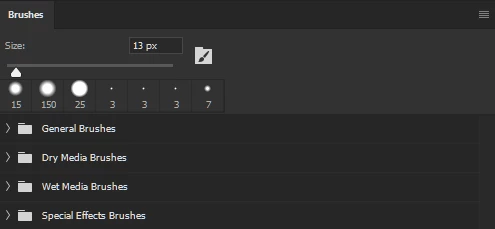
Is there a way to stop the default brush group from automatically loading?
QUESTION 2: How to stop Ps from creating intermediary folders for new brush groups
Ps is doing something odd after I create a new supergroup/parent folder. I create a new group (e.g. ANIMALS) and move
some pre-existing brush sets into it (e.g. Mammals, Birds, and Reptiles), then
save the group in the Preset Manager menu with the Save Set… command.
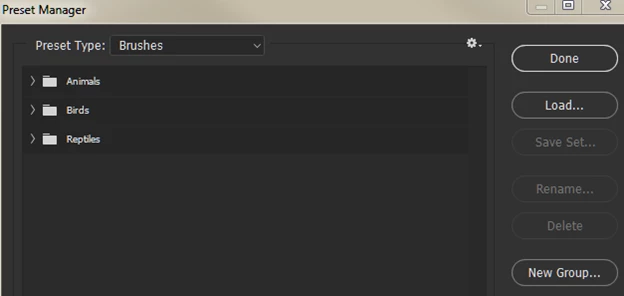
Three existing brush sets.
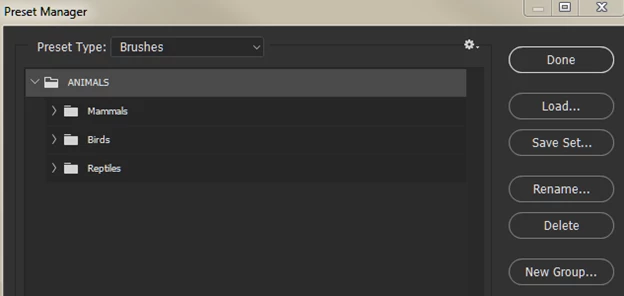
Three brush sets moved into a new group and the ANIMALS group saved.
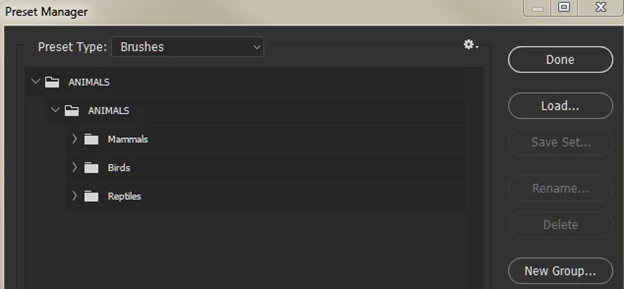
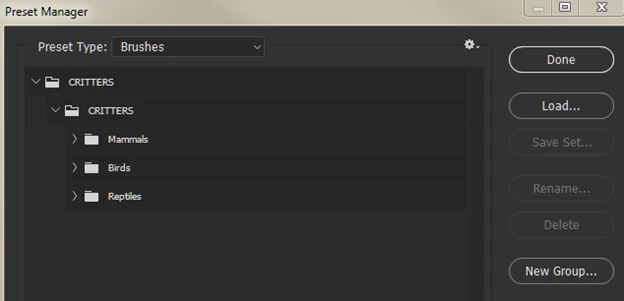
When I Delete (close) and reload the ANIMALS group, I find it has created a subgroup with the same name, which I then have to open to get to my brush
sets. Is this a glitch? How do I get it to stop creating the unnecessary, intermediary group?
I have tried fixing this problem several ways:
- By dragging the ANIMALS group to the top of the list , resaving –
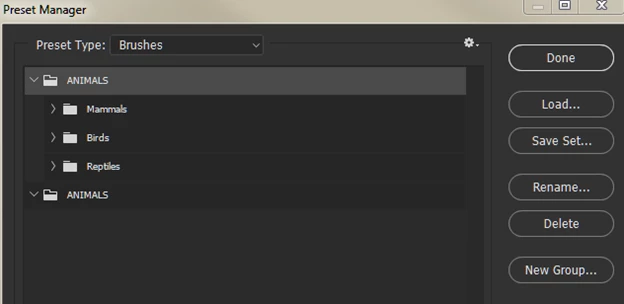
then deleting the empty ANIMALS group. But when I reload it, it comes back the way it was--
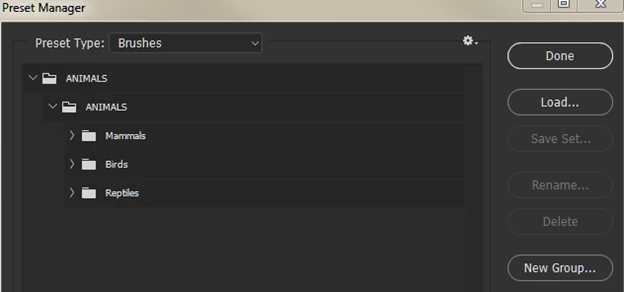
2. By dragging the ANIMALS group to the top of the list, renaming it CRITTERS, and saving it--
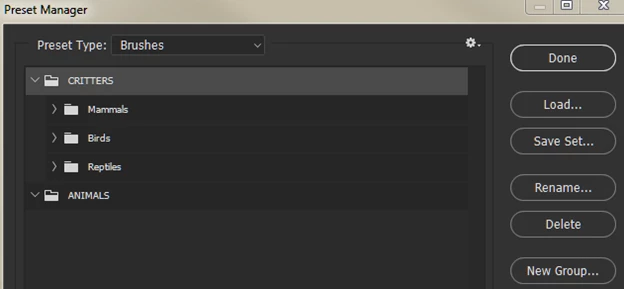
then going into the Adobe folder where the Brush Presets are stored--
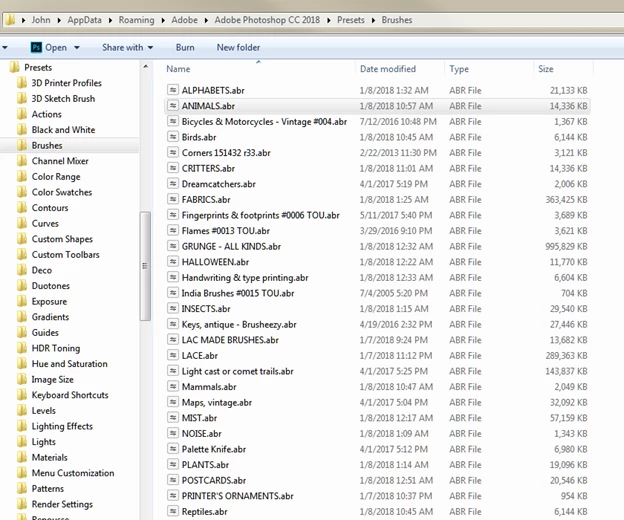
and manually deleting the ANIMALS ABR file. Then closing the groups in the Preset Manager menu and reloading CRITTERS. But, once again, Ps has created an intermediary group--
Ps has always required manual saving of brushes
Ps has required the user to manually save custom brushes and shapes for as long as I've been using it (2.5 years). I.e., if you make a change to a set or create a brush, and don’t save it in the Preset Manager, it doesn’t get saved to the Presets > Brushes folder and you lose your changes once you close Ps.
Adobe Help features shed no light on this problem
The online Adobe introduction to What’s New in Ps 2018, as well as the online User Guide, do not say anything about saving sets and groups:
https://helpx.adobe.com/photoshop/using/whats-new.html
https://helpx.adobe.com/photoshop/user-guide.html
I’ve watched a couple of instructional videos on the new brush management feature in Ps 2018, both produced by Adobe and by individuals, and
they don’t mention having to save sets/groups that you’ve created or edited.
Adobe Photoshop Channel on Youtube: New Brush Preset Management in Photoshop CC by Julie Ann Kost
https://www.youtube.com/watch?v=fcX1PwL13UU
Ps Training Channel
https://www.youtube.com/watch?v=GMkmRHi8SP8
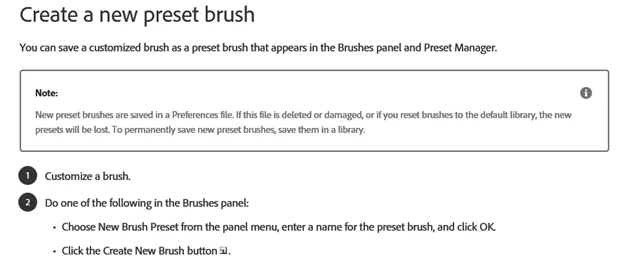
The ONLY places where I find Ps says anything about saving brushes are:
- In the online User Guide under Create and Modify Brushes [https://helpx.adobe.com/photoshop/using/creating-modifying-brushes.html#brush_panel_overview]
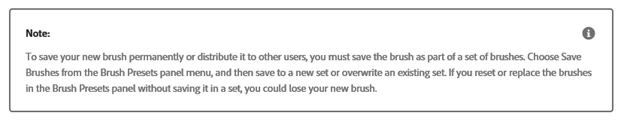
2. in the online User Guide under Brush presets [https://helpx.adobe.com/photoshop/using/brush-presets.html#get_more_brushes]
My thanks to anyone who can help answer my two questions! 
Ann
 AdChoices