Participating Frequently
July 26, 2019
Answered

Build lighting effects in Photoshop

  • July 26, 2019
  • 3 replies
  • 726 views

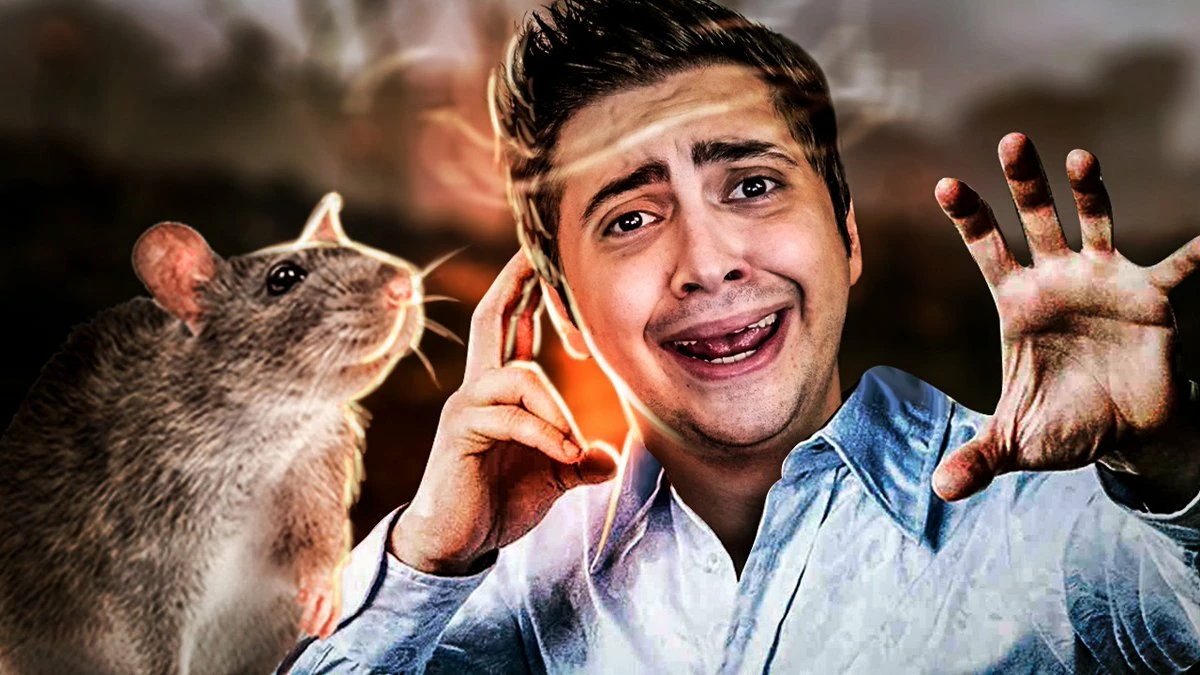
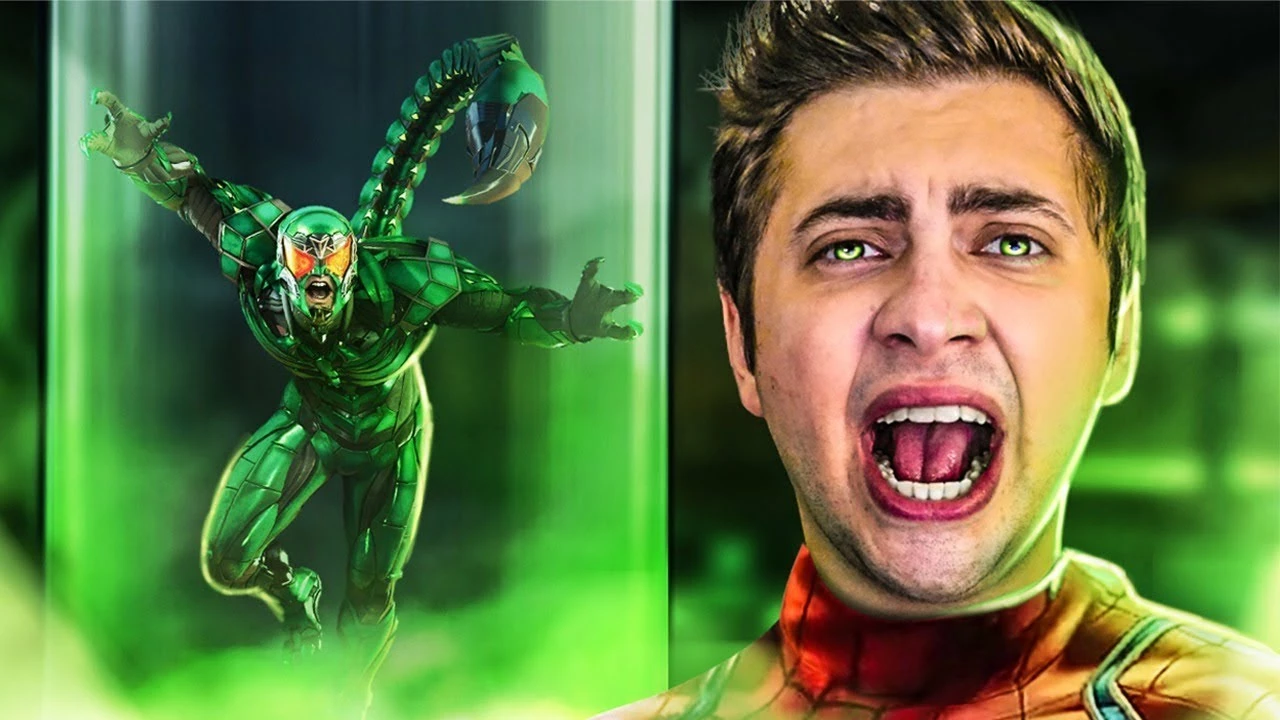
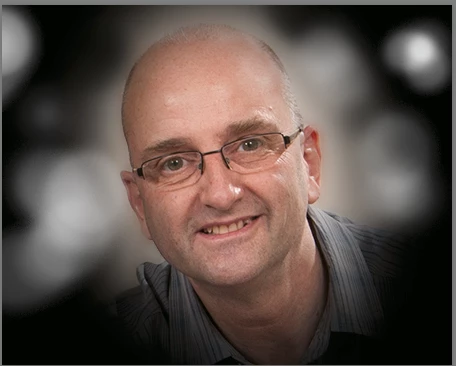
Guys, I am trying my best to find a video on how to build this green light effect this man used in his thumbnail, but I have no clues so far on how to start.

Do you have a tutorial or easy steps I could follow to get there?

Thanks in advance
Message was edited by: Sahil Chawla
This topic has been closed for replies.
Correct answer davescm

Hi

I hadn't realised you meant the edges. You could either brush them in or try something like this.

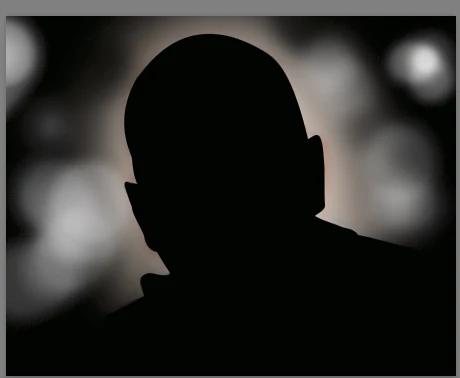
Start with your image

Use the pen tool to make a shape of the subject with no stroke and any colour fill (I used black)

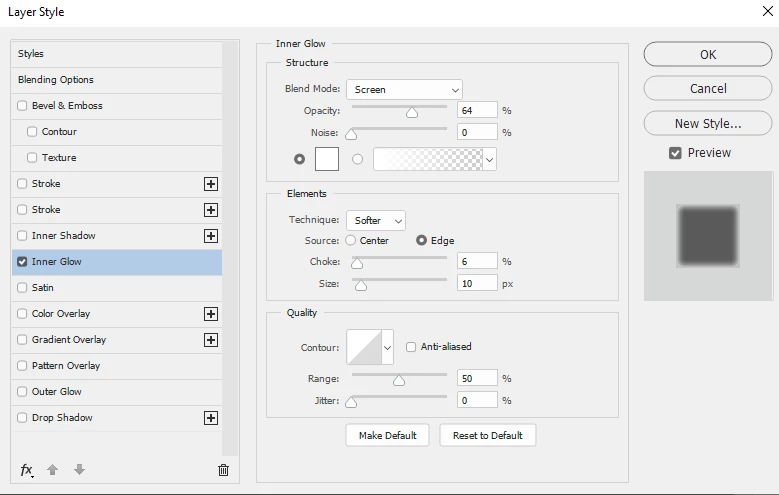
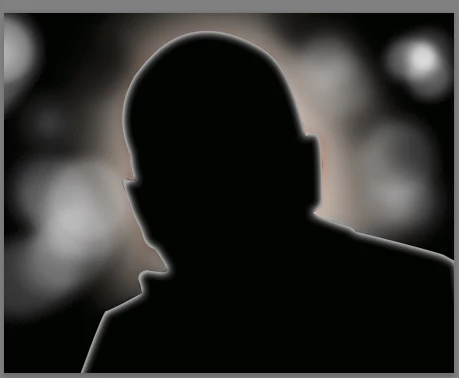
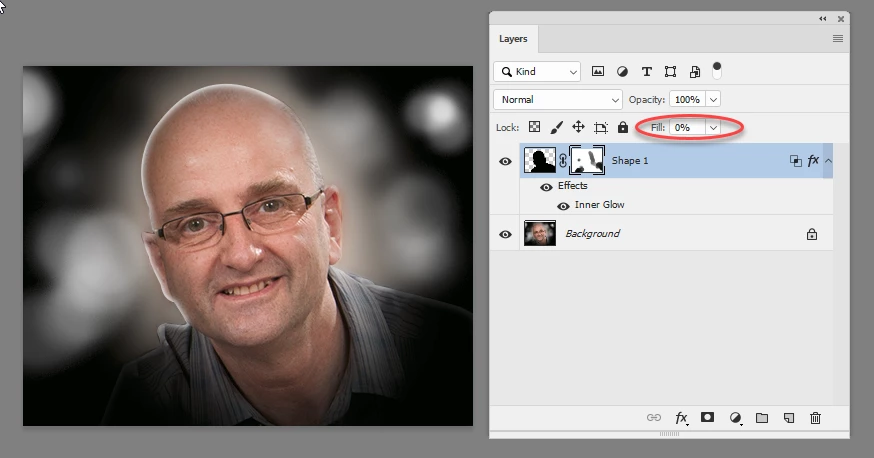
Use layer effects to add an inner glow to the shape

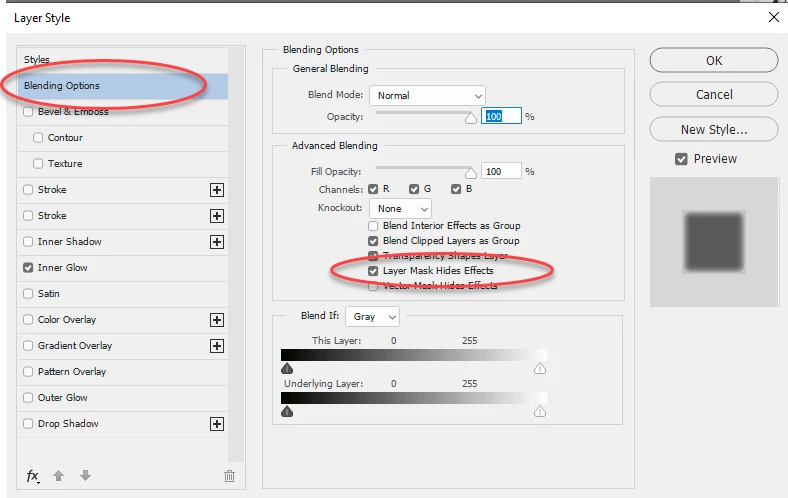
In blending options tick "layer mask hides effects"

Add a mask (if you don't aleady have one). Turn the fill of the shape layer to 0% and paint in black on the mask where you don't want the glow

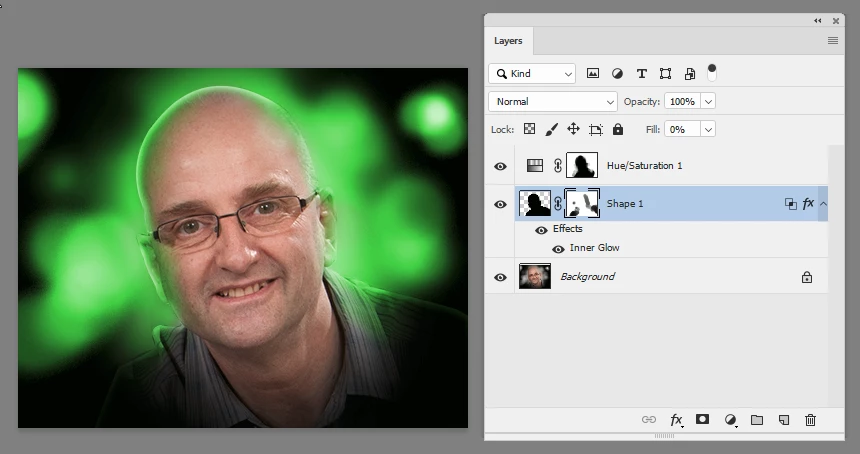
Add the Hue/Sat layer set to colorize and paint on the mask as shown previously

Dave

3 replies

Participating Frequently
July 27, 2019

Thanks, Dave. This is a good solution, but only worked cause he already have the effect of light in his edges. My point is to get there first. =(

davescm
Community Expert
davescmCommunity ExpertCorrect answer
Community Expert
July 27, 2019

Hi

I hadn't realised you meant the edges. You could either brush them in or try something like this.

Start with your image

Use the pen tool to make a shape of the subject with no stroke and any colour fill (I used black)

Use layer effects to add an inner glow to the shape

In blending options tick "layer mask hides effects"

Add a mask (if you don't aleady have one). Turn the fill of the shape layer to 0% and paint in black on the mask where you don't want the glow

Add the Hue/Sat layer set to colorize and paint on the mask as shown previously

Dave

Participating Frequently
July 27, 2019

Dave, thank you so much! I can get much closer to that effect now. Really appreciate the effort to explain in such details.

You are awesome, my friend!

davescm
Community Expert
Community Expert
July 27, 2019

Add a Hue and saturation layer set to colorise. Then click on the mask and paint with black where you want the original colour to show.

Dave

Sahil.Chawla
Adobe Employee
Adobe Employee
July 26, 2019

Hi Bruno,

As you're looking to do some Lighting effects in Photoshop, please check this video as I believe it would really help: Photoshop Tutorial | How to get special light Photo Effects on Portraits - YouTube

You may also have a look at this article for more information: Add lighting effects in Photoshop

Regards,
Sahil

Participating Frequently
July 27, 2019

Thanks, Sahil, but I'm afraid this is not I was looking for.

Put a light is pretty clear, but this effect of hard light on the edges is what is tricking me.

lambiloon
Community Expert
Community Expert
July 27, 2019

Hi best and simple way is to make a green color on new layer and overlay it using blend mode the use eraser brush tool t mix it up.

Thank you

Ali Sajjad / Graphic Design Trainer / Freelancer / Adobe Certified Professional