Participant
April 13, 2020
Answered

Camera Raw White Balance Tool isn't applied when "Opening Image"

  • April 13, 2020
  • 2 replies
  • 1084 views

Like the title says, if I make a correction on a raw image (.arw) using the white balance tool it isn't reflected when opening the image. Other changes from camera raw are applied, such as croping, shadow/highlights, noise reduction, ect...


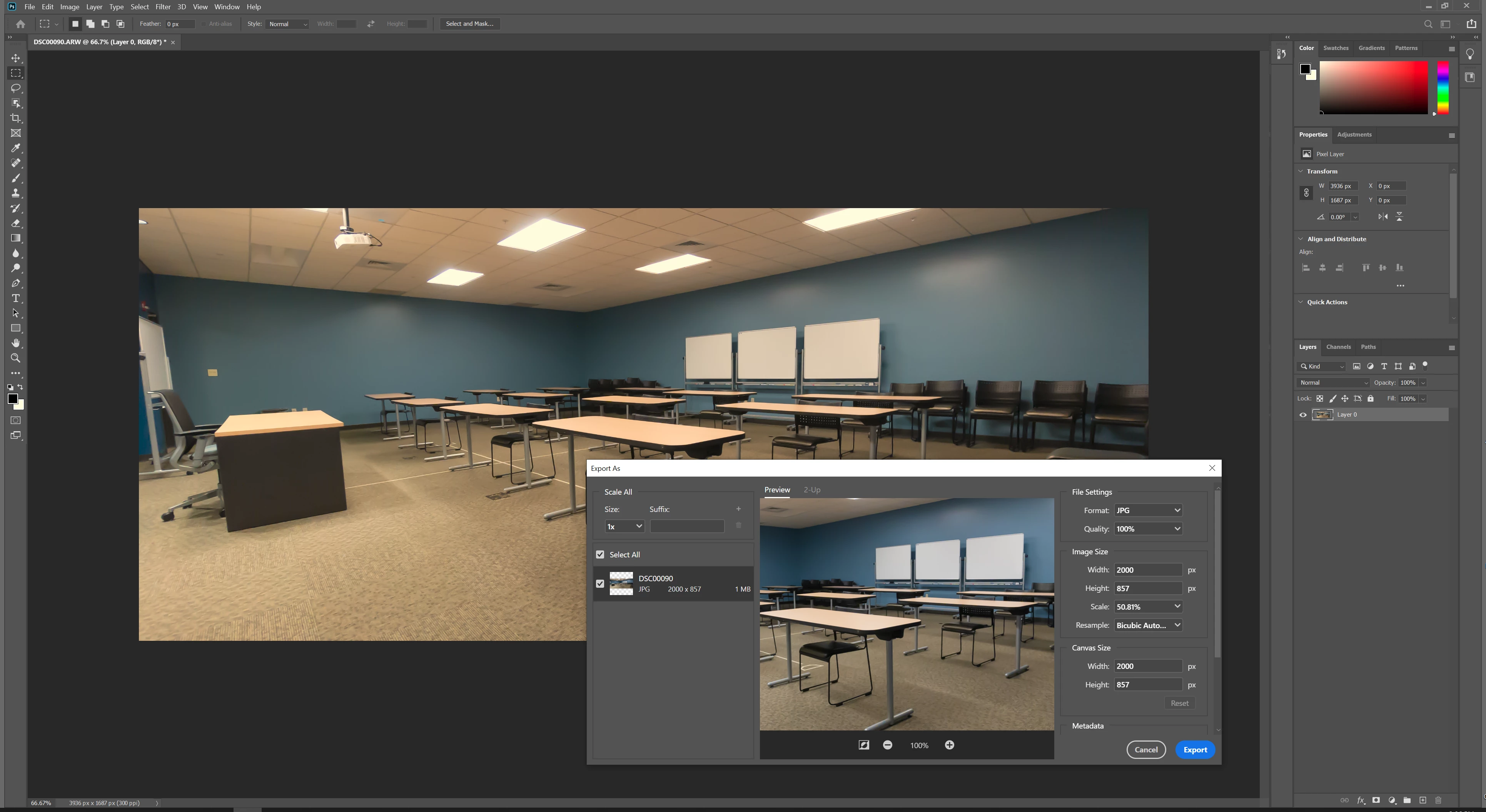
The weirdest part is that if I go to export the image I see the white balance changes I made in the camera raw effect (attached example). This is happening on every image I'm trying to edit.


Using:

Windows 10

Photoshop 2020

Video Card: 2x RTX 2080

CPU: Threadripper 2090WX


This isn't the only bug I've been having with Adobe products lately, I'm also having some serious problems in Premiere Pro. It's insanely frustrating.
This topic has been closed for replies.
Correct answer Per Berntsen


The yellow cast is not caused by the white balance not being applied, but by a defective monitor profile.

Setting the monitor profile to sRGB (use Adobe RGB if you have a wide gamut monitor) should fix the issue.

This may or may not be accurate enough, depending on the characteristics of your monitor, and your requirements.

For best accuracy, you should calibrate the monitor with a hardware calibrator, which will also create and install a custom monitor profile that describes your monitor accurately.


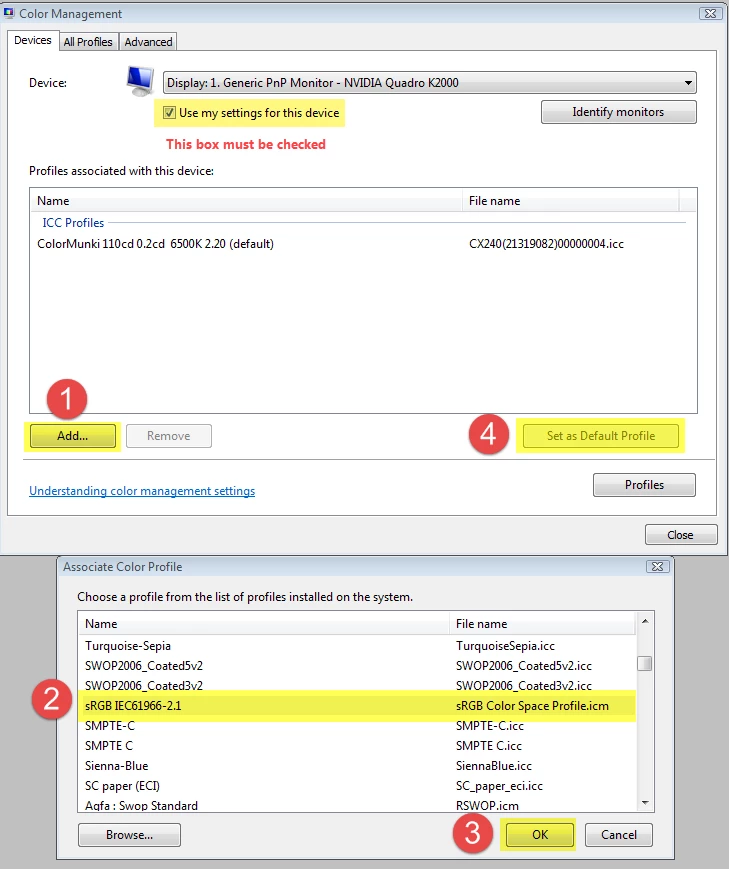
To set the monitor profile to sRGB:

Close Photoshop, then press the Windows key + R, type colorcpl in the box and press Enter.

Add the sRGB profile, and set it as default.


2 replies

Per Berntsen
Community Expert
Community Expert
April 14, 2020

The monitor profile plays an important part in the color management chain, and is (ideally) an accurate description of how your monitor displays colors.

When you open an image in a color managed application (like Photoshop), the colors of the image are converted from the document profile to the monitor profile, which ensures that the colors you see on screen are correct.

This happens behind the scenes, without any action on your part.


A sound monitor profile can become corrupted, but the most common cause of monitor profile problems on Windows 10 is that it will install low quality profiles from monitor manufacturers when doing updates. These profiles are surprisingly often defective out of the box. When a defective profile causes a color cast, you can often see this cast in the interface as well.

If you open your screenshot in Photoshop, you will see that the RGB values for the white patch in the foreground/background colors in the toolbox and the color panel are not white (255-255-255), but 255-252-222. But the Export window's title bar is pure white.


A defective monitor profile can affect some color managed applications, and not others. Note that ACR and PS are two different applications.  I can't explain why the Export dialog displays the image correctly, but it might be GPU related. (others who know more about GPU and color conversions than I do might comment on this) 

Note that no native Windows applications (like Photos, Paint, Edge, File Explorer) are color managed. They do not use the monitor profile, and send uncorrected colors to the screen.


The reason sRGB works is that standard gamut monitors have a color gamut that's roughly equivalent to sRGB.

And wide gamut monitors have a color gamut that's roughly equivalent to Adobe RGB.

Monitors can also have a color gamut anywhere between sRGB and Adobe RGB.


Per Berntsen
Community Expert
Per BerntsenCommunity ExpertCorrect answer
Community Expert
April 13, 2020


The yellow cast is not caused by the white balance not being applied, but by a defective monitor profile.

Setting the monitor profile to sRGB (use Adobe RGB if you have a wide gamut monitor) should fix the issue.

This may or may not be accurate enough, depending on the characteristics of your monitor, and your requirements.

For best accuracy, you should calibrate the monitor with a hardware calibrator, which will also create and install a custom monitor profile that describes your monitor accurately.


To set the monitor profile to sRGB:

Close Photoshop, then press the Windows key + R, type colorcpl in the box and press Enter.

Add the sRGB profile, and set it as default.


Participant
April 14, 2020

That fixed it! I've never encountered this issue before. Can you provide a little more information about how this color profile was affecting my display, and why it displayed correctly in the camera raw preview but used the color profile inside of photoshop?