Participant
August 3, 2019
Answered

Can i make a JPEG adobe stock image transparent for Ai

  • August 3, 2019
  • 7 replies
  • 6881 views

Complete newbie. Is it possible to make this adobe stock JPEG transparent.? The stock image number is : 122949990
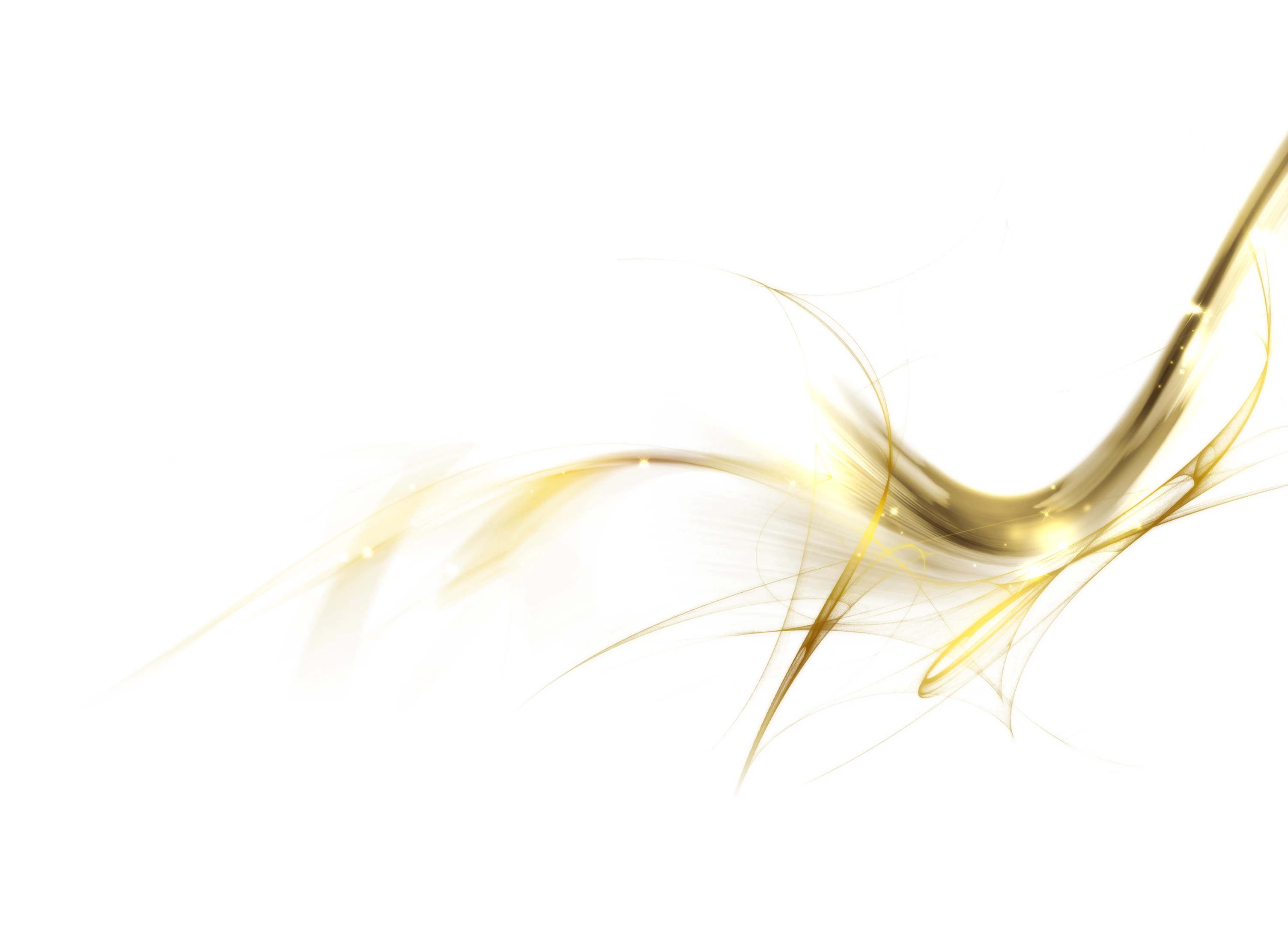
Many thanks

    This topic has been closed for replies.
    Correct answer Nancy OShea
    1. Open image in Photoshop CC.
    2. Double click layer in Layers Panel.
    3. Use Blend If to reduce light background color until you see a checkerboard pattern denoting transparency.   See screenshot. 
    4. When you're satisfied with results, hit OK (top, right).
    5. Go to File > Export > Export As > PNG with Transparency.  See screenshot.

    Keep the original image in case you need it later.

    7 replies

    Nancy OShea
    Community Expert
    Nancy OSheaCommunity ExpertCorrect answer
    Community Expert
    August 9, 2019
    1. Open image in Photoshop CC.
    2. Double click layer in Layers Panel.
    3. Use Blend If to reduce light background color until you see a checkerboard pattern denoting transparency.   See screenshot. 
    4. When you're satisfied with results, hit OK (top, right).
    5. Go to File > Export > Export As > PNG with Transparency.  See screenshot.

    Keep the original image in case you need it later.

    Nancy O'Shea— Product User & Community Expert
    happie_97
    Community Expert
    Community Expert
    August 9, 2019

    For the best results, you will have to start off in Photoshop.

    Delete the the white background. There are multiple tools you can use. Typically the magic wand would be good because of the contrast, however you will have some trouble with the shines and faded strands of hair.

    To support transparency, your file type for import into Illustrator with be a .psd, .png or .gif file.

    You might need more help with the Photoshop process. If that is the case, the Photoshop forums might be better for you.

    Srishti Bali
    Legend
    August 8, 2019

    Hi Scott,

    The best application to edit raster images is Photoshop, hence moving this discussion to Photoshop​ community.

    Regards,

    Srishti

    Inspiring
    August 5, 2019

    JPG does not support transparency, so no.  You will have to save a copy as PSD and delete the background if the file is used for print. If for web, use PNG as previously recommended.

    Myra Ferguson
    Community Expert
    Community Expert
    August 4, 2019

    What is your goal in the end for making the image transparent? Are you wanting to overlay it on something, like text? Depending on what you want to do with the image, you could use a Blend mode. Go to the Transparency panel (or click on the word "Opacity" in the Properties panel) and use the dropdown menu (set to Normal by default) to see what works for what you have in mind.

    BeanFactory
    Participating Frequently
    August 4, 2019

    This might be a sideways solution: do you mainly want to make it transparent so that you can layer just the gold parts (and not the white background) over another image? You could try experimenting with the options under the transparency window to see if you can achieve a similar effect.

    Jacob Bugge
    Community Expert
    Community Expert
    August 3, 2019

    Scott,

    You can delete the white/whitish background in Photoshop (mainly) with the Magic Wand Tool, finding and using the right Tolerance(s) performed in different rounds for different areas including areas separated by the golden bits, and maybe other Tools to clean up, after DoubleClicking the Background Layer and letting it become Layer 0, and save it as a PNG24 (with transparency).

    But you may try to see whether there is a PNG24 with transparency already.