Participant
February 14, 2018
Resuelto

Can someone help explain the layers in this document

  • February 14, 2018
  • 5 respuestas
  • 532 visualizaciones

These layers exist in a document I am working on but I have do not recognize how these were created.   I've stripped out all most of the stuff I understand and just left the layers that I do not get.  The layers are used for lighting effects.  I understand the gradient map layer.  The curves layer I know what it is, but can't seem to reproduce the same settings, and the layer under backlight I cannot figure out what it is.

This file has the layers in question

https://drive.google.com/open?id=1p0iO38C58obB1Y__1gml9VrChzb4o1dL

This is the original sample file

3d glass window logo mockup copy3.psd - Google Drive

Thank you
    Este tema ha sido cerrado para respuestas.
    Mejor respuesta de Nancy OShea

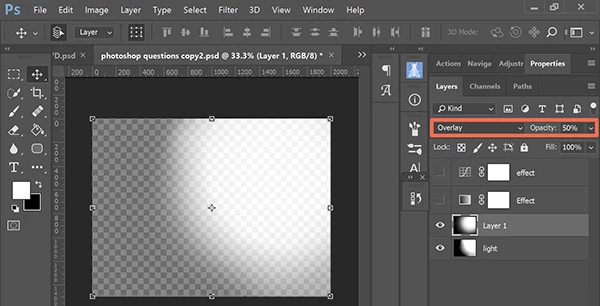
    HINT:  Change the Layer Blend mode to Normal and Opacity slider to 100%. 

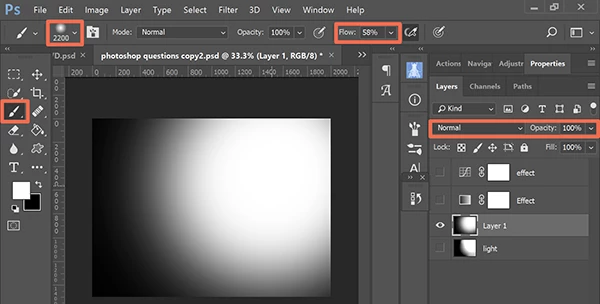
    Create a black background.  Apply a big round soft brush with flow level at 58% and color white to the upper right corner of your image.

    Change Blend mode back to Overlay and Opacity to 50%.

    5 respuestas

    Participant
    February 16, 2018

    Thank you both for the help.  I appreciate it.

    Participant
    February 15, 2018

    Thank you for the help.  I understand the gradient and light layers now, but I am having trouble with the curves control panel.

    The first image is the curves adjustment I am working with, trying to duplicate the settings in the 2nd image.  

    Norman Sanders
    Legend
    February 15, 2018

    Once you have made the desired change in the separate Curve grids, return to the RGB composite and click on Channel Overlays alongside the Curve grid.

    Participant
    February 14, 2018

    I was able to figure out the gradient map.

    the curves adjustment layer i was able ti create in a new document and set it ti custom, rgb. but it inly has ine line. i cannot figure out how to set the individual color lines.

    The light layer i am at a complete loss fir how to create that in a new document

    Nancy OShea
    Community Expert
    Nancy OSheaCommunity ExpertRespuesta
    Community Expert
    February 14, 2018

    HINT:  Change the Layer Blend mode to Normal and Opacity slider to 100%. 

    Create a black background.  Apply a big round soft brush with flow level at 58% and color white to the upper right corner of your image.

    Change Blend mode back to Overlay and Opacity to 50%.

    Nancy O'Shea— Product User & Community Expert
    Nancy OShea
    Community Expert
    Community Expert
    February 14, 2018
    Nancy O'Shea— Product User & Community Expert
    Nancy OShea
    Community Expert
    Community Expert
    February 14, 2018

    Curves adjustment layer

    Gradient Map adjustment layer

    Light layer

    Nancy O'Shea— Product User & Community Expert