Participant
January 6, 2021
Answered

Can't Find Default Colors Icon?

  • January 6, 2021
  • 1 reply
  • 867 views

Hi, 

I'm trying to learn how to use photoshop properly, and following the tutorials built in. 

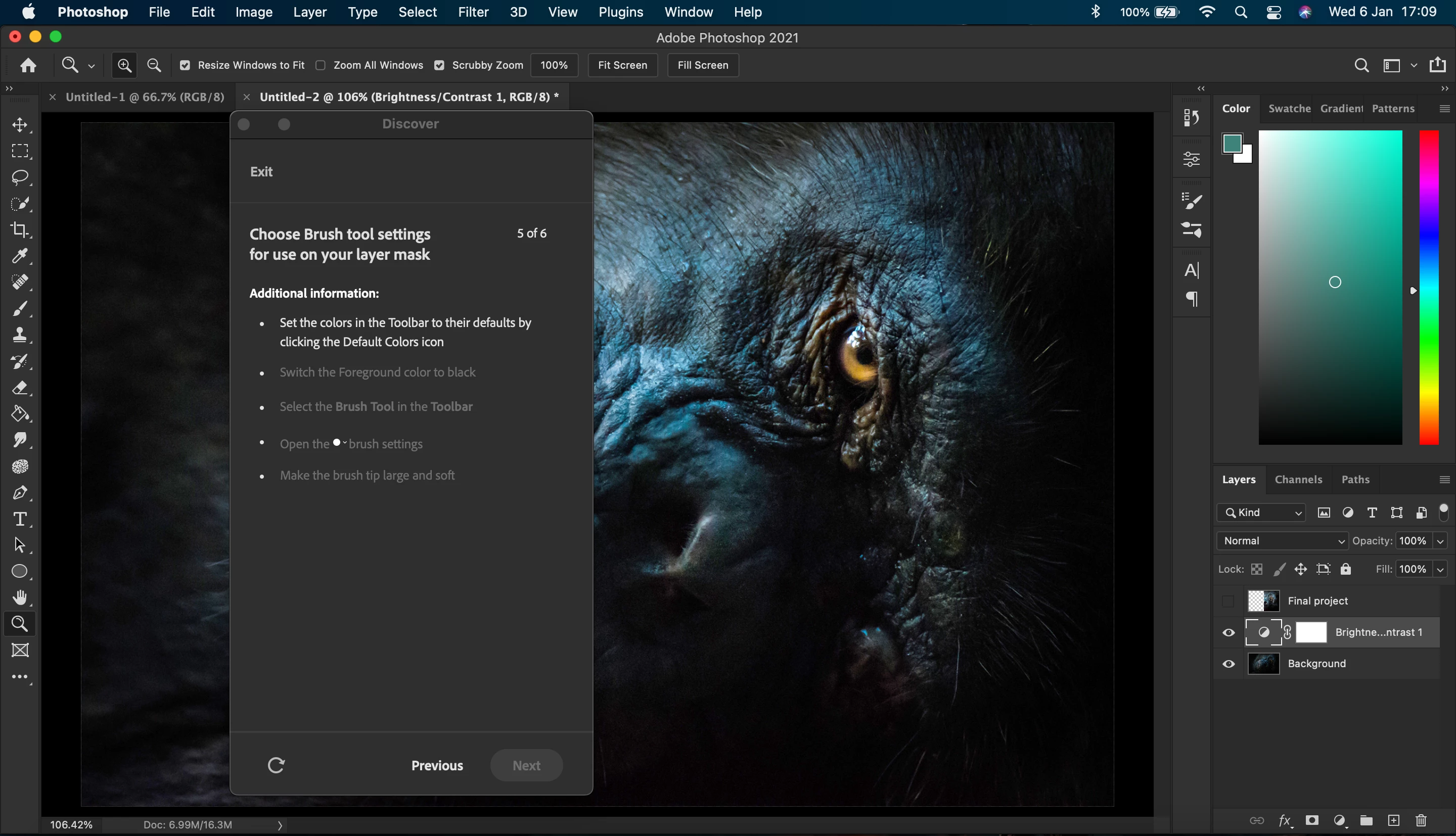
I have attached a pic of where my issue is.  Theres normally a helpful blue text bubble pointing at what I need to do, but not this time, and google hasnt helped.  

I am running the latest Mac Os and Photoshop 2021, checked for updates. 


Any help much appreciated. 


Thnk you. 

Dan
This topic has been closed for replies.
Correct answer danlenny

"The tutorial wont progress to the next part until I do this"


Hi


I think the tutorial wants you to do exactly what is says and not use the shortcut equivalent. You will need to click the "Default Colors icon" as it specifies, as highlighted below.


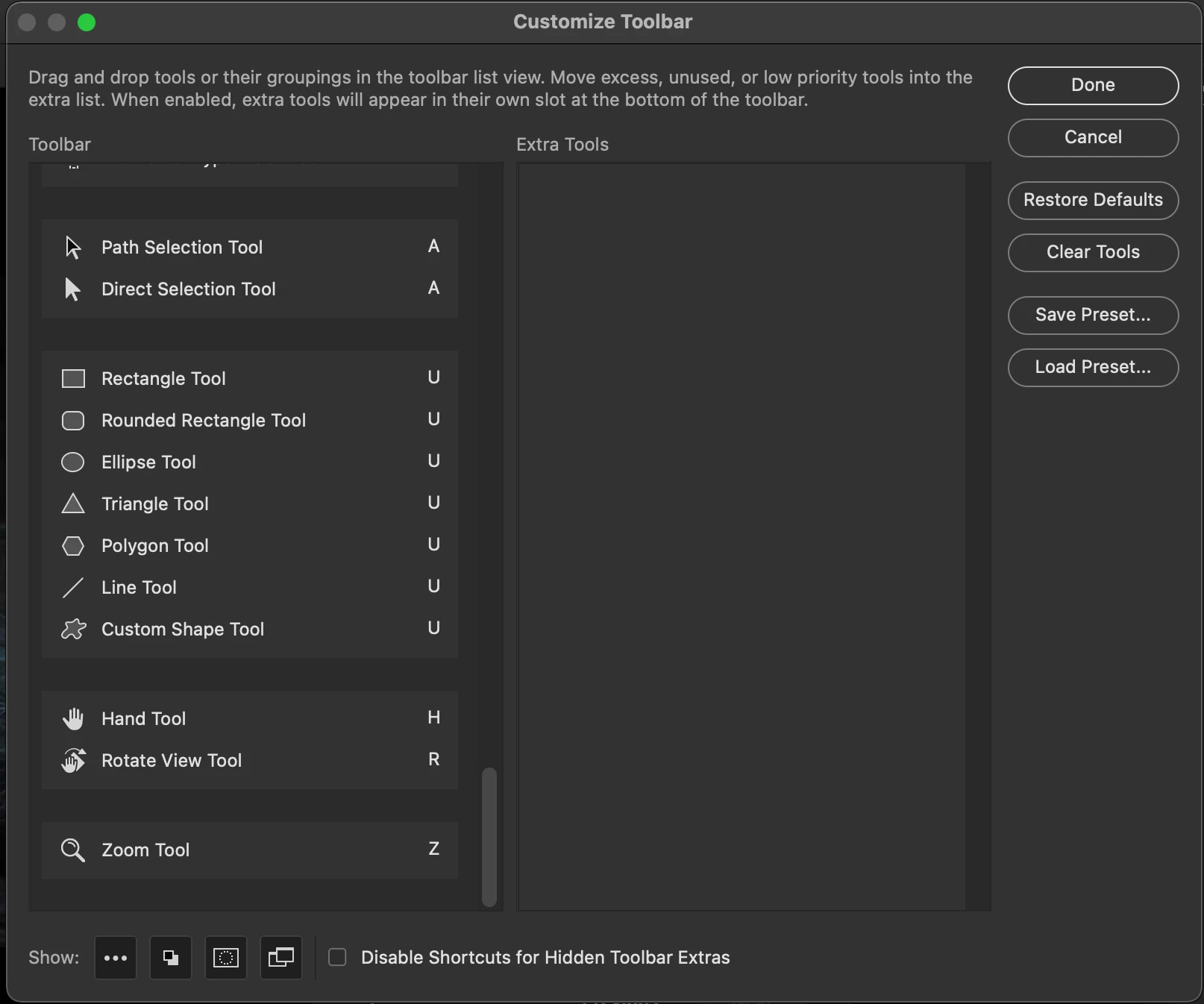
Unfortunately, you only have a subset of the tools and not the one you need. Go to Edit > Toolbars, then click Restore Defaults in the upper right to display all of the tools so you can click the icon the tutorial wants you to.


Post again and let us know if this takes you to the next step.


~ Jane


Hi Jane, 

Fixed it! 


Restoring defaults didnt change anything, but at the bottom left of the window I noticed a symbol that looked like the swatch thing, that you have to click on, to make it appear in the toolbar. 


Thanks for your help


Dan

1 reply

jane-e
Community Expert
Community Expert
January 6, 2021

Hi

What are you trying to do?


You are on the Zoom tool, not the Brush tool. You are on the Brightness/Contrast layer, not the mask to the right of it. The panel you have open thinks you want to paint on the mask. If you do, select the mask, then type "D" to set the colors to the defaults of B&W, then select the Brush tool.


If you are trying to do something else, please clarify.


~ Jane

danlennyAuthor
Participant
January 6, 2021

Hi Jane, 


Thanks for your reply. 

I'm trying to follow the tutorial, which has said "set the colors in the toolbar to their defaults by clicking on the default colors icon." 


Sorry, I didnt realise I had changed tools etc, but I was trying to see if differnt tools and selections made a difference, and still no luck. I am a complete newbie to all this, so it might be something very simple, but I cant see it. The tutorial wont progress to the next part until I do this, and nothing has worked.  I tried the typing "d" thing before, after several googles. cmd + d, alt + d, shift + d, ctrl + d.  


Kind regards

Dan


danlennyAuthorCorrect answer
Participant
January 6, 2021

"The tutorial wont progress to the next part until I do this"


Hi


I think the tutorial wants you to do exactly what is says and not use the shortcut equivalent. You will need to click the "Default Colors icon" as it specifies, as highlighted below.


Unfortunately, you only have a subset of the tools and not the one you need. Go to Edit > Toolbars, then click Restore Defaults in the upper right to display all of the tools so you can click the icon the tutorial wants you to.


Post again and let us know if this takes you to the next step.


~ Jane


Hi Jane, 

Fixed it! 


Restoring defaults didnt change anything, but at the bottom left of the window I noticed a symbol that looked like the swatch thing, that you have to click on, to make it appear in the toolbar. 


Thanks for your help


Dan