
Known Participant
July 2, 2021
Question

Can't seem to get 30 bit view

  • July 2, 2021
  • 4 replies
  • 2972 views

I recently got an HDR monitor with 10 bit colordepth (so 30 bits in total). I have it running in windows, and HDR videos works fine. I don't normally use photoshop, instead I use lightroom, but I'd already heard that there's so far no hope for 10bit colors there, so I installed photoshop as well, and found the option for 30bit color depth. I can click it, and set it, it's not greyed out or anything. I import a raw file, set its color depth to 16 per channel, wide-gamut rgb profile.. and nothing seems different than when it was still in normal mode. 
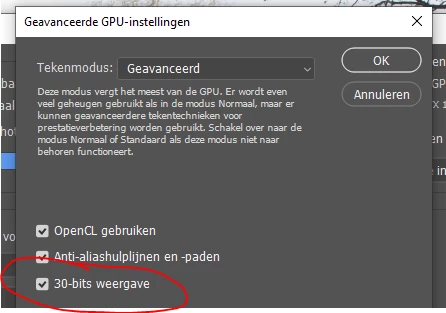

I even boosted the exposure of the photo to blow out the sky, and in an adjacent window had some HDR video open, which was way brighter than the blown out sky, aka, photoshop's not outputting 10 bit data to my monitor. Why not?
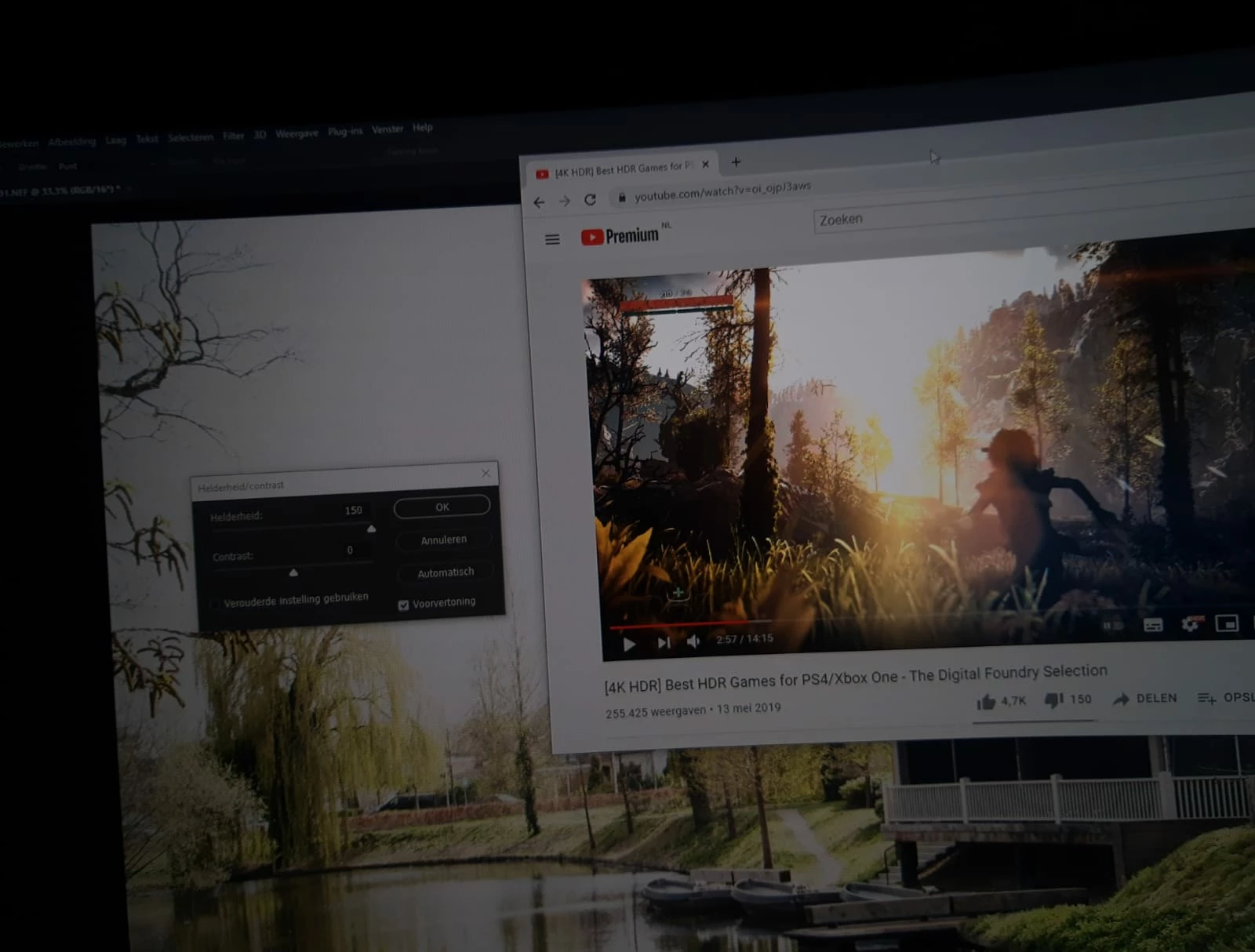
It's a bit impossible to take a screenshot showing the difference in brightness, as HDR screenshots aren't really a thing. So, this crappy photo will have to do. It should be quite clear that the white in the video is a lot brighter than the blown-out sky in my photo. 

Does anyone know how to fix this? Alternatively, is there maybe some way I don't know of in Lightroom to do it? That's my 'endgoal', honestly, I'm surprised that it doesn't have it already, or that this is so troublesome.

    This topic has been closed for replies.

    4 replies

    Known Participant
    August 2, 2024

    So despite everyone here claiming that I fundamentally misunderstand HDR and that what I want is impossible; they've actually implemented exactly what I wanted recently, and now you CAN view photos in HDR. 
    So... yeah... 

    There is a new issue, though 😧 Exporting the HDR files, they don't appear, well. 'right' in anything other than Lightroom. 
    Chrome comes close if I export to hdr AVIF although still darker than it should be. Opening it every other program I've tried makes it look grey and washed out. 
    Anyone any clue? 
    I should probably make a new issue for this. 

    davescm
    Community Expert
    Community Expert
    July 2, 2021

    Have you also set 10 bit in the GPU driver? This is the relevant setting in the current NVidia driver for their RTX cards:

    Dave


    Known Participant
    July 2, 2021

    I have done that, yes

    Known Participant
    July 2, 2021

    Then to test it, create a 16 bit document and use the gradient tool to create a black to white gradient, ensuring that dither is unchecked in the options bar before using the tool. View it at 100% zoom (at zoom levels of less than 66.7% the preview is in 8 bit regardless of the document bit depth). On a 10 bit display pipeline it should be smooth with no stepping.


    Dave


    I see clear banding.

    D Fosse
    Community Expert
    Community Expert
    July 2, 2021

    I think you misunderstand what 30 bit depth is. It has nothing to do with dynamic range and you're not supposed to see any immediate difference.


    30 bit depth is the number of discrete values between black and white - 1024 vs 256. The net effect is that you don't see banding in smooth gradients. That's all.


    To put it another way - the ladder is the same length, but the distance between each step is shorter.


    BTW, you have to enable this in the video driver as well as in Photoshop.

    Known Participant
    July 2, 2021

    I understand, but it may be due to Window's and Adobe's different ideas on how to implement this.
    For 8 bit, #000000 would be black, and the lowest light the monitor can give off, ideally 0 cd/m2 (candela per square meter), but backlight will shine through in all but oled screens.

    For 8 bit, #ffffff would be white, like the text box I'm typing this in now. For a standard monitor, that would be about 350 cd/m2. 
    However, in HDR mode, the monitor has 10bits per color, meaning it can go up to #hhhhhh, though I don't think it's ever written that way. However, an HDR monitor must also be significantly brighter, for example, my new monitor goes to 600 cd/m2. Since a lot of UI ellements on the screen are white, you'd be blasted with full brightness all the time, which is unpleasant, or downright painful if you have a very high end monitor that goes up to like 2000cd/m2. Window's HDR implementation 'fixes' this by basically mapping standard SDR content onto the lower parts of the brightnes values, ideally bascially onto the first 8 of the 10 bits per color channel, though I doubt it's that straight forward. Meaning that even though the window background is white, once and HDR video/game/whatever plays where it even in 10bits depth it's white, it's way brighter than the other white, which by comparison looks grey. (like how paper laid out on the ground on a cloudy day looks white, until you lay down a mirror next to it (which reflects the overcast sky)). 
    Windows provides a brightness slider to affect how bright SDR content will look, if you turn it up to the max, light grey and white look the same, you lose the black levels, so that's no good to edit photos in. But if I don't set it to the max, my whites in the photos in Photoshop won't reach the full brightness of my monitor, meaning it's not utilizing my monitor's full dynamic range, aka not HIGH dynamic range.  Actual HDR content is unaffected by the slider, Photoshop, regardless of its 30bit option, is affected. 
    I am hoping for a method of having Photoshop, or even better Lightroom mimic the behaviour of the HDR videos and games. Is that possible?

    davescm
    Community Expert
    Community Expert
    July 3, 2021

    You are totally misunderstanding the 10 bit pipeline. The whitepoint and blackpoints of an 8 bit document and a 16 bit document in the same color space are identical. As D Fosse described above, only the number of steps between them change, leading to smoother gradients. So full white is described by two different numbers in 8 bit or 16 bit but is still the same white.

    Similarly, when using an 8 bit monitor the number sent to the monitor for full white is different to that sent to a 10 bit monitor for full white - but still describes the same white.

    What value of black or white is actually shown on your screen is set by the monitor controls and then described to a color managed application like Photoshop by the monitor profile. If you adjust a monitor control then you must make a new profile as the old is invalidated.

    As an aside, for image editing 350cd/m2 is far too bright. Normally you would adjust to 80-160 cd/m2 or adjust visually to match a print viewing booth. Mine gives a good match at 100cd/m2.  If your monitor is too bright the tendency is adjust the images darker and the result is prints that look too dark.


    Photoshop can handle HDR images internally using 32 bit floating point and a linear gamma. That can contain darker blacks and whiter whites than can be displayed on any monitor. However that is for specialist use such as 3D renders, combining multiple exposures to an HDR image. The HDR image cannot be displayed in full and a slider is used to adjust which part of the range is being previewed at any time. In all those cases the eventual aim is to map the 32 bit floating point image to a 8 or 16 bit image for viewing.


    Dave

    Trevor.Dennis
    Community Expert
    Community Expert
    July 2, 2021

    This person might know. @D Fosse   He'll be tagged about this thread.