


- Home
- Photoshop ecosystem
- Discussions
- Re: Can't seem to get 30 bit view
- Re: Can't seem to get 30 bit view
Can't seem to get 30 bit view

Copy link to clipboard
Copied
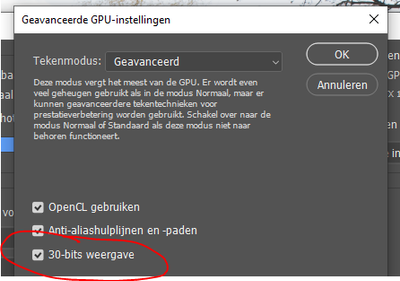
I recently got an HDR monitor with 10 bit colordepth (so 30 bits in total). I have it running in windows, and HDR videos works fine. I don't normally use photoshop, instead I use lightroom, but I'd already heard that there's so far no hope for 10bit colors there, so I installed photoshop as well, and found the option for 30bit color depth. I can click it, and set it, it's not greyed out or anything. I import a raw file, set its color depth to 16 per channel, wide-gamut rgb profile.. and nothing seems different than when it was still in normal mode.
I even boosted the exposure of the photo to blow out the sky, and in an adjacent window had some HDR video open, which was way brighter than the blown out sky, aka, photoshop's not outputting 10 bit data to my monitor. Why not?
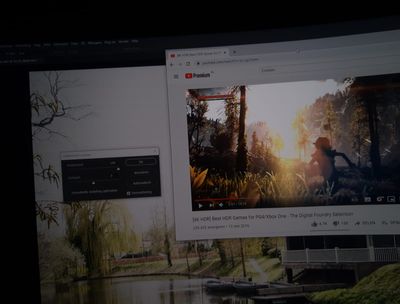
It's a bit impossible to take a screenshot showing the difference in brightness, as HDR screenshots aren't really a thing. So, this crappy photo will have to do. It should be quite clear that the white in the video is a lot brighter than the blown-out sky in my photo.
Does anyone know how to fix this? Alternatively, is there maybe some way I don't know of in Lightroom to do it? That's my 'endgoal', honestly, I'm surprised that it doesn't have it already, or that this is so troublesome.



Explore related tutorials & articles
 24
Replies
24
24
Replies
24




Copy link to clipboard
Copied
This person might know. @D Fosse He'll be tagged about this thread.

Copy link to clipboard
Copied
I think you misunderstand what 30 bit depth is. It has nothing to do with dynamic range and you're not supposed to see any immediate difference.
30 bit depth is the number of discrete values between black and white - 1024 vs 256. The net effect is that you don't see banding in smooth gradients. That's all.
To put it another way - the ladder is the same length, but the distance between each step is shorter.
BTW, you have to enable this in the video driver as well as in Photoshop.
Copy link to clipboard
Copied
I understand, but it may be due to Window's and Adobe's different ideas on how to implement this.
For 8 bit, #000000 would be black, and the lowest light the monitor can give off, ideally 0 cd/m2 (candela per square meter), but backlight will shine through in all but oled screens.
For 8 bit, #ffffff would be white, like the text box I'm typing this in now. For a standard monitor, that would be about 350 cd/m2.
However, in HDR mode, the monitor has 10bits per color, meaning it can go up to #hhhhhh, though I don't think it's ever written that way. However, an HDR monitor must also be significantly brighter, for example, my new monitor goes to 600 cd/m2. Since a lot of UI ellements on the screen are white, you'd be blasted with full brightness all the time, which is unpleasant, or downright painful if you have a very high end monitor that goes up to like 2000cd/m2. Window's HDR implementation 'fixes' this by basically mapping standard SDR content onto the lower parts of the brightnes values, ideally bascially onto the first 8 of the 10 bits per color channel, though I doubt it's that straight forward. Meaning that even though the window background is white, once and HDR video/game/whatever plays where it even in 10bits depth it's white, it's way brighter than the other white, which by comparison looks grey. (like how paper laid out on the ground on a cloudy day looks white, until you lay down a mirror next to it (which reflects the overcast sky)).
Windows provides a brightness slider to affect how bright SDR content will look, if you turn it up to the max, light grey and white look the same, you lose the black levels, so that's no good to edit photos in. But if I don't set it to the max, my whites in the photos in Photoshop won't reach the full brightness of my monitor, meaning it's not utilizing my monitor's full dynamic range, aka not HIGH dynamic range. Actual HDR content is unaffected by the slider, Photoshop, regardless of its 30bit option, is affected.
I am hoping for a method of having Photoshop, or even better Lightroom mimic the behaviour of the HDR videos and games. Is that possible?

Copy link to clipboard
Copied
You are totally misunderstanding the 10 bit pipeline. The whitepoint and blackpoints of an 8 bit document and a 16 bit document in the same color space are identical. As D Fosse described above, only the number of steps between them change, leading to smoother gradients. So full white is described by two different numbers in 8 bit or 16 bit but is still the same white.
Similarly, when using an 8 bit monitor the number sent to the monitor for full white is different to that sent to a 10 bit monitor for full white - but still describes the same white.
What value of black or white is actually shown on your screen is set by the monitor controls and then described to a color managed application like Photoshop by the monitor profile. If you adjust a monitor control then you must make a new profile as the old is invalidated.
As an aside, for image editing 350cd/m2 is far too bright. Normally you would adjust to 80-160 cd/m2 or adjust visually to match a print viewing booth. Mine gives a good match at 100cd/m2. If your monitor is too bright the tendency is adjust the images darker and the result is prints that look too dark.
Photoshop can handle HDR images internally using 32 bit floating point and a linear gamma. That can contain darker blacks and whiter whites than can be displayed on any monitor. However that is for specialist use such as 3D renders, combining multiple exposures to an HDR image. The HDR image cannot be displayed in full and a slider is used to adjust which part of the range is being previewed at any time. In all those cases the eventual aim is to map the 32 bit floating point image to a 8 or 16 bit image for viewing.
Dave
Copy link to clipboard
Copied
You say the white in 10 bits should be the same as in 8 bits, yet my photo in the post shows that it is not. As white as photoshop will go, as not as white as my monitor will go, the white in the video in that photo is brighter.
I've never used photoshop before, but I've worked with Lighroom for many years. I've made countless of 'HDR' photos, where I take 3 or more photos of different exposures, and combine them into one 16bit image, which I then tonemap onto an 8bit image.
I don't want to optimize my photos for prints, I want to optimize them for an HDR monitor. But I can't VIEW them in HDR, even if photoshop says it's in 10 bit mode, it refuses to actually use the full brightness dynamic range, even though it has the bits for it. Just using a 16 bit, or even 32 bit file is old news, the latter I've done plenty in astrophotography too. You can process it like that, but the last step is always tonemapping it one way or another back to same old 8 bits. I don't want that. I want to tonemap it to 10bits, and have it display those 10 bits 1:1 on my screen, the black being as black as my screen goes, the white as bright as it goes. I don't understand why this is seemingly such an impossible request? Why else would HDR screens exist? To not use their brightness? Setting it down to 100cd/m2? I want the sun in my photos to pop at my screen's full 600cd/m2, whilst still seeing the details in the shadows, which IS possible, I've seen it, on my very own screen, in HDR sample videos. Why can't I replicate that? If not photoshop, what other kind of magical software do I need for this?
Copy link to clipboard
Copied
If it's not clear enough yet, here a screenshot. (Turns out Windows does support HDR screenshots, it takes 1 true HDR screenshot, (which photoshop can't open..), and 1 tonemaped to 8bit screenshot, this is the 8bit one, as the HDR version is not supported here):
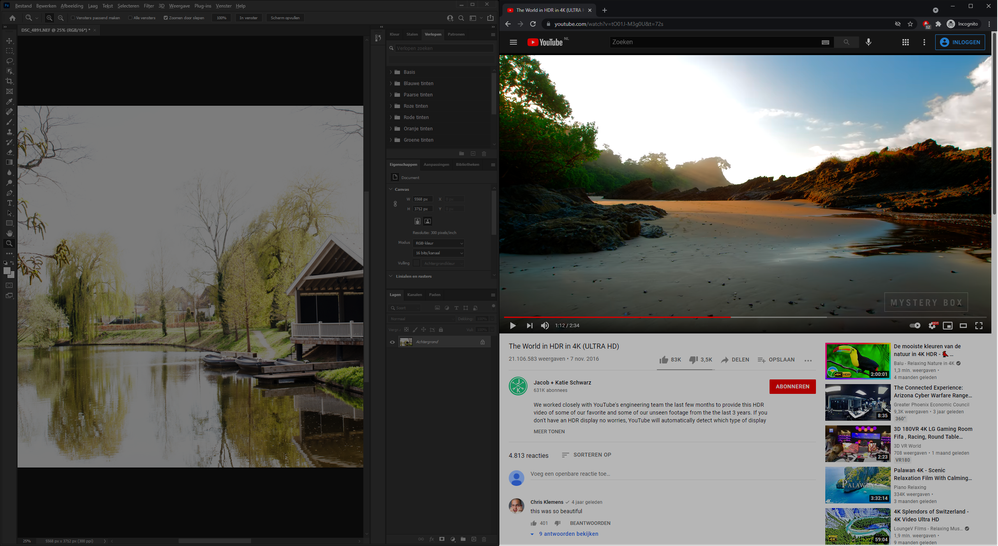
This is what I see on my monitor. The 'white' in photoshop is full brightness, color white, according to photoshop, yet the video on the right, is far brigher. If I sample this 8-bit tonemapped screenshot, the white on the right is #FFFFFF, while the 'white' on the left is only #7c7c7c.
If I open the HDR screenshot (not the automatically tonemapped version I uploaded here) on my 2nd, SDR 8bit monitor, the sky in the video turns nearly entirely white, and all the text becomes unreadable, as it's way too light. Basically, the upper two bits are cut off. However, with those 2 bits cut off, the sky on the left, in photoshop, finally looks white and bright then, basically proving the point that photoshop is displaying in SDR, on my HDR screen. It's not using the full range of 10 bits.
Copy link to clipboard
Copied
"You say the white in 10 bits should be the same as in 8 bits, yet my photo in the post shows that it is not"
Your photo in the post shows nothing at all. It compares an image in a browser from a video (which does not use ICC colour management) to a Photoshop screen which is colour managed.
"the last step is always tonemapping it one way or another back to same old 8 bits."
Wrong. You can tonemap to 16 bits which is more steps than any current display can show.
"even if photoshop says it's in 10 bit mode, it refuses to actually use the full brightness dynamic range"
You are still hanging on to the incorrect view that bit depth and extended dynamic range are the same thing. They are not. All bit depth does is divide the dynamic range of your colour space into more, or less, steps.
With that out of the way, if you want to set your monitor to maximum brightness then do so. Use a calibrator and make sure that you produce a profile that describes your monitor in that space. Then set the working space for your document to an HDR space and adjust and tonemap your image accordingly. Your image though will be adjusted to look good on your system and is unlikely to look good on others.
If you adjust images to send onwards for others to view, you would need to switch your calibration to a more "normal" brightness and also switch the profile to match that. That is made much easier on a professional monitor, such as an Eizo, with internal calibration and auto switching of profiles.
Dave
Copy link to clipboard
Copied
Yes you can tonemap to 16bits, but as you said yourself, that is pointless, as there's no way to actually view that.
I know you can theoretically have a million bit color depth within sRGB, for pointlessly small steps. I don't want that. I just want my screen to be used to its full potential. My screen has 10bits per color channel, photoshop has 10 bits per color channel, why is it so hard to just have that match up. I want the darkest 10 bit color to be the darkest color on my screen. I want the lightest 10 bit color to be the lightest color on my screen. Why do all the other 10 bit sources not have this problem. I don't need a calibrator to view HDR videos or games. Why would I need to create my own color profile for this? Why does this problem not exist in 8 bit? Every single 8 bit monitor I've ever used, showed 'white' as as bright as it could go.
Did you see the screenshot? How can you possibly defend a grey, for white?
Copy link to clipboard
Copied
"How can you possibly defend a grey, for white?"
I'm not defending anything. I told you what to do, you need to make sure that your monitor profile describes your monitor in its current state. If you are seeing a dimmed or coloured version when you use white in a document, then the profile you are currently using (set in Windows colour management) does not describe your monitor in its current state.
"I know you can theoretically have a million bit color depth within sRGB, for pointlessly small steps. I don't want that."
Your document has to be in 8 bits, 16 bits or 32 bits per channel. Therefore, if you want to use a 10 bit bit display to its maximum then your document will need to be in either 16 or 32 bits/channel. If your document is 8 bit then that's all you get even on a 10 bit display.
"Why do all the other 10 bit sources not have this problem. I don't need a calibrator to view HDR videos or games."
Video, games, and many other applications are not color managed. So they just send the image values straight to the monitor and hope the monitor is calibrated to a standard. Photoshop, Lightroom , Illustrator, In Design are color managed. A colour managed application uses both the document profile (embedded in the document) and the monitor profile (loaded in the operating system) to translate those image values so that they display correctly. That of course relies on the loaded monitor profile accurately describing your monitor in its current state.
Dave
Copy link to clipboard
Copied
Okay, so I think I found the sollution elsewhere.
https://petapixel.com/2021/05/17/microsoft-is-adding-windows-10-hdr-support-to-photoshop-and-lightro...
Windows does not yet support it in the release version, but it's newly added 2 months ago in a development version. Coming to release in fall this year.
Glad I'm not crazy for wanting this after all.
Copy link to clipboard
Copied
I guarantee you that my current displays (a pair of Eizo CS2731s) are not limited to the sRGB gamut when used with Photoshop. I can set them that way but used natively they are much wider.
If Windows HDR mode is causing an issue with ICC - have you tried turning it off whilst you use colour managed apps. You can always turn it back on again whilst gaming/watching video.
Dave
Copy link to clipboard
Copied
I can just turn the HDR mode off of course, and then the whites in photoshop become super bright again. But I'm fairly sure that it's still not using 10 bits output, and instead maps it to 8bits, before sending it to the monitor, which maps it back to 10 bits to display. If I make a gradient black to white, 1024 pixels long, and view at 100%, I still see banding, which I don't think should happen.
Copy link to clipboard
Copied
maxm, you still don't understand. Once again - bit depth and dynamic range are not the same thing. You keep insisting that they are, but that's wrong, and you'll be disappointed when you don't get the expected results.
And, following your link, apparently they have interns at Microsoft too. This press release is written by people who don't understand what they're writing:
"HDR mode changes the behavior of some creative and artistic apps that use International Color Consortium (ICC) display color profiles, such as Adobe Photoshop, Adobe Lightroom Classic, and CorelDraw (amongst others). In the past, these apps were limited to targeting the sRGB color gamut"
That's patently nonsense, so completely misunderstood that it's hard to know where to start. No, Photoshop is very obviously not "limited to targeting the sRGB color gamut", and neither is a perfectly standard wide gamut monitor.
And just to close: HDR might be useful for video, assuming the source material is appropriately encoded. For standard stock material, stretching the dynamic range that far will just look overcontrasty and weird. For photographs, all you achieve is to put yourself out of the loop. Images prepared on a monitor with a 350 cd/m² white point will look like absolute crap everywhere else. People will just wonder why you're such a lousy photographer, and that's not what you want, right?
There's a reason we stick to a white point around 120 cd/m². One, it matches printed output, and two, it puts us all on the same page, so that image interchange is possible.
I'm not dismissing HDR. It might be a leap forward in the future, but it requires a complete paradigm shift.
Copy link to clipboard
Copied
For the love of.. YES. I understand that 10 bits is not the same as HDR. You could map the 10 bits between 50 and 51 cd/m2 luminance levels, and no monitor could actually drive its pixels to display that with more than a few dozen actual luminance levels.
But 10 bits IS a requirement for HDR monitors.
I don't care about printed material, I rarely ever print it anyway, and when I do, I'll remaster my photo specifically for that purpose. And yes, I understand that if you were to stretch a normal photo to have the whitepoint at 600cd/m2 it will look bad, THAT's THE WHOLE POINT of the SDR content slider. It maps the the white point back to a lower luminance level, so that it still looks as intended, and such that once you do have HDR content, it 'pops' out with far brigher whites. .. BUT Photoshop refuses to adjust to that brighter level, I've tried every color space I could find, and specfically set it to the wide gamut in this example (in the screenshot). I have a 10 bit monitor, I have 10 bit graphics card, photoshop has a 10bit output option, the file is set to 16 bit color depth. It should work. I want my monitor to be sort of akin to a window (glass window to look outside), not to a photo. My monitor is obviously not good enough for it to ever be confused for a window, but it's at least better than an old monitor.
I mean, I can just set my monitor back to 8bit mode, and open photoshop, and then boom, it'll be far brigher, but you lose the extra bit depth of detail.

Copy link to clipboard
Copied
I am also eagerly awaiting this functionality, you're not insane the lingo just hasn't caught up. HDR and 16-32bit images still means different things to people. Maybe one day the concepts will see eye to eye when the display can actually handle the information.
Copy link to clipboard
Copied
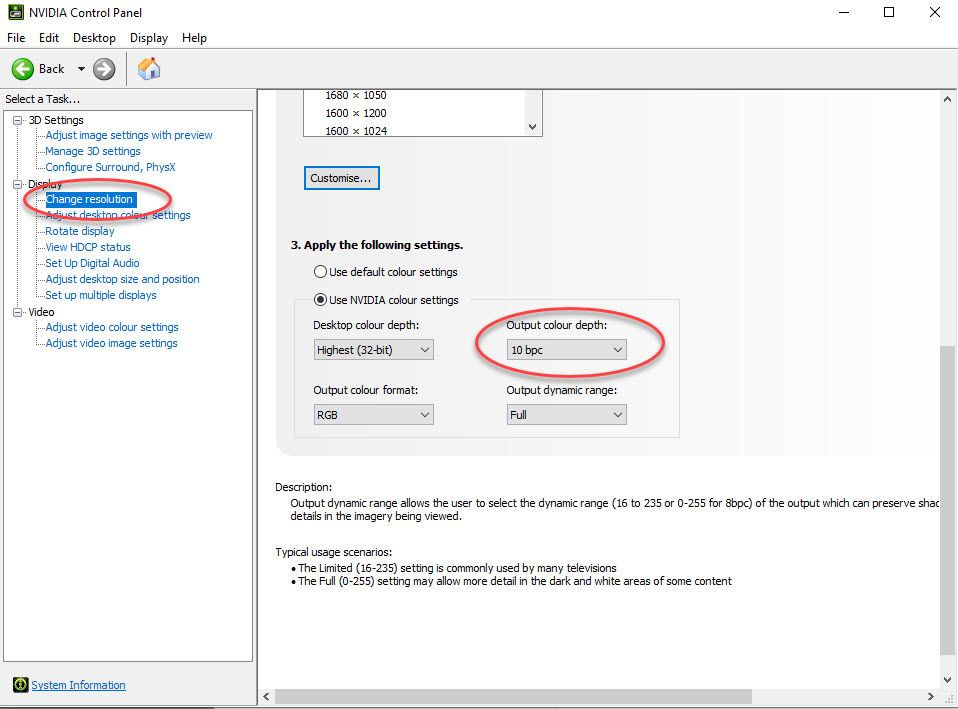
Have you also set 10 bit in the GPU driver? This is the relevant setting in the current NVidia driver for their RTX cards:
Dave
Copy link to clipboard
Copied
An interesting thread. I didn't know about the GPU driver requirement.
Copy link to clipboard
Copied
I have done that, yes
Copy link to clipboard
Copied
Then to test it, create a 16 bit document and use the gradient tool to create a black to white gradient, ensuring that dither is unchecked in the options bar before using the tool. View it at 100% zoom (at zoom levels of less than 66.7% the preview is in 8 bit regardless of the document bit depth). On a 10 bit display pipeline it should be smooth with no stepping.
Dave
Copy link to clipboard
Copied
I see clear banding.
Copy link to clipboard
Copied
What monitor, and what video card are you using?
How is the monitor connected?10 bit is often only available via a Dataport connection.
Is this a laptop and if so are you sure the monitor is plugged into the GPU and not using integrated graphics?
Please confirm you are viewing the 16 bit document using View - 100% and not Fit to Screen.
Dave
Copy link to clipboard
Copied
Yes, my Samsung Odyssey G7 is connected to my GTX 1060 (6gb), with the proper Displayport 1.4 cable. HDR/10bits works everywhere, except seemingly in Photoshop.
Copy link to clipboard
Copied
This is not the correct way to enable HDR in windows. Just FYI.
It may make the display 10bit but windows is doing nothing with that. You must enable it in display settings for proper utilization. Then you'll see a proper setup in your display information.
Copy link to clipboard
Copied
So despite everyone here claiming that I fundamentally misunderstand HDR and that what I want is impossible; they've actually implemented exactly what I wanted recently, and now you CAN view photos in HDR.
So... yeah...
There is a new issue, though D: Exporting the HDR files, they don't appear, well. 'right' in anything other than Lightroom.
Chrome comes close if I export to hdr AVIF although still darker than it should be. Opening it every other program I've tried makes it look grey and washed out.
Anyone any clue?
I should probably make a new issue for this.


Find more inspiration, events, and resources on the new Adobe Community
Explore Now
 AdChoices