
Participating Frequently
July 20, 2023
Answered

Cannot import image into photoshop

  • July 20, 2023
  • 3 replies
  • 3936 views

Good day.


I have the most uptodate version of photoshop (as of 20 July, 2023) and it was running fine until this morning. Now, when I open photoshop, and attempt to add an image, whether by dragging, or by selecting via the 'open' or 'new file' menu options, nothing happens. Then, if you click anywhere inside the programm, you get a chime sound that is the same as if there is a window open somewhere and you are attempting to click behind it. You have to hit Esc to 'remove' whatever is in the way so you can once again interact with Photoshop. Never had this before.


Tried adding a youtube video but I just get a 'You are attempting to upload a private video. A private video cannot be played in the community. Please try your upload again with a video that is public to all viewers.' which is weire because the video IS public. It's here Photoshop issue - YouTube


Many thanks!
This topic has been closed for replies.
Correct answer Sameer K

Hey, @defaultnku8xoir83kt. Will move this to discussions for now. I'll help you figure this out.

Apart from reinstalling Photoshop? What troubleshooting steps have you tried?

As a basic step, reset Camera Raw & Photoshop.

For Camera Raw,

  • Hold down the Ctrl + ALT key and select Edit > Preferences > Camera Raw (Windows).
  • Click Yes in the dialog that asks, 'Delete the Camera Raw Preferences?'


If this does not help, go to the location of the preference folder below and rename it to backup. https://helpx.adobe.com/photoshop/using/preferences.html

  • Windows 10/11: Users/[user name]/AppData/Roaming/Adobe/Adobe Photoshop [version]/Adobe Photoshop [version] Settings
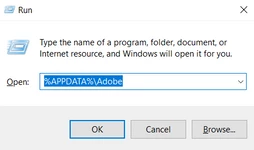
  • Press Windows + R & type this is the Run Window - %APPDATA%\Adobe


  • Rename the Adobe Photoshop folder by adding a .old at the end. (Adobe Photoshop 2023 > Rename > Adobe Photoshop 2023. old)


These changes will give a fresh start to Photoshop as a fresh install. Let me know how it goes.

Thanks!

Sameer K

3 replies

Sameer K
Community Manager
Sameer KCommunity ManagerCorrect answer
Community Manager
July 20, 2023

Hey, @defaultnku8xoir83kt. Will move this to discussions for now. I'll help you figure this out.

Apart from reinstalling Photoshop? What troubleshooting steps have you tried?

As a basic step, reset Camera Raw & Photoshop.

For Camera Raw,

  • Hold down the Ctrl + ALT key and select Edit > Preferences > Camera Raw (Windows).
  • Click Yes in the dialog that asks, 'Delete the Camera Raw Preferences?'


If this does not help, go to the location of the preference folder below and rename it to backup. https://helpx.adobe.com/photoshop/using/preferences.html

  • Windows 10/11: Users/[user name]/AppData/Roaming/Adobe/Adobe Photoshop [version]/Adobe Photoshop [version] Settings
  • Press Windows + R & type this is the Run Window - %APPDATA%\Adobe


  • Rename the Adobe Photoshop folder by adding a .old at the end. (Adobe Photoshop 2023 > Rename > Adobe Photoshop 2023. old)


These changes will give a fresh start to Photoshop as a fresh install. Let me know how it goes.

Thanks!

Sameer K

Participating Frequently
July 21, 2023
That seems to have done it! Thank you!
Participating Frequently
July 20, 2023
Yup. I've also uninstalled Photoshop and reinstalled from the suite.
Ged_Traynor
Community Expert
Community Expert
July 20, 2023

@defaultnku8xoir83kt have you tried rebooting the laptop.