
karpc50
Participant
April 16, 2017
Question

Cannot locate linked assets!!

  • April 16, 2017
  • 2 replies
  • 3875 views

Hi I'm fairly new at using smart objects so bare with me. As I opened up my photoshop file it tells me that it can't find my linked artwork. I don't get this at all because it was working fine just week. All the other links are good except for one. As I open up the other links they show up in my Temporary Files folder and I have the freedom to link and unlink them but for some reason this one just doesn't.

I go to the folder where it should be but it isn't.
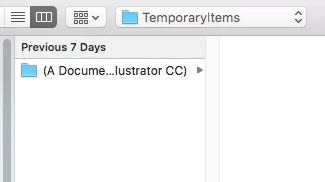
THEN when I open the other smart object they show up in the folder all of a sudden.
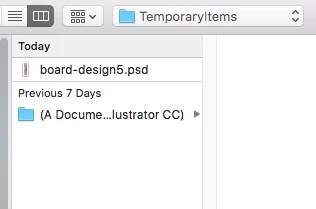
This is so frustrating right now. Please help!!

This topic has been closed for replies.

2 replies

S_Gans
Community Expert
Community Expert
April 18, 2017

Although the creation of Smart Objects may make a temporary file, if you've made the Smart Object from other items you've Placed into your document, you wouldn't be actually USING that temporary file - the Smart Object would be linking to a file that exists in your regular file system. For example, the reason your CHAPMAN item can be opened from your Smart Object is that, if you look closely, the title of the image is board-design5.psd. That PSD part is the important part - your larger Chapman.psd file is opening another, existing Photoshop document from somewhere on your system, and it's editable as a standalone Photoshop document - that can then be used in your Chapman file's smart object.
But, according to your first screenshot, your system is looking for a file named board-design6.psd. It had created a temp file to use the original - but it's not the actual original file. That #6 design must reside somewhere on your system. If you moved it on your computer - or renamed it in any way, Photoshop has no idea what to look for, so it shows you a preview file from your temp folder.

So - to fix this - FIND the board-design6.psd on your computer - in the regular finder. Then, use the dialog box from your first screenshot to relink to the ACTUAL location of the file on your computer.

Adobe Community Expert / Adobe Certified Instructor
karpc50
karpc50Author
Participant
April 19, 2017

I searched my computer but no files came up. The only files that did were the ones with links still working but they only show up after I've edited and saved them because I guess they are a temporary file?

c.pfaffenbichler
Community Expert
Community Expert
April 17, 2017

There is an essential difference between Linked Smart Objects and Embedded Smart Objects – and the names should pretty much give it away, the embedded ones are contained in the containing file and on opening them are saved as temporary files whereas the linked ones reference a separate file.

If you deleted the Linked File (or otherwise made it unidentifiable) then that is not Photoshop’s making and unless you can find or recreate it you are stuck with the preview that exists in the layered containing document.

Could you please post a screenshot taken at View > 100% and with the pertinent Panels (Layers, Channels, Options Bar, …) visible?

karpc50
karpc50Author
Participant
April 18, 2017

Thank you for replying! They are being saved as temporary files I believe. I don't think I deleted any file but I did copy and create another smart object which might be the one I'm having trouble with.

So as you can see the other smart object is linked fine and then I double click to edit it this is what it looks like.

c.pfaffenbichler
Community Expert
Community Expert
April 18, 2017

The upper Layer named »Board Dess…« is a Linked Smart Object and the linked File is missing – as indicated by its icon (the red question mark sign over the chain-symbol).