
Participant
March 4, 2020
Question

Cannot use Move tool to drag layer from image to image in Photoshop 2020

  • March 4, 2020
  • 3 replies
  • 1168 views

Hi guys,
I've just recently updated to Photoshop 2020 (version 21.1.0) and had this problem, which I can't use Move tool to drag layer from the source image to another image (using floating windows) anymore and everytime I try, the message below popped up. 
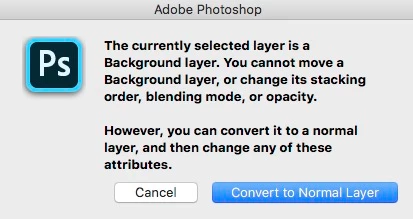


I was able to move the layer easily between images in the past, even if it's a Locked Background Layer and I kept all the settings from the old version so not sure what went wrong here.
Of course, there are other ways to work around this issue like Copy-Paste and drag the layer from Layers Panel but it shouldn't be like this.


This topic has been closed for replies.

3 replies

Participating Frequently
October 22, 2020

Just updated to latest version (10/22/2020). Mine does the same. Holy, that sucks. Was so quick and easy when it worked.


Participant
July 29, 2020

I just upgraded to PS 2020 today and am having the exact same problem.  I can no longer drag layers to other open (tabbed) files, but have no problem doing so in the 2019 version.

Participant
July 30, 2020

Likewise


Eugenio.NYC
Participating Frequently
March 4, 2020

Trying to understand your question

try this: drag the layer to the TAB name 

UA_10Author
Participant
March 4, 2020

Thanks Eugenio_NYC, as your suggestion, it works when opening document in TABS but doesn't work with Floating Document Windows. Due to my workflow, I usually open many images at the same time to stack them up, so floating windows works better for me.

The weird thing is I tried it again today and it worked for a couple times then going back to that message again.


Sorry I'm trying to explain myself better here.

This is from Adobe Help  for Photoshop Elements but it's the same in Photoshop.

What I'm trying to do is the one highlighted in Red, using Move Tool.

For example: 

I want to use Move Tool to drag the Blue image to Red as below.