
Participant
September 20, 2024
Question

Celebration of Life Photos - Please help if you can!!

  • September 20, 2024
  • 3 replies
  • 206 views

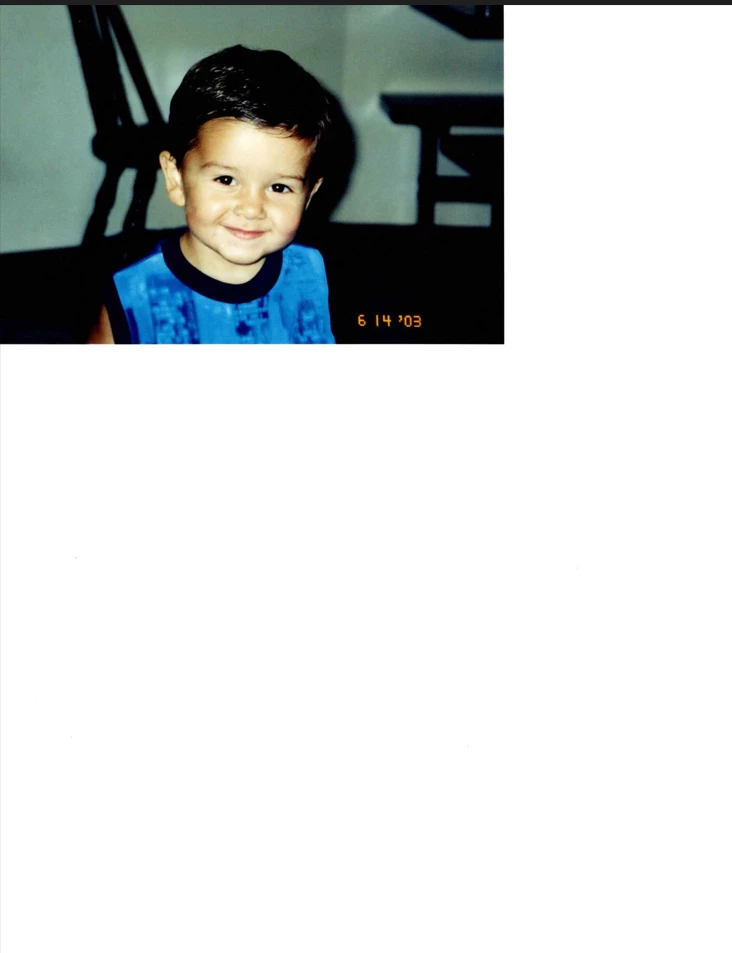
I am putting together a slideshow for my 23-year-old BFF's son Celebration of Life services. She scanned numerous photos; however, instead of just scanning the photo, they are all scanned to 8 1/2 x 11.


How can I get rid of the 'white space' in the photos (other than opening them and cropping them, one-by-one)?


This topic has been closed for replies.

3 replies

Stephen Marsh
Community Expert
Community Expert
September 21, 2024

Assuming that all scans had the photo in the same upper-left position on the scanner bed and based on the (small) size of the uploaded sample scan... Record a simple 2-step action:


Canvas size: Upper left anchor point, 503 px width x 343 px height.

Canvas size: Lower left anchor point, 503 px width x 337 px height.


You may also wish to add a flatten step in and or use Save a Copy as the image has a single floating layer that may cause problems if attempting to save to say JPEG format (the original PNG accepts a single floating layer).


Then use File > Automate > Batch to batch crop the originals using the action.


Work on copies of the original scans for safety.


Good luck!

Conrad_C
Community Expert
Community Expert
September 20, 2024

I tried File > Automate > Crop and Straighten Photos on the image you uploaded, and it worked well on this example. You might try building an Action (macro) around that command and then use the File > Automate > Batch command to run that Action on all of the images you need to process.


However, be aware that Crop and Straighten Photos might not always work. It assumes that the space around photos is empty, so if there are bits outside the image that aren’t white, there is a chance it will not crop some photos properly and you’d have to crop those pictures by hand. It did work well with the example image, even though it’s not really solid white outside the image. So that’s encouraging.


In the future, scan photos away from the scanner edge and not touching each other, so that there’s enough pure white space between photos that the automated crop/trim commands can easily isolate and separate one or more photos in a scanned image.

Legend
September 20, 2024

Try recording Image->Trim into an action then running a batch operation.


Conrad_C
Community Expert
Community Expert
September 20, 2024

Unfortunately, it is immediately evident that this is the kind of scan that Image > Trim will completely fail to help with. I tried it, and nothing was trimmed. The reasons:


1. The dark strip going all the way across the top prevents the right edge from being trimmed. 

2. The bottom is not trimmed because if you zoom in, there is a thin light grey strip along the left edge that goes all the way to the bottom edge. 


Therefore the Trim command decides that the area beyond the snapshot print is not a uniform pixel color, so it trims nothing.

Legend
September 20, 2024

Oh I thought there was actual white space outside the image area.