Inspiring
December 6, 2016
Answered

Change Color of an Area with History Brusn

  • December 6, 2016
  • 1 reply
  • 316 views

Instructions call for user to select a prior state for use with history brush. So, how shall I create a prior state by setting, in another part of my image, the color with which I would like to paint using the history brush?

Thanks,

jwc

    This topic has been closed for replies.
    Correct answer davescm

    Hi Jack

    The history brush allows you to take a point in your history panel then paint onto the image with whatever the colour was in the image at the same location but at that point in history.

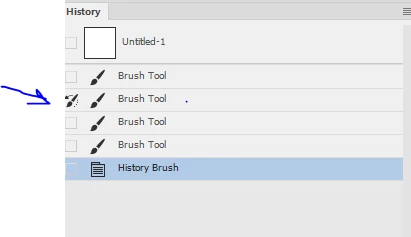
    You set the point in the history panel by clicking on the left. So if you look at the example below, I painted with a standard brush 4 times. Then I painted with the history brush and it used the state of the image when I had painted with only the second brush stroke.
    You could also use this after say blurring and darkening an image and then paint back in some of the earlier image. before those changes.

    The result does not just have to be brushing back in what was previously there. Although that is what will happen if you use brush blending mode Normal and Opacity 100%.  You can of course alter both of those for other effects.

    I hope that helps

    Dave

    1 reply

    davescm
    Community Expert
    davescmCommunity ExpertCorrect answer
    Community Expert
    December 6, 2016

    Hi Jack

    The history brush allows you to take a point in your history panel then paint onto the image with whatever the colour was in the image at the same location but at that point in history.

    You set the point in the history panel by clicking on the left. So if you look at the example below, I painted with a standard brush 4 times. Then I painted with the history brush and it used the state of the image when I had painted with only the second brush stroke.

    You could also use this after say blurring and darkening an image and then paint back in some of the earlier image. before those changes.

    The result does not just have to be brushing back in what was previously there. Although that is what will happen if you use brush blending mode Normal and Opacity 100%.  You can of course alter both of those for other effects.

    I hope that helps

    Dave