There’s no dialog box.
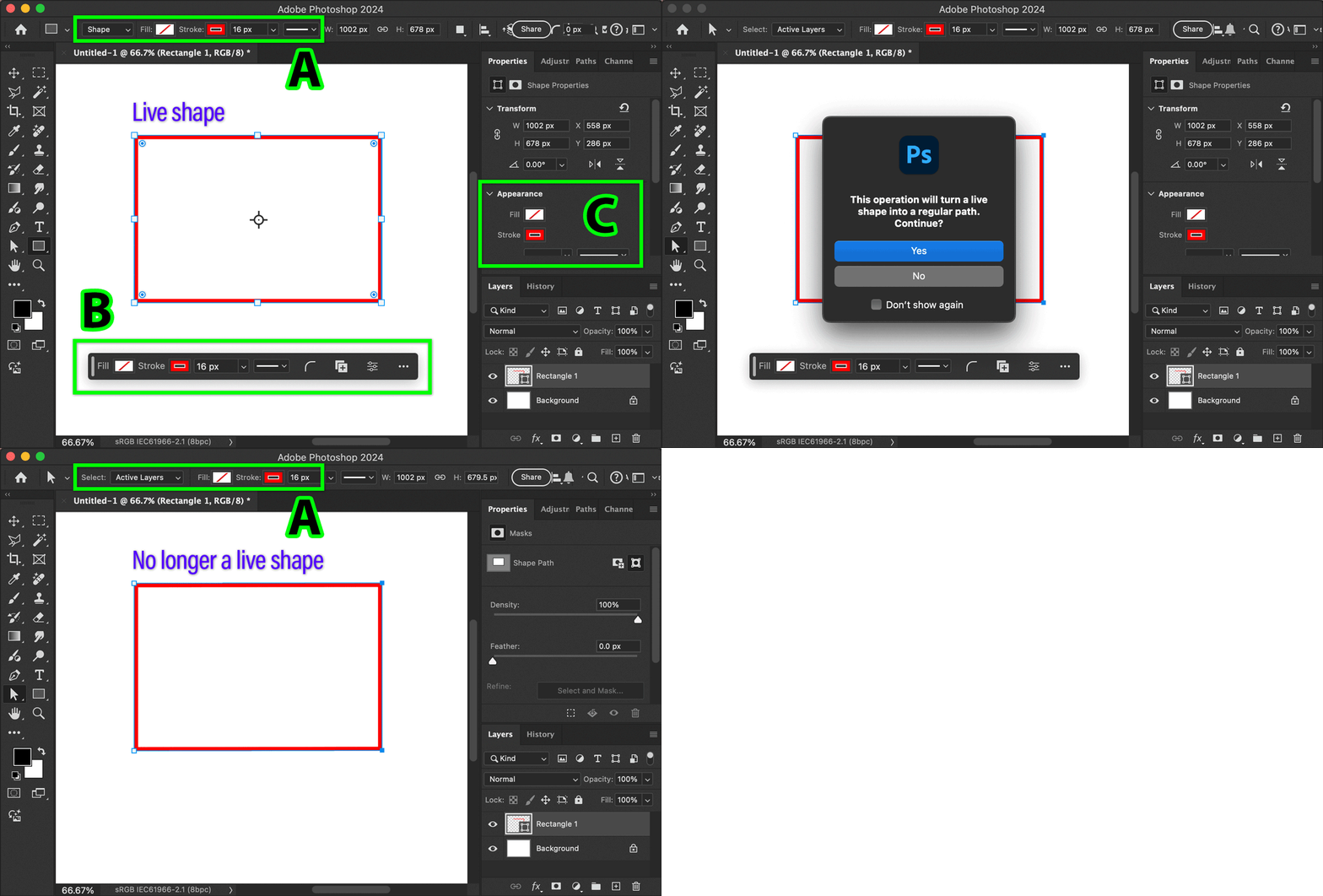
When you draw with the Rectangle tool in Shape mode, the layer you get is a Live Shape layer. Live Shape means you can adjust additional shape properties such as rounded corners, and also, a Live Shape displays Fill and Stroke in three places:
A. The options bar at the top, when a shape or pen tool is selected.
B. The Contextual Task Bar that was added in recent versions.
C. The Properties panel, in the Appearance section.
But…if the layer was edited in any way that takes it out of Live Shape mode, such as editing an individual path point, then it loses Live Shape properties. Now the Fill and Stroke no longer appear in B or C, but you can still adjust Fill and Stroke in A (the tool options bar) if a shape or pen tool is selected. (Yes, it’s weird that they go away in B and C, and I don’t like that…but that’s how it works.)
This is shown in the demo below.
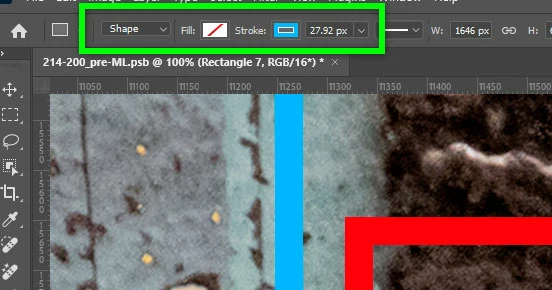
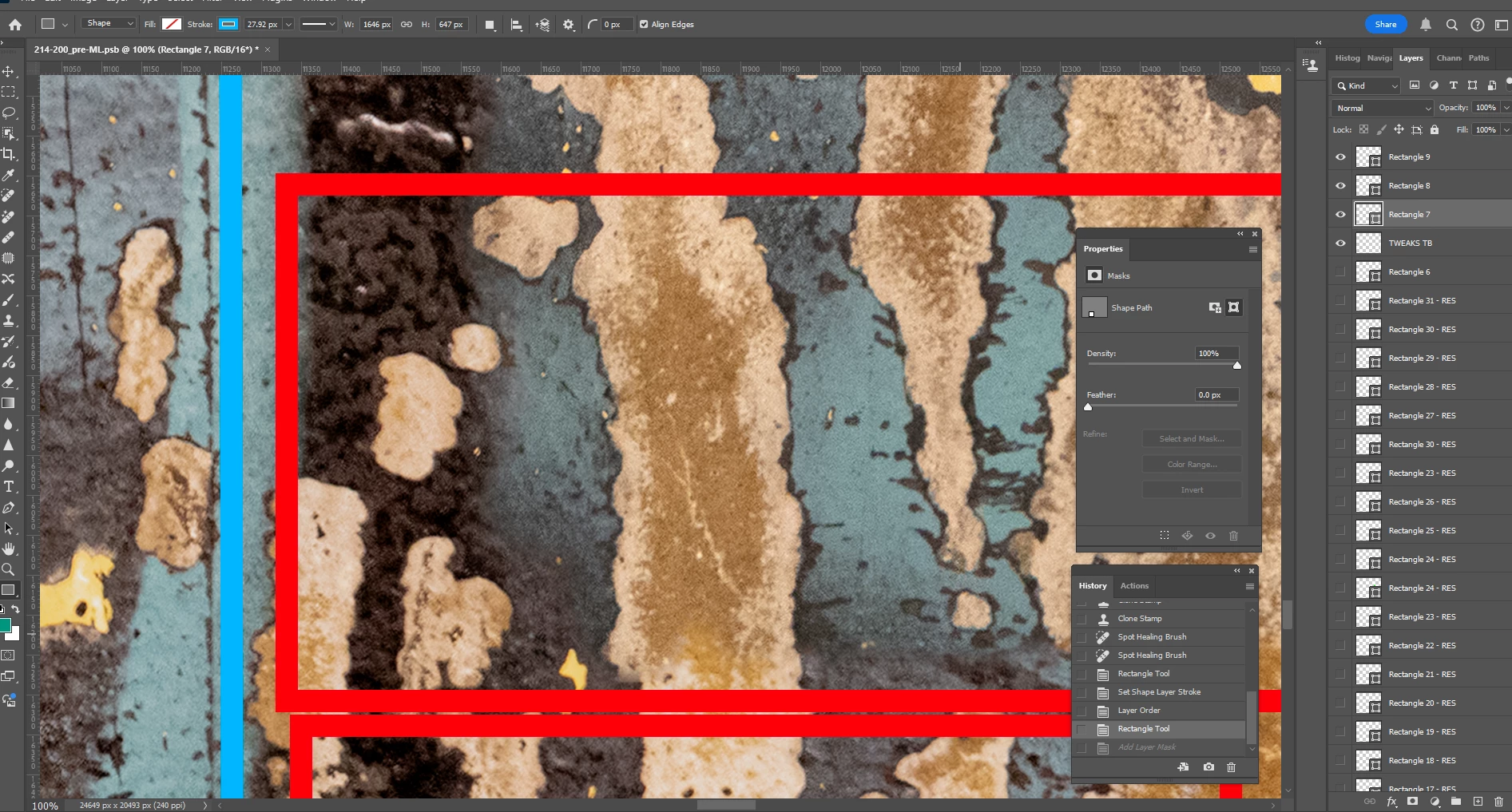
In your screen shot, you’ve selected everything correctly but Fill and Stroke properties are not available at B or C. This suggests that the rectangle is no longer a Live Shape. Your screen shot also shows that, up in the options bar at the top for the Rectangle tool, Fill and Stroke are available for your currently selected shape layer, as expected for a non-Live Shape layer. Are you able to use those Fill and Stroke options?

 AdChoices