
Participating Frequently
August 17, 2022
Answered

Change the color of an object

  • August 17, 2022
  • 3 replies
  • 2191 views

I am trying to change the color of the dress and wings on a PNG image of a fairy. I tried going through the step-by step tutorial, but I got stuck. One of the stes was to Select a Color fill or Adjustment icon for Solid Color. There is no Color fill icon that I can find, and there are 17 icons for Adjustment, nomne of which is Solid Color. T was able to follow the instructions using a Selective Color icon under Adjustments, but at the end of the process, nothing changed.

I want to change the color of the outfit, wings, and hair of the attached image. How is this done?
This topic has been closed for replies.
Correct answer Kevin Stohlmeyer

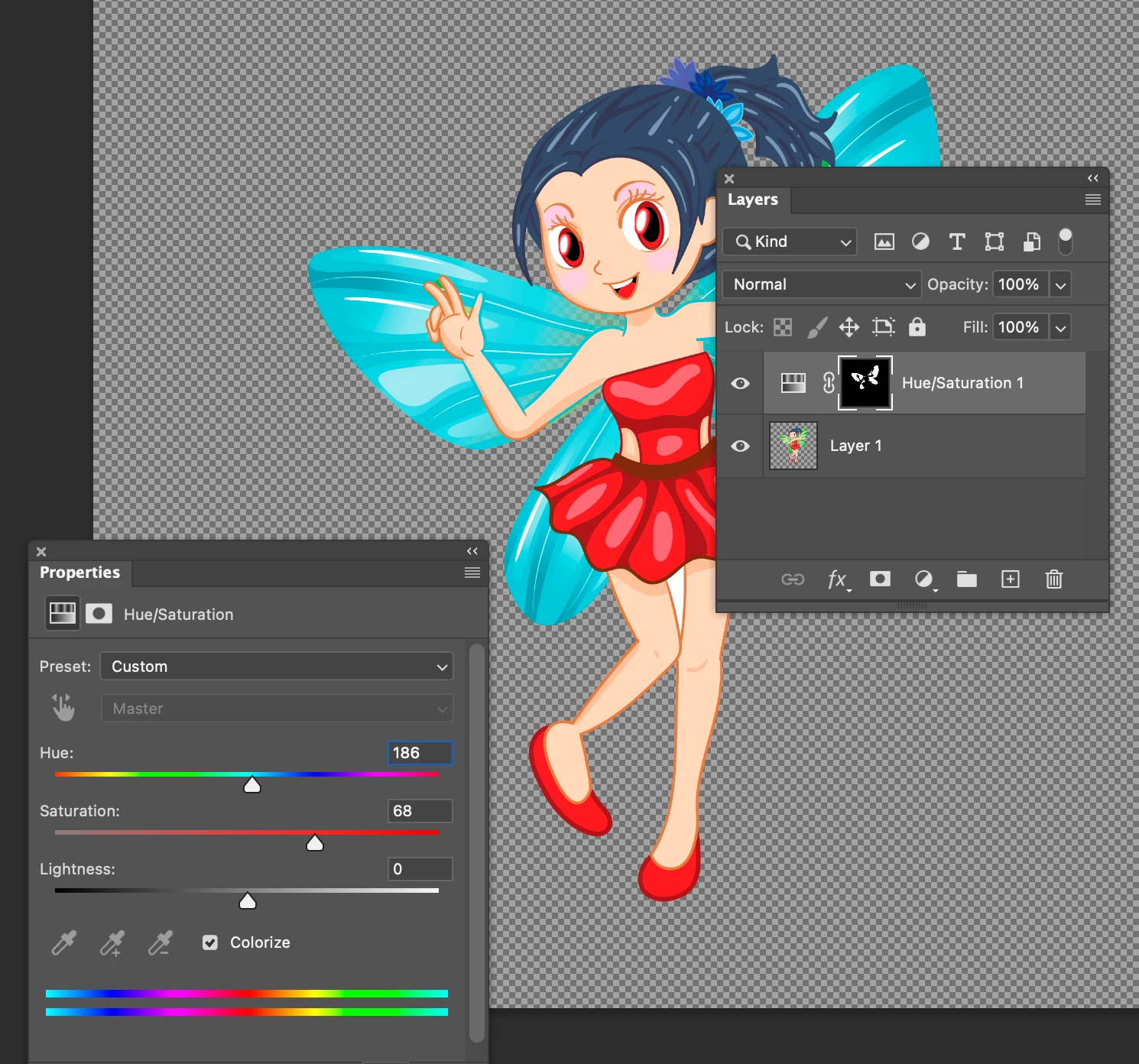
Use a selection tool like quick select or magic wand to select the dress or wings (one at a time).

Once you have your selection, add a hue saturation adjustment layer.

Then click the "Colorize" check box and adjust the hue and saturation.

Return to the original layer and select the other object and repeat.


3 replies

Bojan Živković11378569
Community Expert
Community Expert
August 18, 2022

"There is no Color fill icon that I can find, and there are 17 icons for Adjustment, nomne of which is Solid Color."


You can find solid color fill from Layer > New Fill Layer > Solid Color.

JosephShAuthor
Participating Frequently
August 18, 2022

There are textures in the portion of the image I want to change, and they need to be preserved. The tutorial referenced is supposed to be able to do that, using other tools on the right side of the screen. I'm not sure that the top menu selection would do that.

Jumpenjax
Community Expert
Community Expert
August 18, 2022
Lee- Graphic Designer, Print Specialist, Photographer
JosephShAuthor
Participating Frequently
August 18, 2022

The video is from an older version of Photoshop, so it doesn't help. Thanks for trying.

Jumpenjax
Community Expert
Community Expert
August 22, 2022

So sorry, I should have looked at the date. 

Here is another and you can search Phlearn for more explanations too. They have some pretty good videos.

https://youtube.com/watch?v=baW9jj0gs0w&feature=share

Lee- Graphic Designer, Print Specialist, Photographer
Kevin Stohlmeyer
Community Expert
Kevin StohlmeyerCommunity ExpertCorrect answer
Community Expert
August 17, 2022

Use a selection tool like quick select or magic wand to select the dress or wings (one at a time).

Once you have your selection, add a hue saturation adjustment layer.

Then click the "Colorize" check box and adjust the hue and saturation.

Return to the original layer and select the other object and repeat.


JosephShAuthor
Participating Frequently
August 18, 2022

Unfortunately, the photo above bears no sresemblence to what I have. I am using Adobe Photoshop 2022, release 23.4.2. I hope it's not too big, but I have attached a screenshot of what I have(I have already selected the top of the dress). Also, You said "Once you have your selection, add a hue saturation adjustment layer". How do I do that? Do I use the menu on top or the tools on the right side? I'm a newbie, I need everything explained.

Kevin Stohlmeyer
Community Expert
Community Expert
August 18, 2022

I moved the panels out so I could capture everything in one screen shot. Look at the titles of the panels and you see them on the right.

The bottom of your layers panel has a black/white icon - that is a pop out menu for adjustment layers.

You may want to learn Photoshop before jumping into a project like this. Here are some primers to get you started:

Get to Know Photoshop

Work with Layers

Select and Change Colors