
Participant
January 28, 2025
Answered

Change the color of the architectural plan

  • January 28, 2025
  • 3 replies
  • 2154 views

Hello,
What do I need to do to change the color of an architectural plan when in Photoshop? I remember to do this by creating a new layer and moving the plan under this layer with the ALT key. But it doesn't work. I've done it this way before, but I can't remember right now and I don't have anyone to ask.
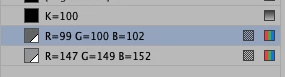
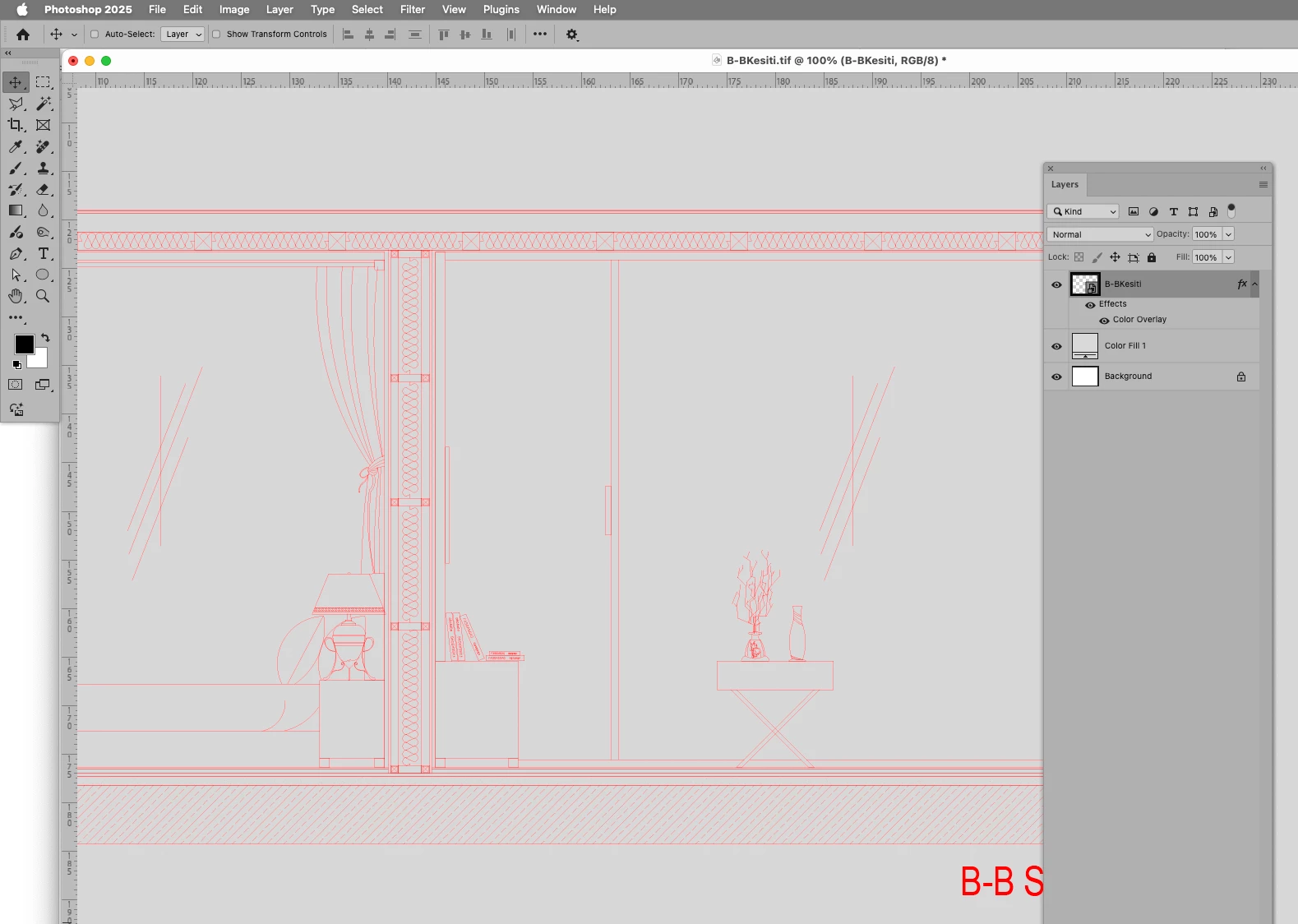
Correct answer c.pfaffenbichler

I would recommend placing the pdf as a Smart Object to allow for (repeated) scaling without degredation. 


Aside from that there seem to be some elements with gray strokes. 

If those differences are irrelevant then a Color Overlay with the Blend Mode »Normal« should be fine. 

3 replies

c.pfaffenbichler
Community Expert
c.pfaffenbichlerCommunity ExpertCorrect answer
Community Expert
January 29, 2025

I would recommend placing the pdf as a Smart Object to allow for (repeated) scaling without degredation. 


Aside from that there seem to be some elements with gray strokes. 

If those differences are irrelevant then a Color Overlay with the Blend Mode »Normal« should be fine. 

N_d9632Author
Participant
January 29, 2025

I'm so sorry but why didn't it happen?

N_d9632Author
Participant
January 29, 2025

The image is grayscale, please invoke Image > Mode > RGB and try again. 


After some effort I did it. Image mode is defined in grey. Thank you for your time. I am grateful. 

c.pfaffenbichler
Community Expert
Community Expert
January 29, 2025

Please provide the pdf. 

Maybe the Layer Style > Color Overlay might suffice. 

Pariah Burke
Community Expert
Community Expert
January 29, 2025

I just said that.


c.pfaffenbichler
Community Expert
Community Expert
January 29, 2025

Depending on whether the pdf contains only black elements against transparency or also gray/other ones one may have to change the Blend Mode, though. 

So I asked for the pdf. 

Pariah Burke
Community Expert
Community Expert
January 29, 2025

If you only want to change the color of the existing layer there are several methods. The first I'd start with is to add a Hue & Saturation Adjustment Layer.

  1. At the bottom of the Layers panel click the black-and-white circle icon that looks like a moon cookie.
  2. Select Hue & Saturation.
  3. On the Properties panel adjust the sliders and/or activate Colorize to get the desired color.


There are other methods, of course, such as locking layer transparency and painting over it; using a layer style with a Color Overlay; painting over it with a blending mode on the brush; adding a fill layer above your artwork and blending it through half a dozen methods to color only the layer below; and, I'm sure, a few methods I'm forgetting at the moment.


N_d9632Author
Participant
January 29, 2025

Hello, the Hue & Saturation section does not appear to be active.

c.pfaffenbichler
Community Expert
Community Expert
January 29, 2025

Image > Mode > RGB (or CMYK if you prefer, but that cause its own problems and should only be used of one definitely knows the CMYK target space)