
janb6440948
Participant
February 19, 2018
Answered

Changes in Camera Raw does not apply in Phtoshop (or Bridge)

  • February 19, 2018
  • 1 reply
  • 476 views

I have the latest versions of CR and PS, updatetd yesterday, my OS is Windows 10 pro. My problem ist that changes i make to images in CR does not appear in PS (or in Bridge). Can anyone help me with this?
    This topic has been closed for replies.
    Correct answer Per Berntsen

    This is probably caused by a defective monitor profile.

    Windows 10 is known to install low quality/defective profiles when doing updates.

    Try setting the monitor profile to sRGB (Adobe RGB if you have a wide gamut monitor)

    If this fixes the issue, you should ideally calibrate your monitor with a hardware calibrator.

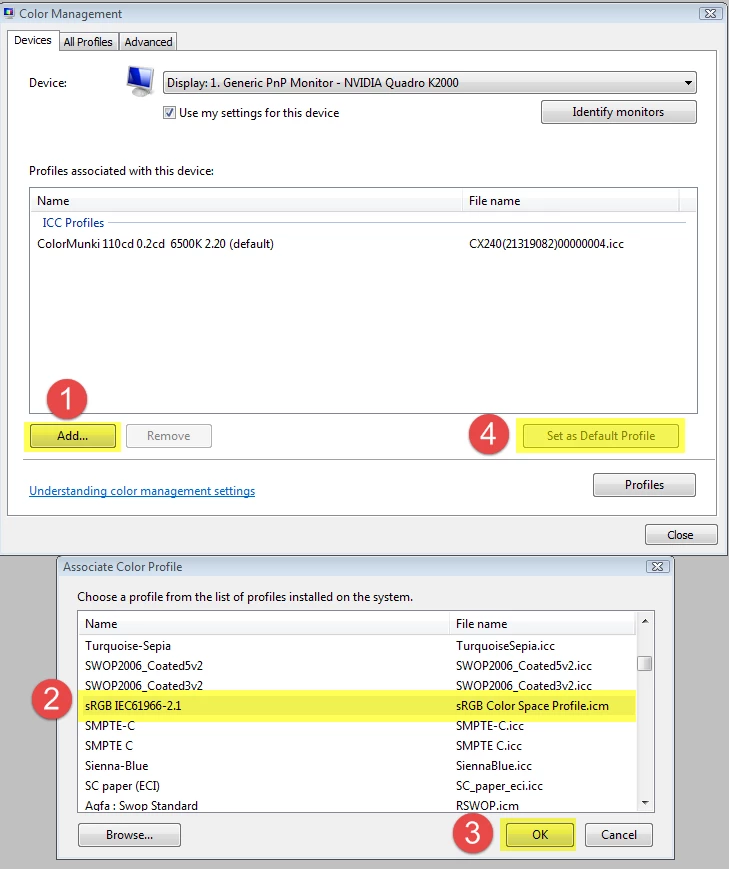
    Go to Control panel > Color management.

    Add the sRGB profile, the set it as default.

    Make sure that Use my settings for this device is checked.

    You will need to restart Photoshop for the change to take effect.

    1 reply

    Akash Sharma
    Legend
    February 19, 2018

    Hi janb6440948,

    As you've mentioned that you are opening an image in Camera raw, do edits on it, Click "Done" and then you do not see changes made in Photoshop or Bridge. Is that correct?

    Note that pressing the option "Done" is important to let the changes save and apply to the image,

    Also, share your Bridge, Photoshop and Camera raw version you have.

    Thanks,

    Akash

    janb6440948
    Participant
    February 19, 2018

    Hi

    Yes that is correct, i edit images in CR but I can not see the changes in PS or Bridge. I can see some changes for example exposure but that is about it. My versions are: PS 19.1.1, CR 10.2.985, BR 8.0.1.282 x64. Also see the the attached images.


    Per Berntsen
    Community Expert
    Per BerntsenCommunity ExpertCorrect answer
    Community Expert
    February 19, 2018

    This is probably caused by a defective monitor profile.

    Windows 10 is known to install low quality/defective profiles when doing updates.

    Try setting the monitor profile to sRGB (Adobe RGB if you have a wide gamut monitor)

    If this fixes the issue, you should ideally calibrate your monitor with a hardware calibrator.

    Go to Control panel > Color management.

    Add the sRGB profile, the set it as default.

    Make sure that Use my settings for this device is checked.

    You will need to restart Photoshop for the change to take effect.