Known Participant
February 23, 2017
Answered

Changing a pattern to a specific target color

  • February 23, 2017
  • 2 replies
  • 644 views

Hello guys,

below, in the left box, you see a simple pattern I regularly use, but always in different colors:
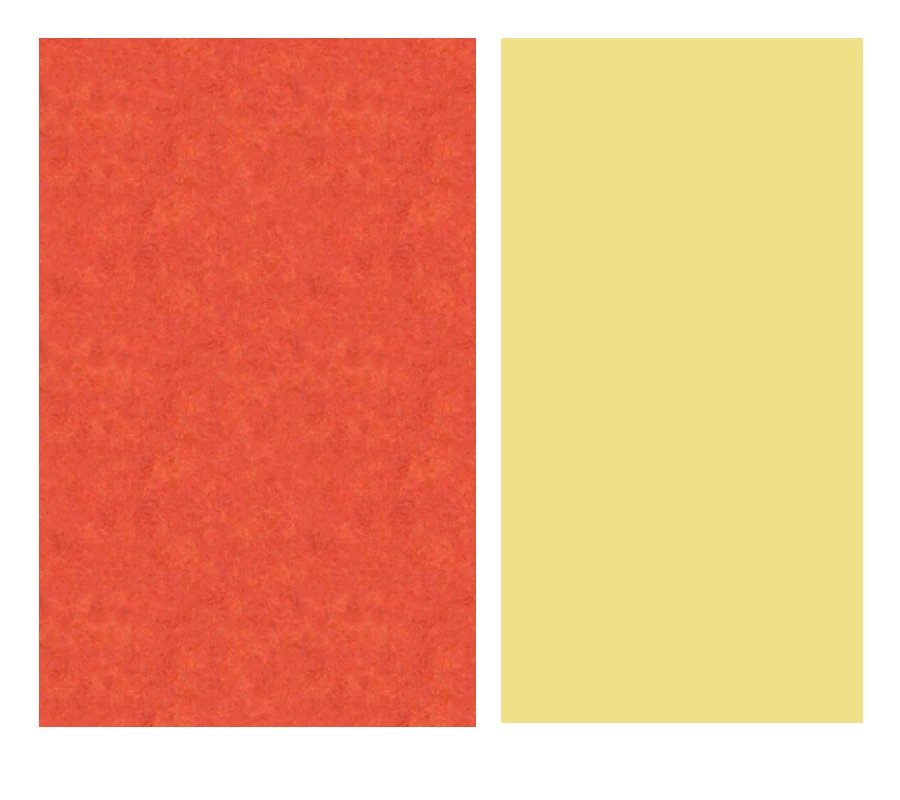
I always have a specific target color I want to need to get as close as possible to. However, changing the color of the pattern is always a drag, I'm not good at it. I usually use the color replacement brush, sample the target color (for example the one in the box on the right), brush over the pattern and then adjust through the color balance options. It takes a lot of time (for me), and the results are usually only acceptable. Are there alternatives?
This topic has been closed for replies.
Correct answer davescm

For the change you show above:

1. Set the eye dropper to a reasonable sample e.g. 31x31 - not point.

2. Shift click and place a couple of points on the colour to be changed and a couple on the colour to change to

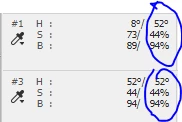
3. Go into the info panel and set the points to HSB rather than RGB

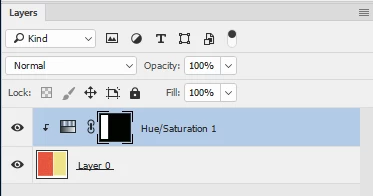
4. Add a Hue and Saturation adjustment layer and adjust sliders till the points in the info panel match

Dave

2 replies

davescm
Community Expert
davescmCommunity ExpertCorrect answer
Community Expert
February 23, 2017

For the change you show above:

1. Set the eye dropper to a reasonable sample e.g. 31x31 - not point.

2. Shift click and place a couple of points on the colour to be changed and a couple on the colour to change to

3. Go into the info panel and set the points to HSB rather than RGB

4. Add a Hue and Saturation adjustment layer and adjust sliders till the points in the info panel match

Dave

RauPPAuthor
Known Participant
February 23, 2017

Perfect, Dave, that was what I was looking for! Bahaar, thanks a lot for your advice too! Thank you both very much!

Inspiring
February 23, 2017

I believe that by changing the saturation in photoshop you can get it to any color you want. Go to Image -> settings and from there you can either choose Hue/Saturation or color balance. Also shortcuts:

Ctrl + U = Hue/Saturation Ctrl + B = Color balance

Play around with those and let me know if it worked for you.

Also Image/Adjustments/Replace color -will target like colors and change only them