Participating Frequently
February 1, 2022
Answered

Changing color of an object and putting a new logo

  • February 1, 2022
  • 1 reply
  • 607 views

hey I have an image that I want to edit the colors of the boat and the logo on it. The image is not a size view so it has an angle and many details on it. Will photoshop work for this or how would it be easier?

This topic has been closed for replies.
Correct answer c.pfaffenbichler

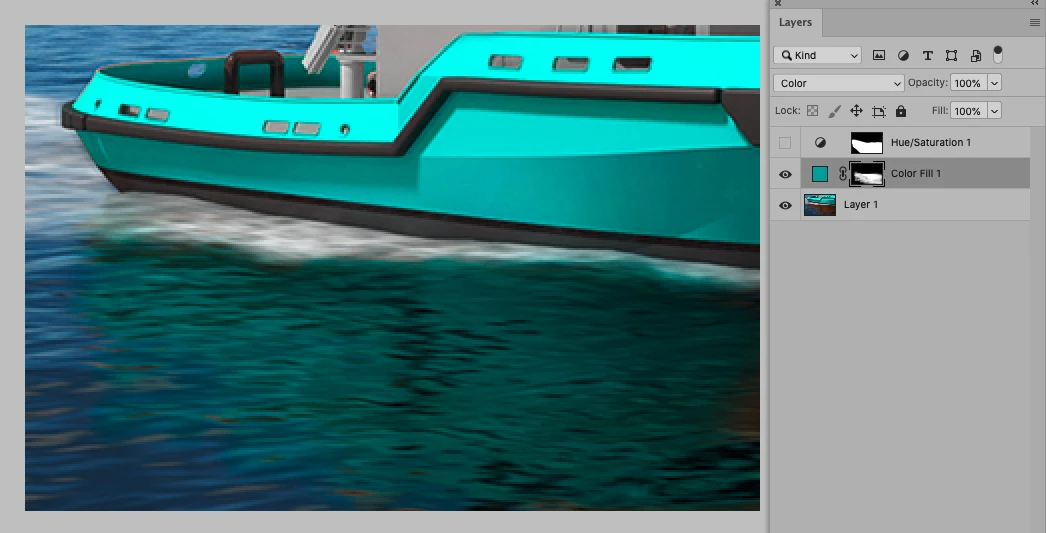
And it went very well, thanks for the good tips. Now that I changed the color of the ship it is also a bit of a problem with the reflections on the water. what would you recommend to change the color of the reflections?


Thanks a lot for your help 🙂


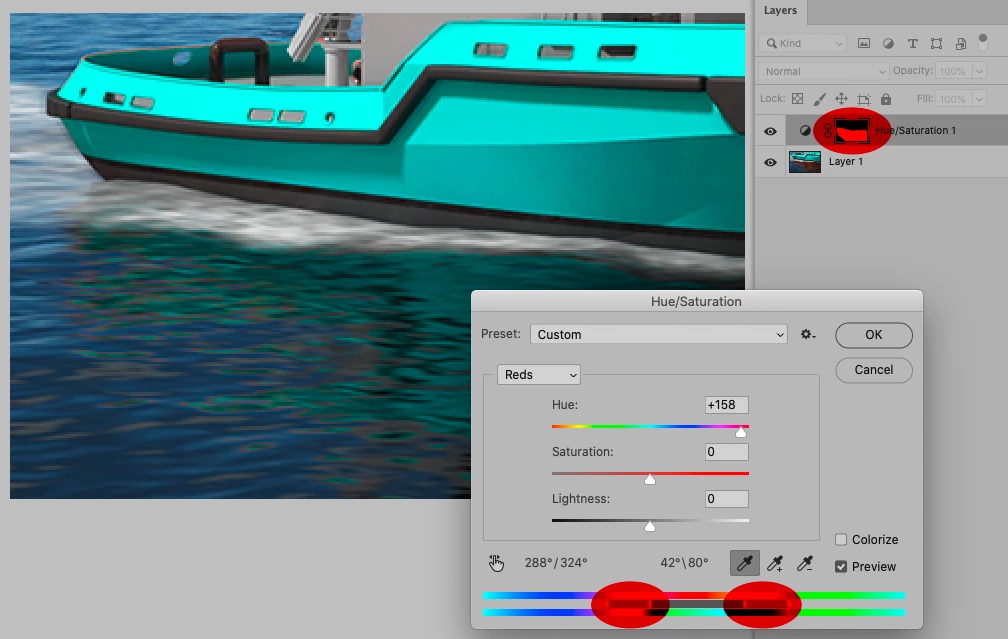
One can edit a Hue/Saturation Layer’s Color Ranges and drag the handles manually and add a Layer Mask to the Layer. 

Another option would be just using a Solid Color Layer with a Layer Mask and set to Blend Mode »Color«. 

1 reply

c.pfaffenbichler
Community Expert
Community Expert
February 1, 2022

Pleaase post (a lowres version of) the image in question. 

In what form do you have the replacement logo? 

Participating Frequently
February 1, 2022

it is a work image so I am not allowed from the company the new logo is in .jpg or .png


c.pfaffenbichler
Community Expert
Community Expert
February 2, 2022

so where should I place this new hue saturation? first save the image and open it again without layers? and then selecting thye area of the water with the pen tool/ lasso tool and then applying the hue saturation while having that part selected? did you cut the rest of the picture so that the hue saturation layer is only affecting the water?

It is the same problem on the glass and metal comåponents. Can I include everything in the same layer?


»Background copy 2« seems to be a Layer without the boat already, so you could Clipping Mask the Hue/Saturation Layer for the reflection to that. That way you could ignore the boat in the new Mask. 

Then apply a Layer Mask (Layer > Layer Mask > Hide All) or if there is one already invert it (so it is black) and paint with a soft Brush and the Foreground Color white to reveal its effect roughly on the area of the reflection. 


I would like to recommend three things, though. 

• Having the background on a layer above the Layer that contains the foreground (the boat in this case) is not a problem technically. 

But in my experience it can help keep the layer structure clear to try and keep the foreground topmost. (Color coding can also help.) 

So in this case: Boat (at the top), sea, sky (at the bottom) as three Layers or Groups. 

• You seem to have clipped all the various elements; using Layer Masks on the Layers can be useful in case one needs to refine the selection later on. 

• If you need to apply a Filter (like Unsharp Mask) it may pay off later to apply it as a Smart Filter.