
Participant
January 3, 2017
Answered

Channel to appear as (visible) mask in layer

  • January 3, 2017
  • 1 reply
  • 433 views

Problem: general: How to get a color channel or other alpha channel to appear as [or in] a visible layer as a regular mask ion the layer panel.

Task at hand, specifically: Simple example: I select the blue channel that I want to use as a regular mask on a copy of my background so that I can manipulate the sky, e.g.: make it more saturated or, more to the case at hand, delete it and replace it*. I can't seem to do the latter with just loading the channel.  I would also find it a lot easier to work with the channel mask if it were visible in the layer panel for more direct editing of the image and the mask itself.

*[In reality, I am using a luminosity layer to better select the sky when it is heavily involved with foreground, such as with tree branches and leaves. Just didn't want to complicate this discussion with luminosity mask concepts.]

Bill
    This topic has been closed for replies.
    Correct answer JJMack

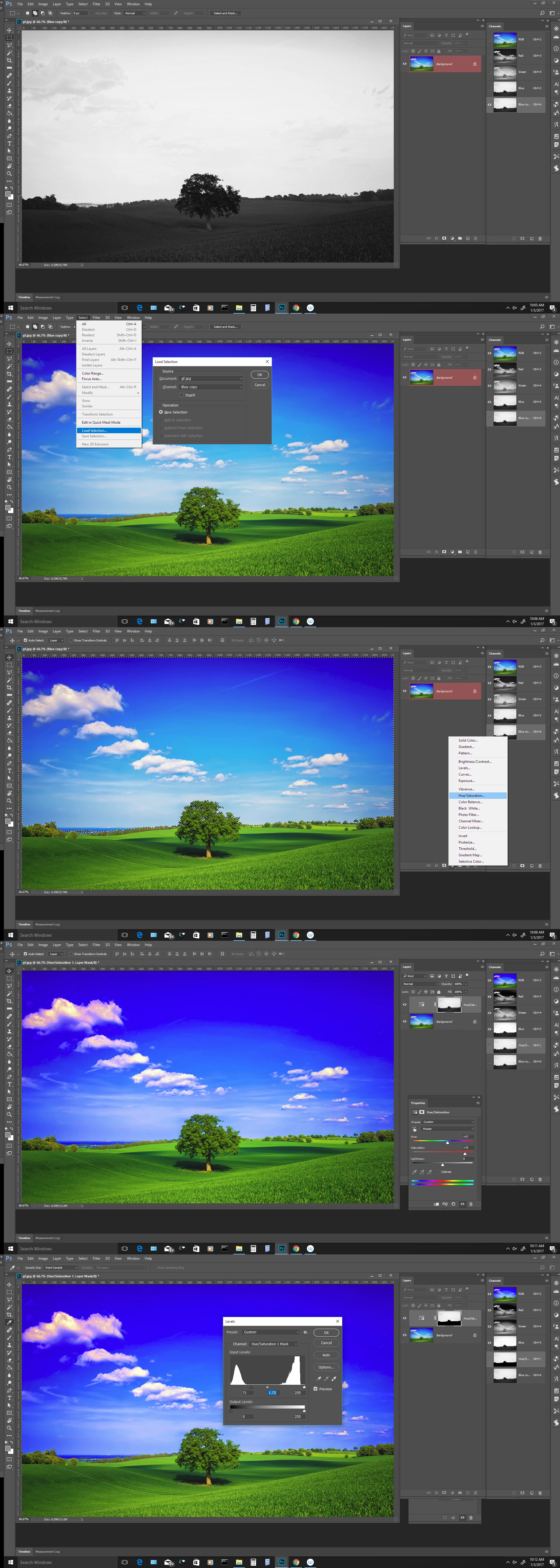
    Copy the blue channel. Target the RGB layer.  Load blue copy  as a selection. Add add saturation adjustment layer.  Adjust the saturation adjustment. Target the layer mask.  Use a levels adjustment on the layer mask black slider to mask out more of the green land area and the gray and white sliders to adjust the sky.

    1 reply

    JJMack
    Community Expert
    JJMackCommunity ExpertCorrect answer
    Community Expert
    January 3, 2017

    Copy the blue channel. Target the RGB layer.  Load blue copy  as a selection. Add add saturation adjustment layer.  Adjust the saturation adjustment. Target the layer mask.  Use a levels adjustment on the layer mask black slider to mask out more of the green land area and the gray and white sliders to adjust the sky.

    JJMack
    Participant
    January 3, 2017

    Good start, but . . . I want to be able to modify that blue channel, as a VISIBLE mask in the layers panel if possible. The blue channel has selected areas in the trees, away from the skyline that I do not want selected. Also, with the mask not appearing on the layers panel, it is very hard to go back later and identify/modify what went on before. Am I presenting the issue clearly enough?

    Bill

    PS: Dah! - you had it the first time! Missed the answer above. Create an adjustment layer - any one - just to get the mask I want!

    davescm
    Community Expert
    Community Expert
    January 3, 2017

    Hi

    To make a mask from the blue channel :

    Select the blue channel

    Click on load channel as selection

    Go to your layer and - Layer - Layer Mask - Reveal Selection

    Dave