
Inspiring
April 25, 2024
Answered

Clipped blacks and difference in color in Photoshop, compared to Camera RAW and Lightroom

  • April 25, 2024
  • 8 replies
  • 1299 views

Hey! Last week my old iMac crapped out, so I got a new mac m2 + LG 27UP83A-W monitor. It's been a week and I tried asking my friends, reddit and looked around the internet for a while and I am getting super frustrated by now as I am a professional photographer and I need photoshop to be reliable.


When I got the monitor, I tried calibrating it with my Spyder 5 Express and I immediately realised the colors were crap, so I got the Spyder X pro and calibrated again.


Now my monitor looks great, photographs show enormous detail in whites/blacks. BUT only Photoshop decides to crap; it changes the hue a bit, sometimes warmer, sometimes colder depending on the photograph and totally clips the blacks and turns the shadow details into a dirty grayish mesh,


It is only in photoshop that this happens, when I open ACR through Filter in PS, I see the rich shadow tones the photograph has, but in Photoshop it doesn't.
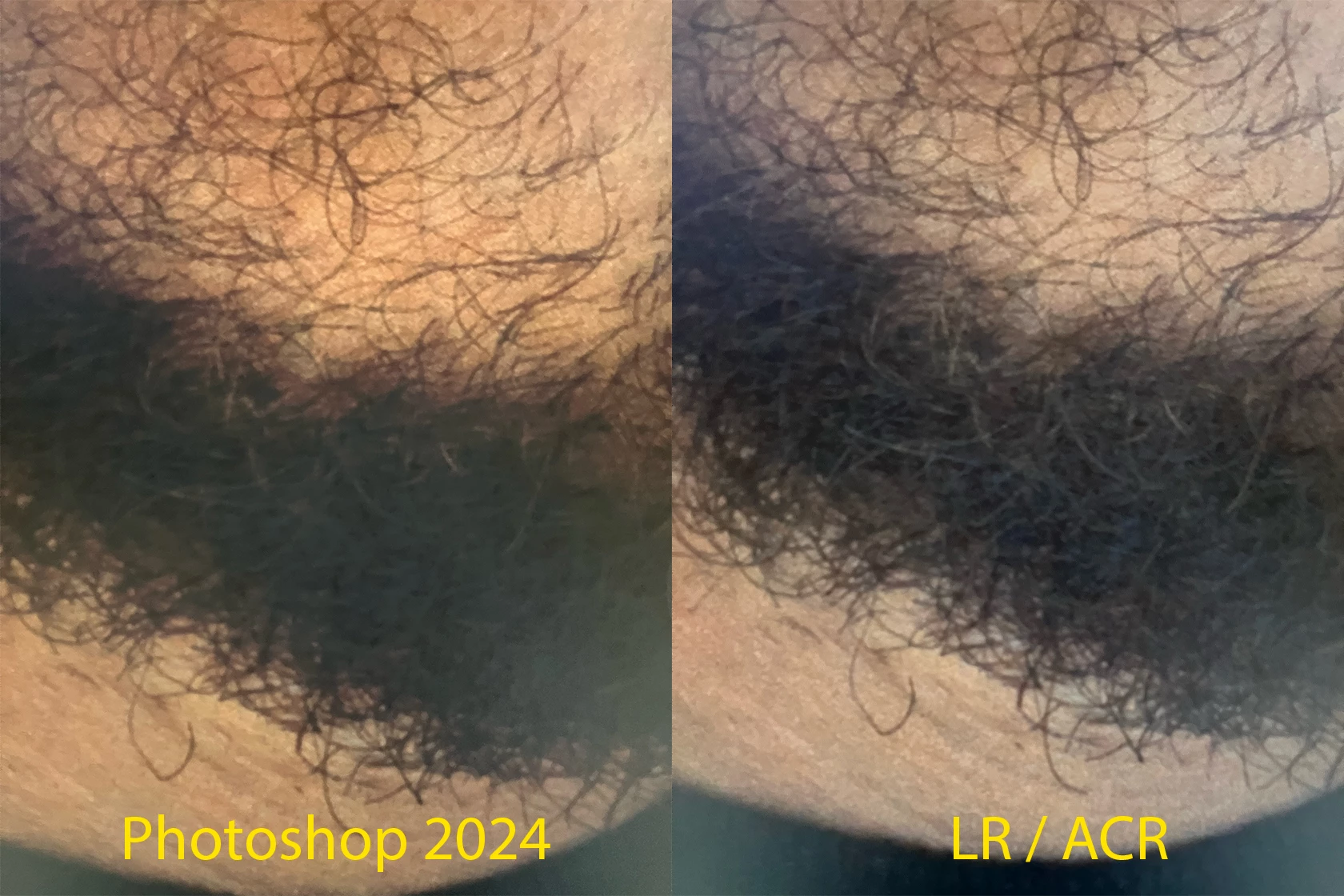
 

Here I took photographs of the screen to show what I am dealing with. Notice how the same photograph in the same colorspace (Display P3 in PS/LR/ACR) looks totally different, especially in the blacks?


Does somebody have any idea how to fix this?


Thanks in advance!


Rick


This topic has been closed for replies.
Correct answer riccknl

Wow.. I think I just solved it..!


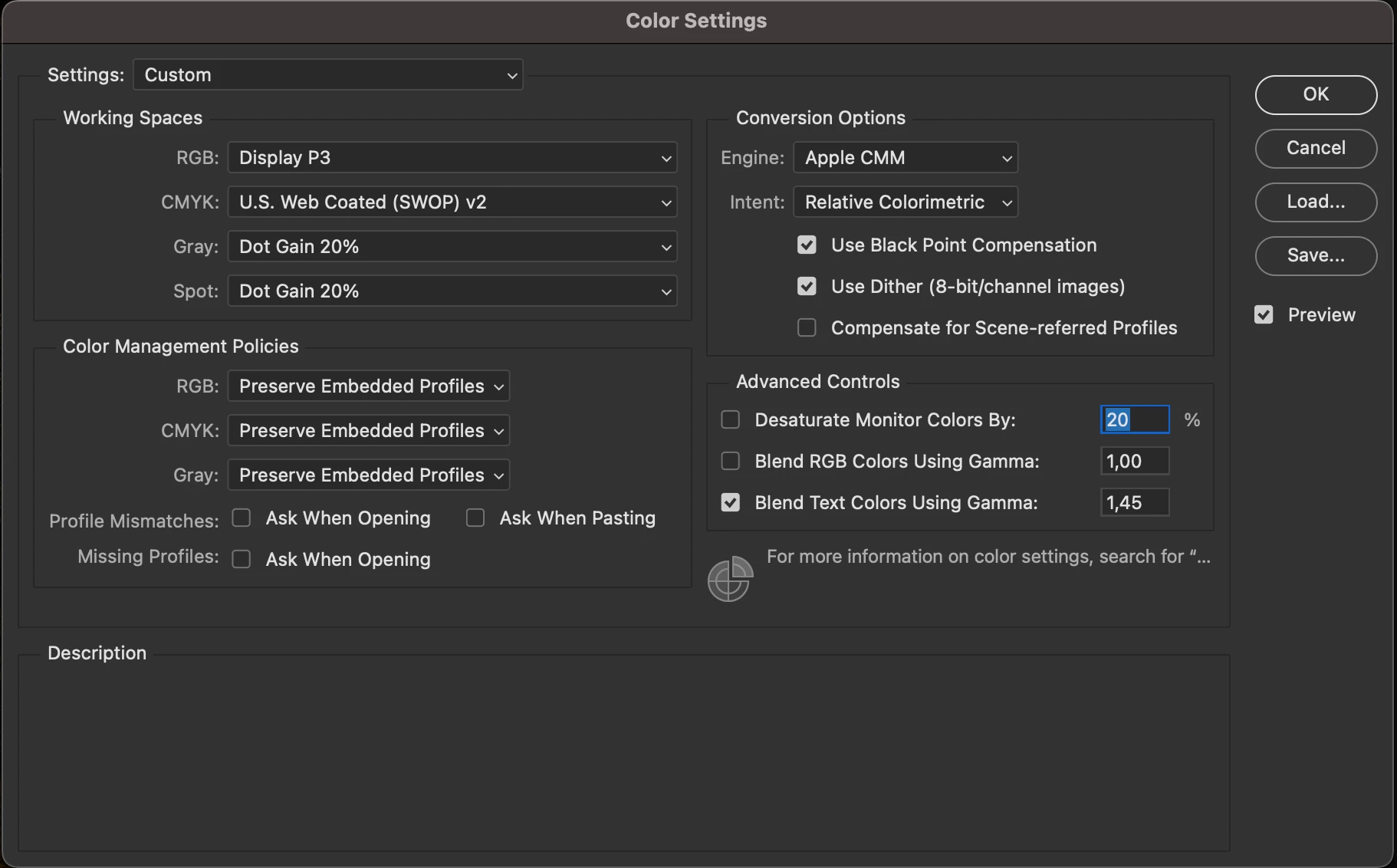
In Photoshop I went to the Color Settings and changed th Conversition Options to Apple CMM, instead of Adobe ACE.

Now the image in Photoshop looks EXACTLY the same (well there is a little more detail in the shadow)  in Lightroom, Preview, Chrome.. also looks a bit more like my iPhone and iPad screen.


8 replies

riccknlAuthor
Inspiring
April 29, 2024
riccknlAuthor
Inspiring
April 28, 2024

Last update!


I got myself a BenQ SW240 as I can return my LG Ultrafine. Calibrated it with the Calibrite Display SL and seems to look alright. There is still a small difference between ACR and Photoshop when I check the shadows, PS still displaying a more grayish quality in the deep blacks. Doesn't matter anymore if it is in Adobe ACE or Apple CMM tho!

riccknlAuthorCorrect answer
Inspiring
April 25, 2024

Wow.. I think I just solved it..!


In Photoshop I went to the Color Settings and changed th Conversition Options to Apple CMM, instead of Adobe ACE.

Now the image in Photoshop looks EXACTLY the same (well there is a little more detail in the shadow)  in Lightroom, Preview, Chrome.. also looks a bit more like my iPhone and iPad screen.


D Fosse
Community Expert
Community Expert
April 26, 2024

That's not a solution, only a temporary workaround for now.


The rest of what you're saying confirms that the Spyder is the real problem here. For some reason it's making profiles that your system chokes on.


This can be hard to precisely diagnose nowadays, because the GPU is so integrated in the whole display color management chain. One flaky component can throw the others off. If the profile isn't written to entirely correct spec, it may cause the GPU to get it wrong - and vice versa.


I'd recommend this:

https://www.bhphotovideo.com/c/product/1649339-REG/calibrite_ccdis3_colorchecker_display_pro.html 

This is the classic i1 Display Pro, now rebranded. It's the best mainstream sensor on the market. I'm not so familiar with the bundled software, but I do think it's pretty reliable and you have more control over the parameters. The sensor is supported in most calibration software available, so it's a future-safe investment (I use an i1 Display Pro sensor with Eizo ColorNavigator software).

riccknlAuthor
Inspiring
April 26, 2024

Thanks for getting back! Yeh it seems it has to do with the Spyder ey! Altough after I switched to Apple CMM, and started researching if more people had to do this; so I am curious if this could also have to do with the super intergrated GPU in M2 Max chip. Wouldn't be a suprise that Apple wants you to use Apple things..


So for now I am super happy this works and my photographs are properly displayed in all my editing software, but I will ask around if somebody uses a i1 Display in my neighorhood to test things out! (I am a bit hesitant after last week to spend another month rent on something that in hindsight isn't working as promised hahah)


If I double checked with an i1 I will let you know here!

riccknlAuthor
Inspiring
April 25, 2024

ps: The color shift in the first post isn't that heavy in reality, it's mostly the way it displays the blacks and whites.

riccknlAuthor
Inspiring
April 25, 2024

So I tried putting it back into Display P3 - and photographs look the same in ACR, LR and PS. When putting it back to the Spyder profile you actually see PS rendering the photograph as it should be for a splitsecond, before it totally messes up again.


Also, I am running from a Mac Studio, so no macbook/imac screen involved. The LG one is the only screen I've got at home.


This is the same profile in ColorSync.

This is the standard Display P3 that I ran where PS is not crapping out. It might look like the LUTs are the problem then?


I tried recalibrating, but Spyder/Datacolor doesn't give me the option to turn LUTs of or to keep it just V2. I read about DisplayCAL but couldn't make it work because I am running a M2 chip.  Is there anyway to convert my profile so it doesn't have any LUT or is there a way you know of to this with Datacolor software?


Hope to hear from you!


D Fosse
Community Expert
Community Expert
April 25, 2024

OK, that's confusing. It says version 2,4, whatever that means, and it says matrix and LUT. Run it again and dig around a bit in the settings and parameters, and see if you can find clearer options. It could also be in the general preferences.


The wrong profile means the profile for the other display. Sometimes in these dual display scenarios, we see the profile for the main integrated display used also for the external display. This may affect one application but not the others. It's a bug, to be clear, but most likely on the OS/GPU side in assigning/presenting displays to the application.


This doesn't happen very often, but often enough that it needs to be considered.


One quick way to test the profile itself is to substitute a known good standard profile. I googled the monitor model and apparently it's a P3-type panel. So if you have a generic Display P3 profile (not one specifically made for the integrated display) on your system, try that. Photoshop should also install a profile called Image P3, which is standard on all counts.


When you do this, pick a document where you're not using Display P3 as the document profile! sRGB is best for this. The thing is - P3 to P3 will just disable all color management. When the source and destination profiles are the same, that's a "null transform" and all color management is disabled and nulled out. It doesn't even matter what the profile is, as long as they're the same, no color management happens. So it doesn't say anything about how Photoshop actually handles monitor profiles. It just says how Photoshop behaves when all color management is disabled.

riccknlAuthor
Inspiring
April 25, 2024

Thanks a lot for taking the time to reply. You're somewhat of a internet legend to me after searching for this problem for an entire week haha.


😧 Another possibility is that the profile is simply the wrong one for that display. This is occasionally seen in multi-display setups where one display is integrated (iMac/MBP). See if you can swap main/secondary display for testing purposes.

So I do not have another screen to test on. I will test and check on my iMac in my studio, a 2013 one. Just to see if my work looks the same in all the applications there.


😧 One thing you need to check in the Spyder software is profile type and version. LUT (table)-based profiles can be problematic in many scenarios. Matrix-based profiles are always safer. The same goes for version 4 profiles. Version 2 is always safer.


I think it is V2 and matrix-based.


Hope to hear from you!


D Fosse
Community Expert
Community Expert
April 25, 2024

That is most likely a defective monitor profile. A difference between color managed applications is usually a red flag pointing to the profile. Although they all end up in the same monitor profile, the source color spaces are very different, so the calculations are different.


However, there are some subsets of this that can be trickier to diagnose. First of all, the actual profile conversion is executed in the GPU in all three applications. So a marginal profile could throw the GPU off in one, but not another.


Another possibility is that the profile is simply the wrong one for that display. This is occasionally seen in multi-display setups where one display is integrated (iMac/MBP). See if you can swap main/secondary display for testing purposes.


One thing you need to check in the Spyder software is profile type and version. LUT (table)-based profiles can be problematic in many scenarios. Matrix-based profiles are always safer. The same goes for version 4 profiles. Version 2 is always safer.


So, v2 matrix, not v4 and/or LUT.