davidh38956265
Participating Frequently
May 6, 2019
Answered

CMD+S does not save.jpeg extension by default anymore, how do I fix it?

  • May 6, 2019
  • 3 replies
  • 3557 views

I use photoshop, A LOT. For years and years as I edit photos in photoshop, I would hit CMD+S to save as a .jpg extension quickly and then move onto the next. I'm not sure if this has changed with a recent update or not, but now when I hit CMD+S the file format is always a Photoshop PDF, so then I have to go down and select jpg out of the drop down and then delete the " copy" it adds to the name and then go through saving... I need to know how to get back to that without it defaulting to photoshop PDF file!

Can anyone help? As far as I know I didn't change any preferences- and in the preferences the quick export is set as JPG... any advice is greatly appreciated! TIA

{Thread renamed by moderator}
    This topic has been closed for replies.
    Correct answer Just Shoot Me

    I already have that checked- after I make some tweaks in the RAW filter, I open it fully into photoshop, do some more edits, and then save with CMD+S. Using CMD+S has always had a default file format of .jpg when I've worked with RAW files, is there some setting that has been changed or even a program update that has changed this?


    I think I might of figured out what happened.

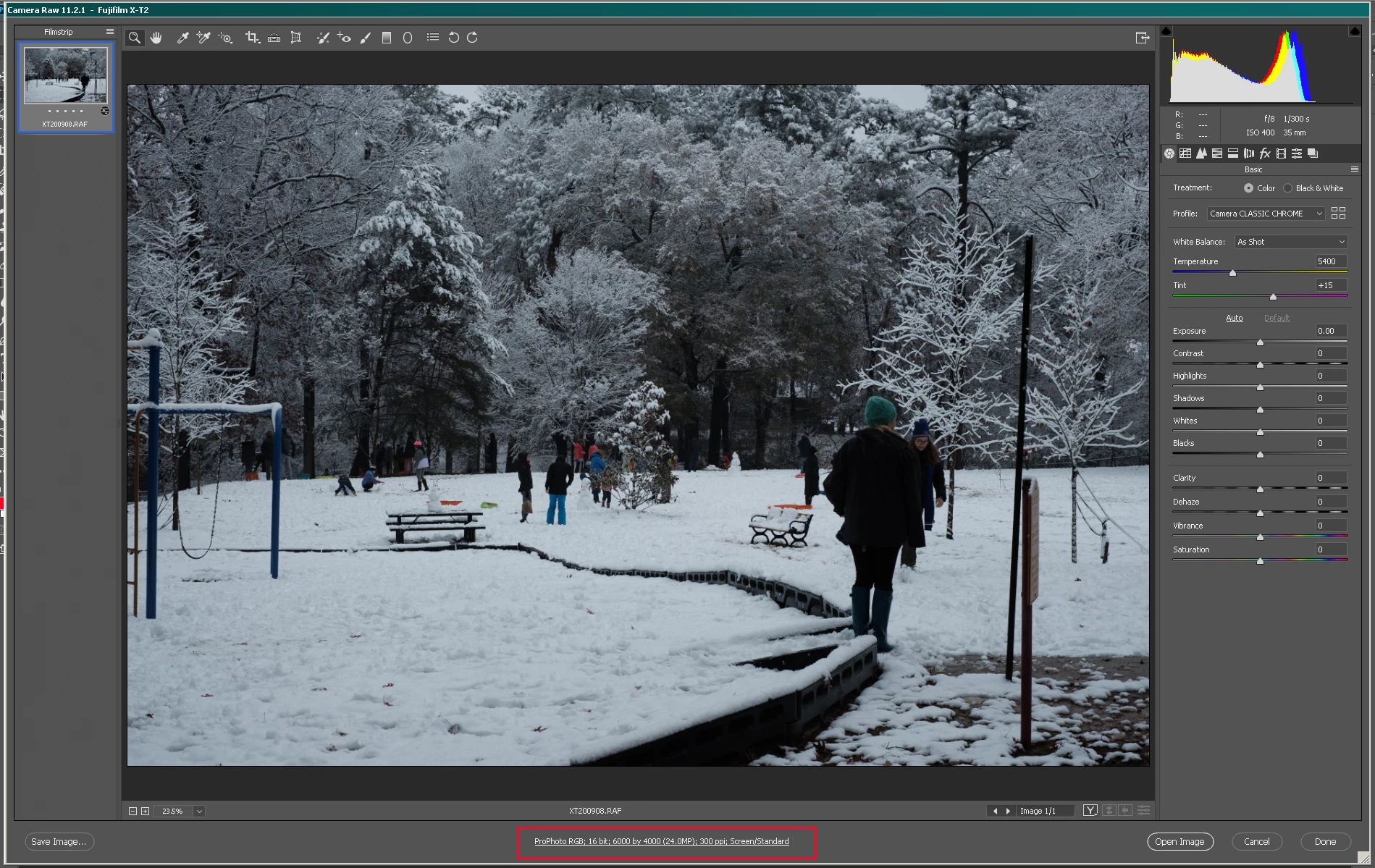
    In the Adobe Camera RAW dialog window at the bottom there is a Setting dialog that comes up if you click on it.

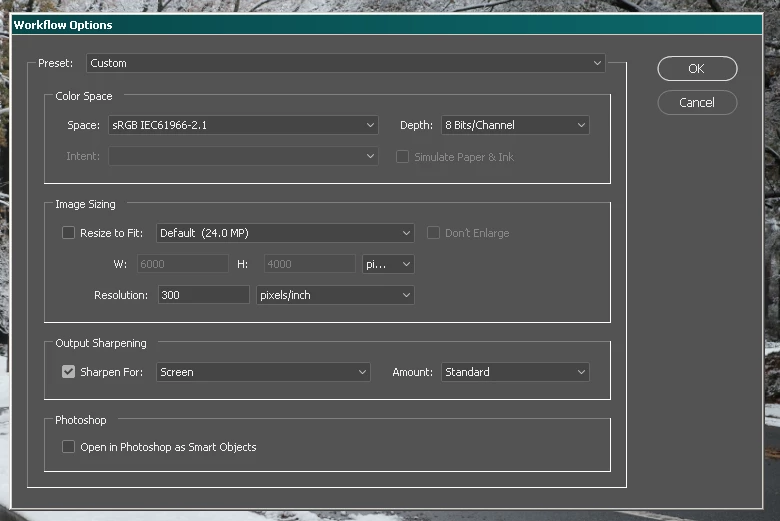
    Se that to sRGB color space, 8Bits/Channel and the rest to your liking. I would leave the Image Size section unchecked.

    Then when opening in PS and doing a CMD + s you will get a File manager dialog with PSD selected as the File format. Change that to JPG and click the Save Button. You will then get the JPG Quality dialog box set to whatever you like and click the save button.

    On subsequent RAW file openings and CMD + s you will still get the File Manager type window but the file format should now default to JPG. then after selecting the Save Button in that File Manager dialog you'll get the Quality dialog.

    Somehow your ACR Workflow settings got changed to 16bit bit depth and probably either AdobeRGB or ProPhoto for the color space.

    Because you can't save a JPG with a 16bit color depth. So it defaulted to PSD.

    3 replies

    Sahil.Chawla
    Adobe Employee
    Adobe Employee
    May 6, 2019

    Hi David,

    As Cmd+S is not saving as jpeg by default, could you please go to Edit > Keyboard Shortcut then assign a shortcut key combination to Quick Export and then let us know if it helps?

    Regards,
    Sahil

    davidh38956265
    Participating Frequently
    May 6, 2019

    That does have it save as .jpg if I create that shortcut, but two things:

    1. It took the shortcut away from File>Save because it was already being used there, and now I don't get the JPEG Options window to save as maximum quality anymore, and

    2: The file size and quality seems to have less information than File>Save, the quick export saves at 10.3MB and if I go File>Save it saves at 10.8MB.

    Is there any way to have it default .jpg file format with File>Save (what I previously had my shortcut CMD+S saved as)?

    There's actually three things I just noticed that the colorspace that quick export saves in is not the colorspace I want either.

    Just Shoot Me
    Legend
    May 6, 2019

    The saving of the image to a PSD can also happen if you open a JPG file, Add 1 or more layers and then use CMD + s. The JPGs format can't included layers. So the only option is to save it in the PS Native format of PSD. But you can also chose TIFF as the save as format.

    You can also Flatten the image before you save and it will then save in the JPG format.

    Just Shoot Me
    Legend
    May 6, 2019

    On Mac Cmd (Command) (on Windows Ctrl) + s (Lower case, No Shift key) = Save in whatever format the open file currently is.

    If it is a JPG it saves to that same file, with the same JPG extension, with whatever edits, changes, you have made.

    If the file is a TIF, PSD, PNG then the Command + s keyboard shortcut save to that file format.

    Never has PS used Command (Ctrl on Windows) + s to Save As, or just Save, to a JPG format from some other image file format.

    davidh38956265
    Participating Frequently
    May 6, 2019

    They are RAW files, and I've been saving it that way for years. Open a RAW file, edit it, CMD + S and the format would would automatically be JPG.

    davidh38956265
    Participating Frequently
    May 6, 2019

    davidh38956265  wrote

    They are RAW files, and I've been saving it that way for years. Open a RAW file, edit it, CMD + S and the format would would automatically be JPG.

    No you are mistaken. Never has PS auto saved, using Command/Control + s to save from a RAW format to JPG.

    If you are working on a RAW file it first gets opened in ACR. From there you can Save as a JPG using the Save Image button in the lower left hand corner of the ACR window.

    But if you click the Open button the raw file is opened in PS and a CMD/CTRL + s will bring up a file manager type dialog window where you can select the File Type to save the image as and change the name. Similar to using the Shift + CMD/CTRL + s keys for Save As since PS can't save changes to RAW file format you always get that dialog window.

    Now if you are sending the RAW file to PS from LR and you are using the secondary external editor option (Additional External Editor), even though it is pointing to PS, you can select JPG as the file format to save in.

    Maybe that is what you had been doing and for some reason that setting got changed?


    I'm not sure why you believe you've been sitting at my desk for literally 8+ years while I operated photoshop in the very manner that I am speaking of, but I've never seen you.

    However, I am not mistaken as I shoot weddings professionally and have literally been doing exactly what I've described for that amount of time, it was just this week when it has changed to Photoshop PDF by default in the format box after using the CMD+S shortcut. I do not use Lightroom. I have always used photoshop.

    So, thank you, but your input is not helpful and not correct.