Participant
April 6, 2020
Question

Color Halftone Options

  • April 6, 2020
  • 2 replies
  • 1750 views

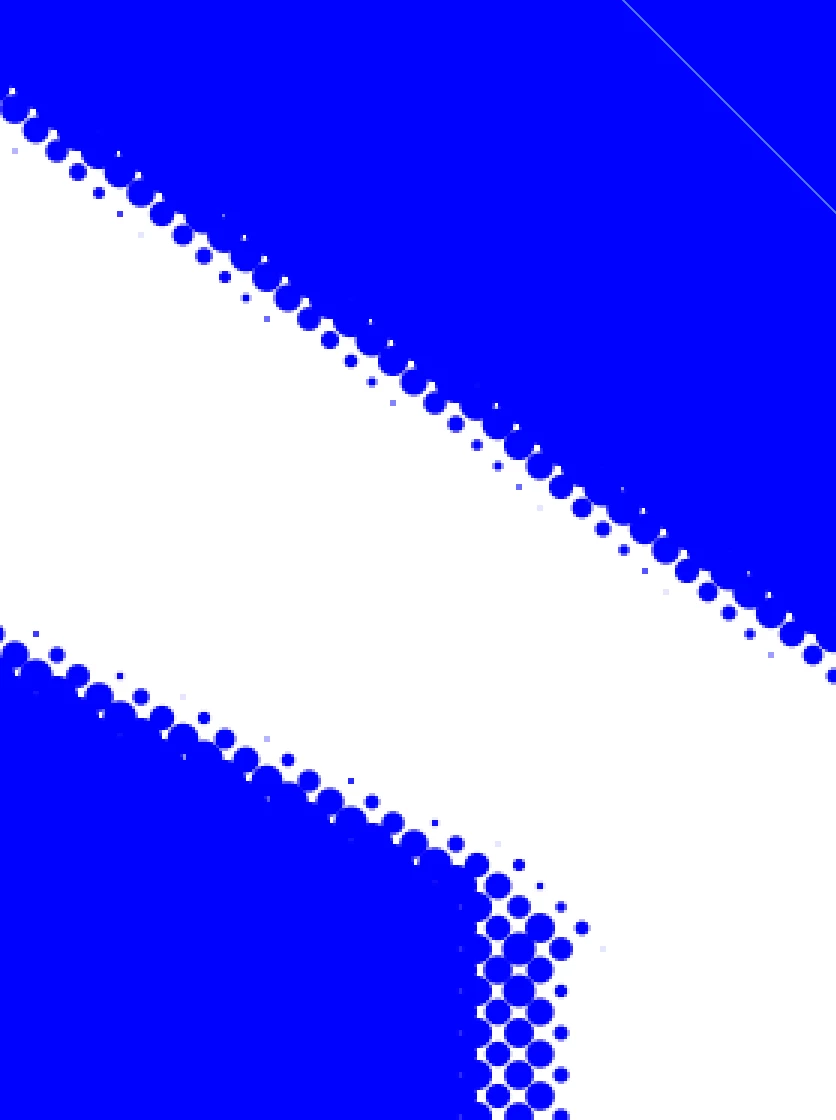
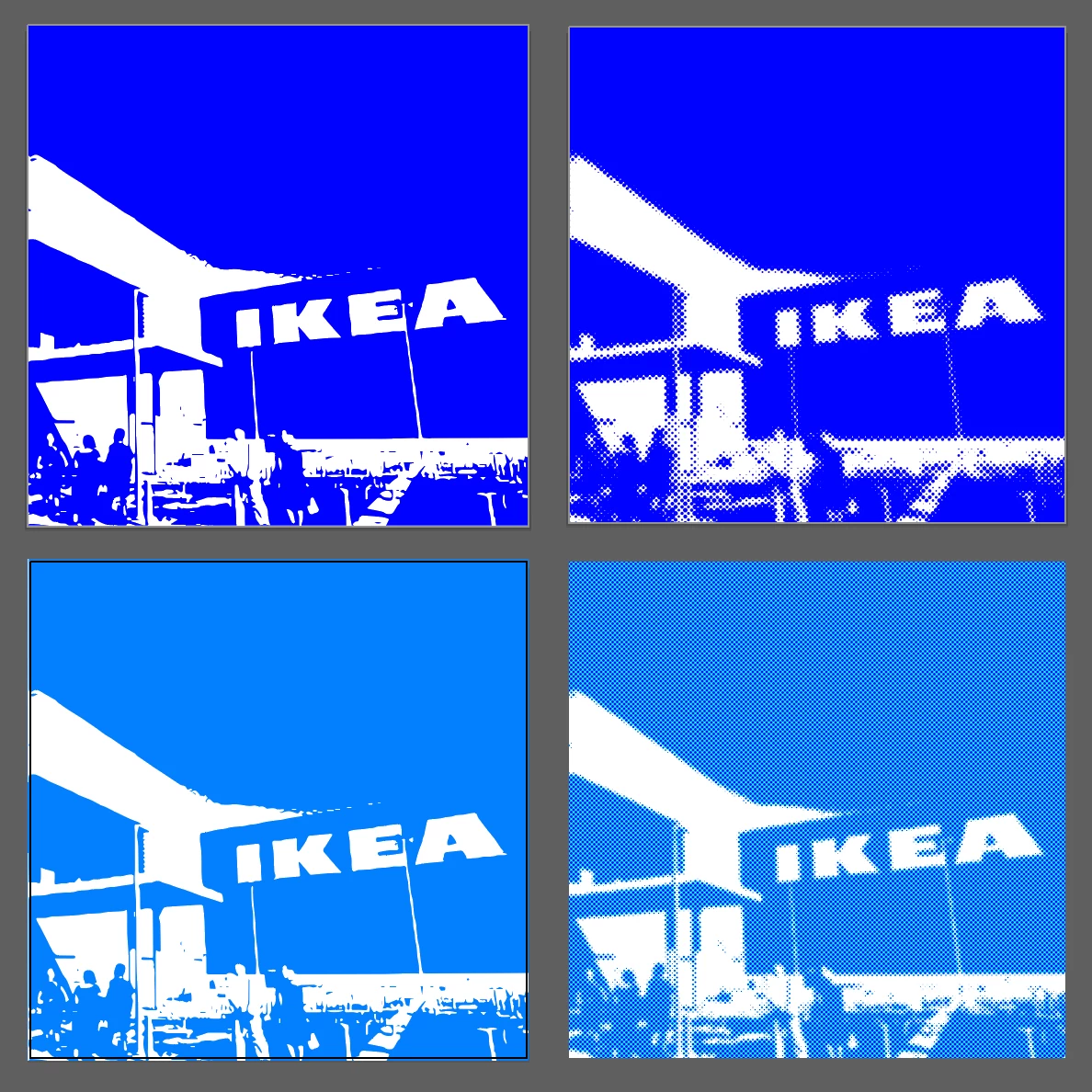
So I'm working with the color halftone effect in photoshop. I used the top left image in the screenshot. and my output was the top right image. Now i wanted to do that again with the same image in a different color. But my output is different. all these dots all over appear. Instead of just the dots on the edges like on the top right image. Why is that and how do I solve it?


Thanks!
 

This topic has been closed for replies.

2 replies

PECourtejoie
Community Expert
Community Expert
April 6, 2020

Hello, you get that because on the first one, the dots are so big they touch each other, while the second one is at medium darkness gives you separated dots...

c.pfaffenbichler
Community Expert
Community Expert
April 6, 2020

Which exact filter did you use? 

What is the exact RGB color in the two images? 


Ultimately you may be better off doing the effect on a B&W image and using a Solid Color Layer set to Blend Mode Screen to colorize it. 

c.pfaffenbichler
Community Expert
Community Expert
April 6, 2020

Filter > Pixelate > Color Halftone simulates a CMYK halftone process, so apparently you set the four colors to the same angle but as the color results in differently sized dots for the CMYK colors it creates an »onion skin« of color (cyan in this case). 

Like I mentioned earlier if you want a halftone pattern in one specific color you may want to start with a completely desaturated image and add the color as a Layer with the Blend Mode Screen.