
Participating Frequently
August 30, 2017
Answered

Color Range Layer Mask Not Fully Masking to Black/White

  • August 30, 2017
  • 2 replies
  • 3513 views

Hi all,

I am encountering some issues when using the color range command to select a layer mask. Here are a few screenshots that explain what I tried to do:
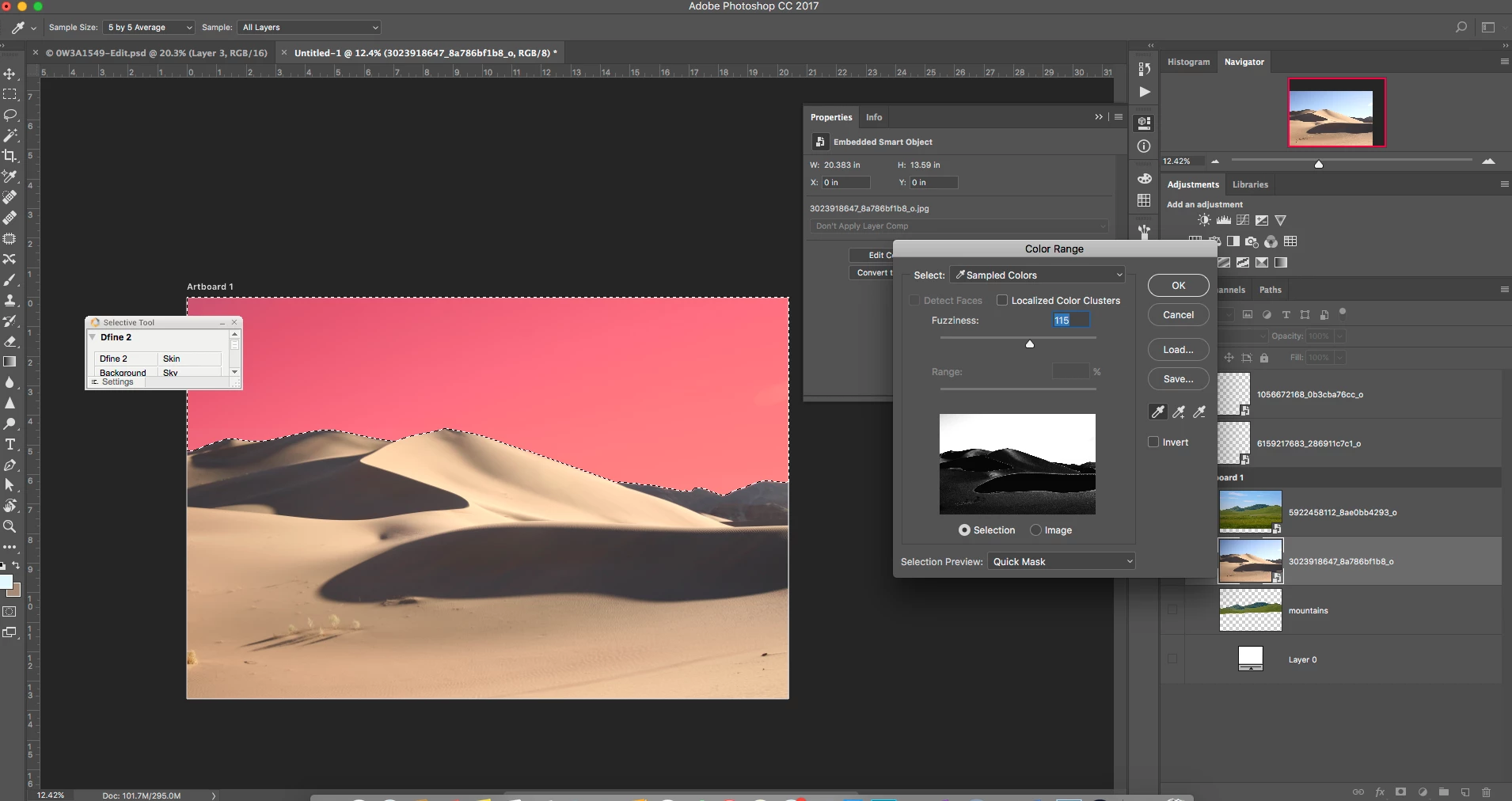
Selection using the color range tool.
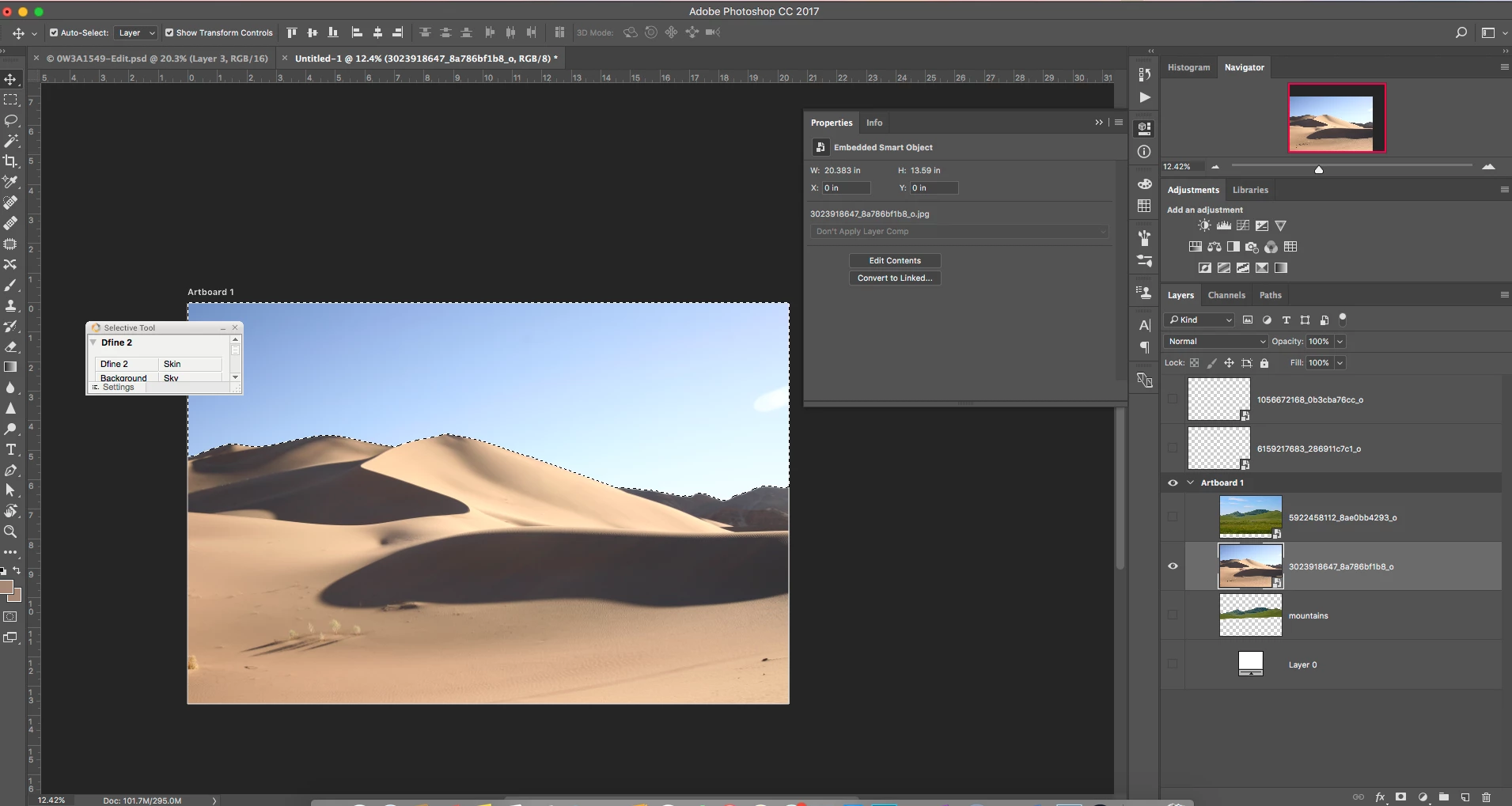
Marching ants apparently show a perfect selection.
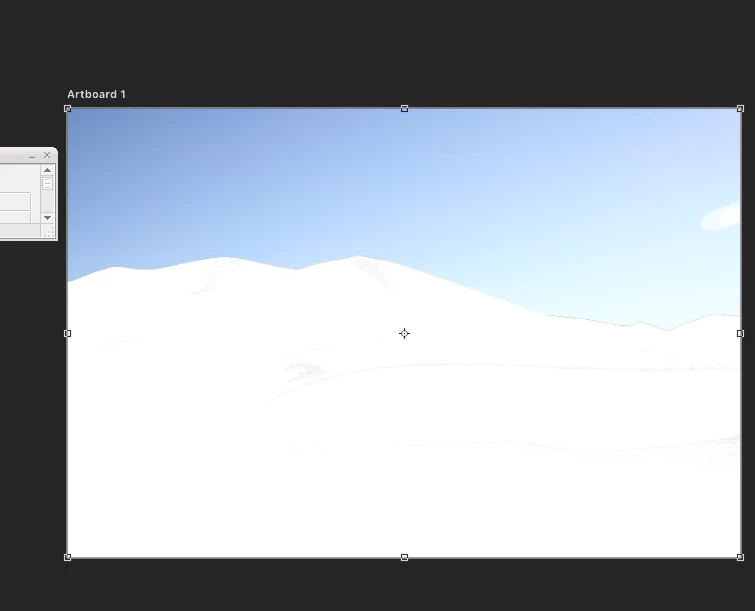
But after applying the mask, there are clearly areas that were not selected.
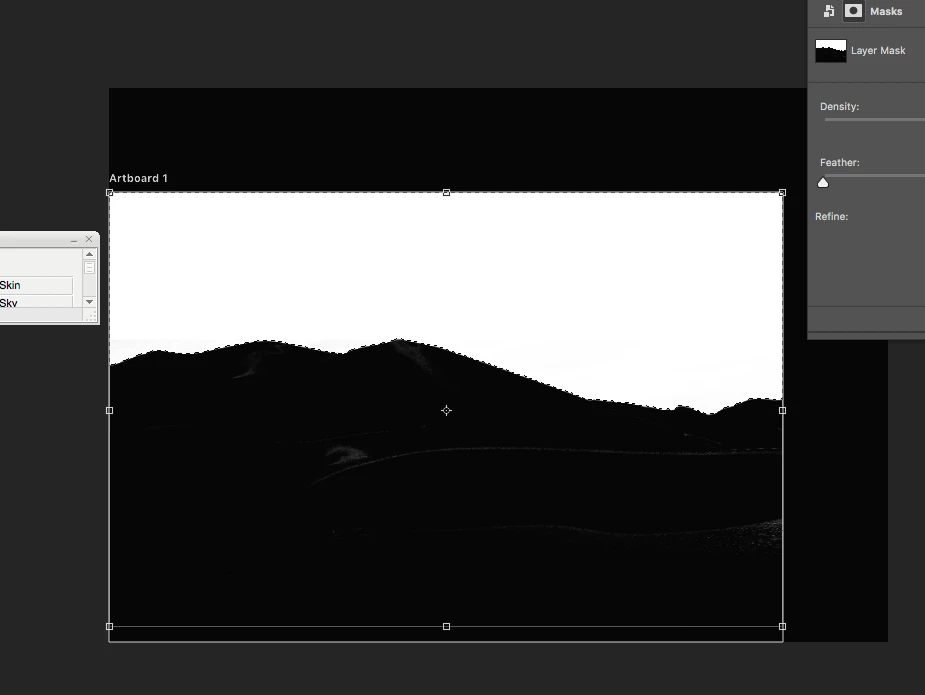
This is what the mask looks like. Areas are shown to be gray.

Please explain why color range is doing this. My foreground/background colors have been set to absolute black and absolute white. I checked the marching ants selection and did not find any missed spots. Thanks for your help.

    This topic has been closed for replies.
    Correct answer Semaphoric

    The marching ants only show the border between 50% selected or not. The selection or mask itself is an 8-bit alpha channel, and can have any tone of gray in it.

    What I often do in situations like this is to run Image > Adjustments > Levels on the mask channel.

    2 replies

    D Fosse
    Community Expert
    Community Expert
    September 5, 2017

    Think simple is what I say, just paint out the small leftovers. In this particular example, 15 seconds max, done.

    Semaphoric
    Community Expert
    SemaphoricCommunity ExpertCorrect answer
    Community Expert
    August 30, 2017

    The marching ants only show the border between 50% selected or not. The selection or mask itself is an 8-bit alpha channel, and can have any tone of gray in it.

    What I often do in situations like this is to run Image > Adjustments > Levels on the mask channel.

    Terri Stevens
    Legend
    August 30, 2017

    yes Levels will work fine, the snag is you slightly change the original selection making it more jagged. Another method that seems to be gaining popularity is to take the 'magic wand' and set the tolerance to 0, antialiasing and contiguous to off  like below

    Now alt or option click the mask thumbnail and click on the black in the mask with the wand tool. As Tolerance is set to '0' only one color-pure black -gets selected. Now press ctrl-I or command-I and the selection inverts capturing everything that is not black. Then all you do is with a big brush and black as the foreground color , paint on the mask. This will usually allow all the grey tones in the mask to be removed.