
Participant
December 18, 2017
Answered

Color replacement tool not working properly [2017]

  • December 18, 2017
  • 6 replies
  • 14965 views

The color replacement tool isn't working as it normally does. I am attempting to change the color of a selected area to a new color but the selection tool is changing to selection to a dark brown color rather than the tan color that I have selected. I am in color mode, continuous sampling, contiguous. Any help would be greatly appreciated!
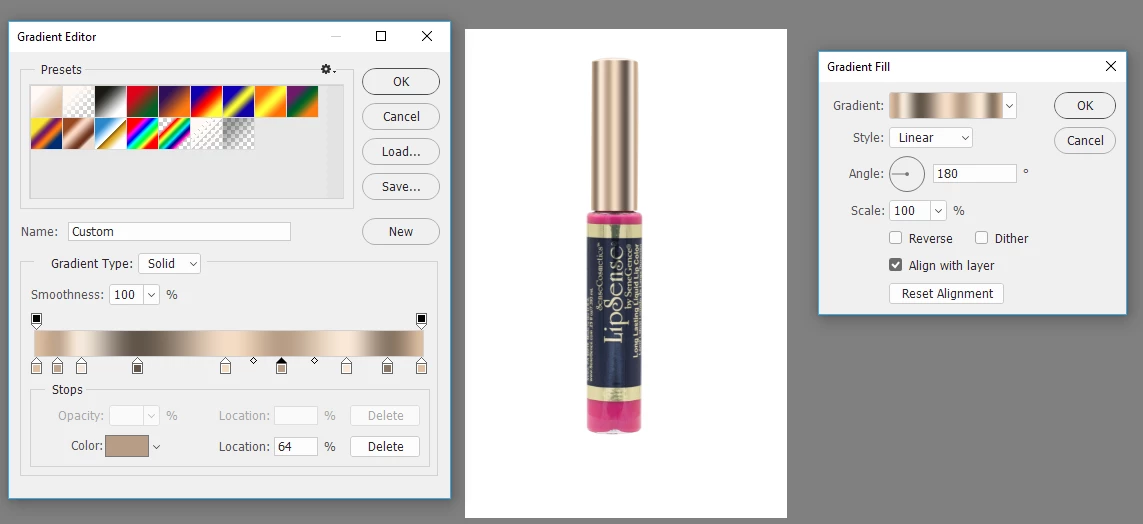
Correct answer davescm

To be honest there are so many marks on that cap that I would use a gradient fill layer to make a new one, masking the fill layer with a path drawn with the pen tool

Dave

6 replies

Norman Sanders
Legend
December 18, 2017

Use the Quick Selection tool to select the vertical stipe.

Cmd+J  to place it on a separate layer

Use the Eyedropper to choose the color you want for a replacement

Click the transparent area Lock in the top of  the Layers panel

Edit > Fill with the Foreground Color

If desired: modify the color by shifting the shadow end point of Curves

Participant
December 18, 2017

Now it isn't changing color at all. Even when I switch the foreground color to black, it shows up super faint.

Participant
December 18, 2017

Thanks for your quick responses. I am wanting to remove the black strip on the cap of this lipstick and replace it with the tan color just to the side of it.

c.pfaffenbichler
Community Expert
Community Expert
December 18, 2017

As this heavily affects luminance the Colour Replacement Tool seems to be no fit for the task.

Basically I would guess the effect you are aiming for is so strong that the best approach would be simply painting (on a Layer with a Linear Light Pattern Overlay to emulate the noise/grain of the image and the appropriate Layer Mask).

davescm
Community Expert
Community Expert
December 18, 2017

Are there any adjustment layers above the layer on which you are using the color replacement tool? A screenshot showing the options bar and the layers panel may help us to see what is happening.

I agree with  c.pfaffenbichler  , where possible, it is better to work non-destructively with adjustment layers

Dave

c.pfaffenbichler
Community Expert
Community Expert
December 18, 2017

You may want to consider using a non-destructive approach instead of the Colour Replacement Tool.

As you seem to have a Selection of the area already a Hue/Adjustment Layer or Solid Color Layer set to Blend Mode Color, possibly combined with a Curves Layer to address the brightness, might work out.

Mohit Goyal
Community Manager
Community Manager
December 18, 2017

Hi adamm,

Could you please let us know the exact version of Photoshop you are using now? Also, have you tried resetting the Photoshop preferences back to defaults and check if that helps to fix this issue, refer: Preferences in Photoshop

Regards,

Mohit