
Heirloom Bob
Inspiring
February 5, 2019
Question

Color Replacement

  • February 5, 2019
  • 2 replies
  • 1077 views

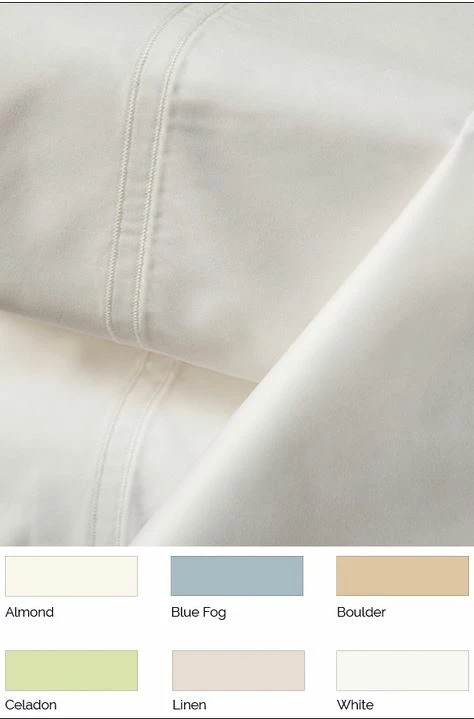
I have this image of a sheet, that I want to recolor to each of the available color options. What I have done is drawn a Rectangular Marquee around the sheet image. Then using the eyedropper tool, have selected for example, Blue Fog. (I have tried Point Sample, 3x3 and 5x5) After selecting with the eyedropper, the foreground color is a blue, but not the same blue as the Blue Fog.Why is the eyedropper selection therefore, not the same color as Blue Fog? It's close but not the same. Mt plan then is use the color replacement tool and paint over the selection so I have a version of each color available. The process works well BUT I need the eyedropper color selection to match. What am I doing wrong?

    This topic has been closed for replies.

    2 replies

    Norman Sanders
    Legend
    February 5, 2019

    The Color Sampler tool shows them to be the same value. The problem is that in RGB both color and tone reside in each channel. Changing one changes the other and with a color like Blue Fog a shift may intrude. For that reason, when precise color is required the option of using Lab Color should be considered. Then change the mode back to RGB. With Curves in Lab Color, Lightness (modeling) is separate from hue. You may make the image lighter or darker without affecting the hue.

    One more thing: Lab is device independent. That means when you go from Lab to RGB, your choice of Color Profile is accommodated. Notice that when precise PMS colors are specified, in the Photoshop swatch book only Lab values are listed.

    Notched out color sample to show image below

    Sample matched to imgage

    Heirloom Bob
    Inspiring
    February 5, 2019

    So if i understand this, I should take the original image and change it to Lab Color.

    Now I make a selection of the sheet portion of the image.

    Use the eyedropper to sample the Blue Fog color.

    Use the color replacement tool to paint over the selection to change the color.

    This is the result and I would say the sheet color does not appear as Blue Fog.

    Now the suggestion was made by Norman, that I could then adjust with Curves, but while this is somewhat close to the right color,

    it still misses the mark in my opinion.

    Trevor.Dennis
    Community Expert
    Community Expert
    February 5, 2019

    Bob, I prefer to keep it simple, and rather than mess with the original, use separate layers.  All I have done below, is fill a new layer with the sampled colour, and set its blend mode to Color.

    The Colour Sample tool shows the results to be spot on

    Sahil.Chawla
    Adobe Employee
    Adobe Employee
    February 5, 2019

    Hi there,

    Could you please let us know what color mode you're working in? You can check that by going to Image > Mode.

    These are the color values I'm seeing at my end:

    Could you please share the values you get when you pick the color using the eye dropper tool?

    Regards,
    Sahil

    Heirloom Bob
    Inspiring
    February 5, 2019

    RGB 8 Bits.

    When i select Blue Fog with the eyedropper, I get the same as you but when I use the color replacement tool and paint over the image, the blue is obviously not the same.

    Sahil.Chawla
    Adobe Employee
    Adobe Employee
    February 5, 2019

    Looks to be the same as mine. Could you try color calibrating your monitor color profile and see if it helps? You could try changing the color profile of the monitor to srgb iec61966