
Inspiring
November 12, 2016
Answered

Color sample all layers

  • November 12, 2016
  • 1 reply
  • 4979 views

I'm trying to match colors and am using the eye dropper to put a sample point.  I'm using a combination of curves, color and saturation.  I have target values BUT, when I click from one adjustment tool to another, the values in the right column  that should show me what my new color is changes.  It looks like it's showing me what the current adjustment does only when combined with those below.

Is there a way to have the sample readout show the current color is regardless of what layer I'm on?
    This topic has been closed for replies.
    Correct answer Chuck Uebele

    So I'd suspect.  But if I...

    1. Select "All Layers" option and add a sample point to an area that has say....150 Red
    2. Add a curve above that and increase the red, my sample in the info panel will read 150/155
    3. Add another adjustment layer.  Lets say saturation, and increase the saturation.  The info panel for that spot will read 155/165.  This is just an imaginary scenario, this is just how I'm seeing it work.  I can see that each layer reports as the starting point of it's own adjustment the value of what it is adjusting below itself.
    4. If I then want to lighten the shadows and click back on the curve layer, it will still read 150/155.

    So what I'm looking for is a way to put down a sample point that will tell me "all the weird junk you're using to try to massage this color to where you want it is giving you this resulting color.

    Make sense?


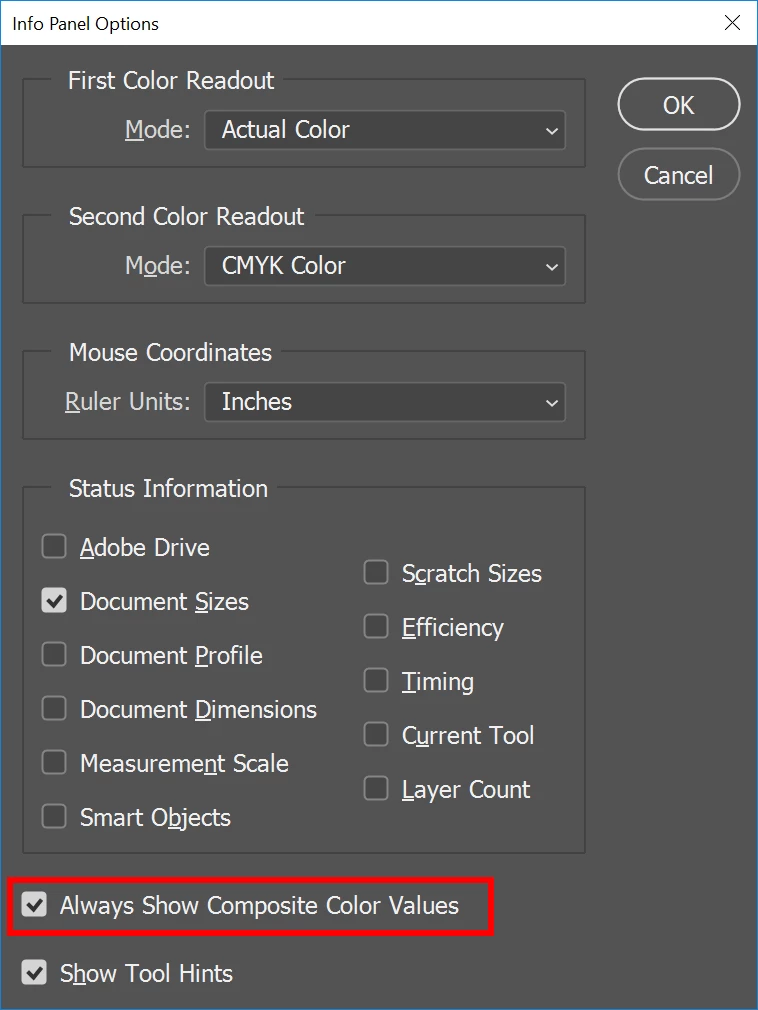
    I asked around and got an answer for this. In the info panel properties (dropdown menu in the upper right of the panel) make sure "Always show composite values" is checked:

    1 reply

    Andy PostAuthor
    Inspiring
    November 12, 2016

    Say I've got a subject RGB sample of 150/140/130.  Say there are two adjustments above it, one is a curve the other is Hue Saturation.  I'll put a sample point on the photo layer, then adjust the curve and get say 160/150/140.  Then adjust the Hue Saturation and adjust the values closer to where I need to be.  When I click back in the Curves layer, I'll see 160/150/140 when I know full well I've just adjusted the saturation and those values don't reflect what the next layer up is doing.  It makes it quite hard to find a target value. 

    Chuck Uebele
    Community Expert
    Community Expert
    November 13, 2016

    That is odd. The "All Layers" setting should give just that, not current and below.

    Andy PostAuthor
    Inspiring
    November 14, 2016

    Don't feel bad, I had to ask a group of friends who are PS Gurus.


    I'm glad you provided a link to a higher power.