Participant
January 6, 2021
Question

Color Space Issue
  • January 6, 2021
  • 1 reply
  • 272 views


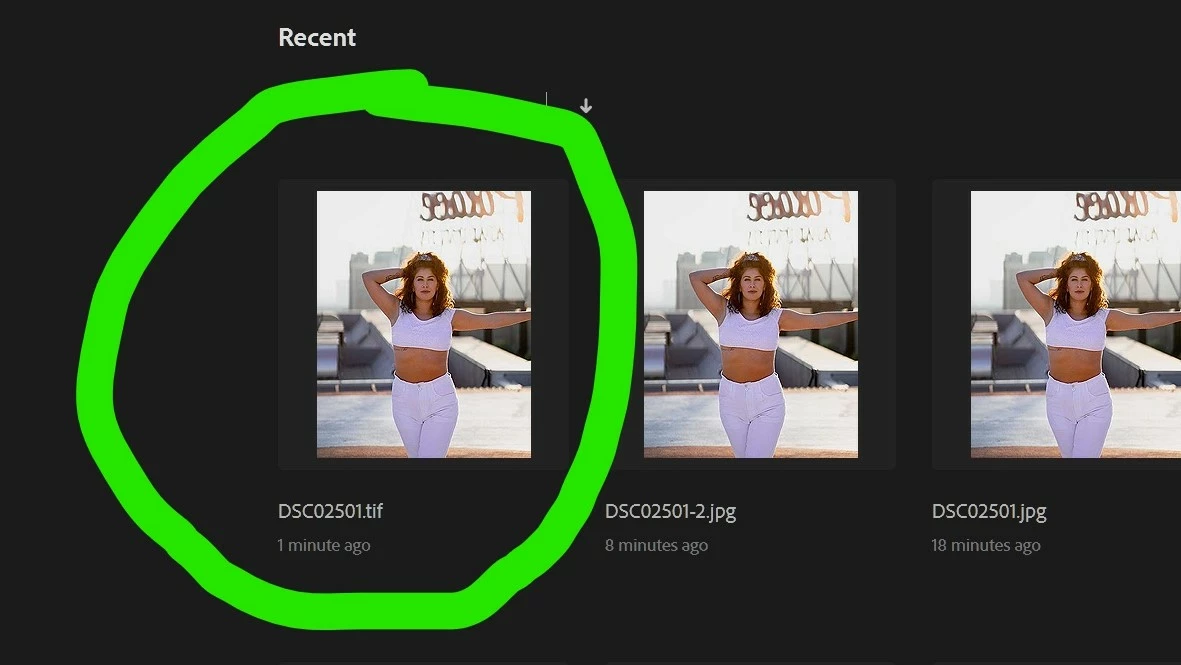
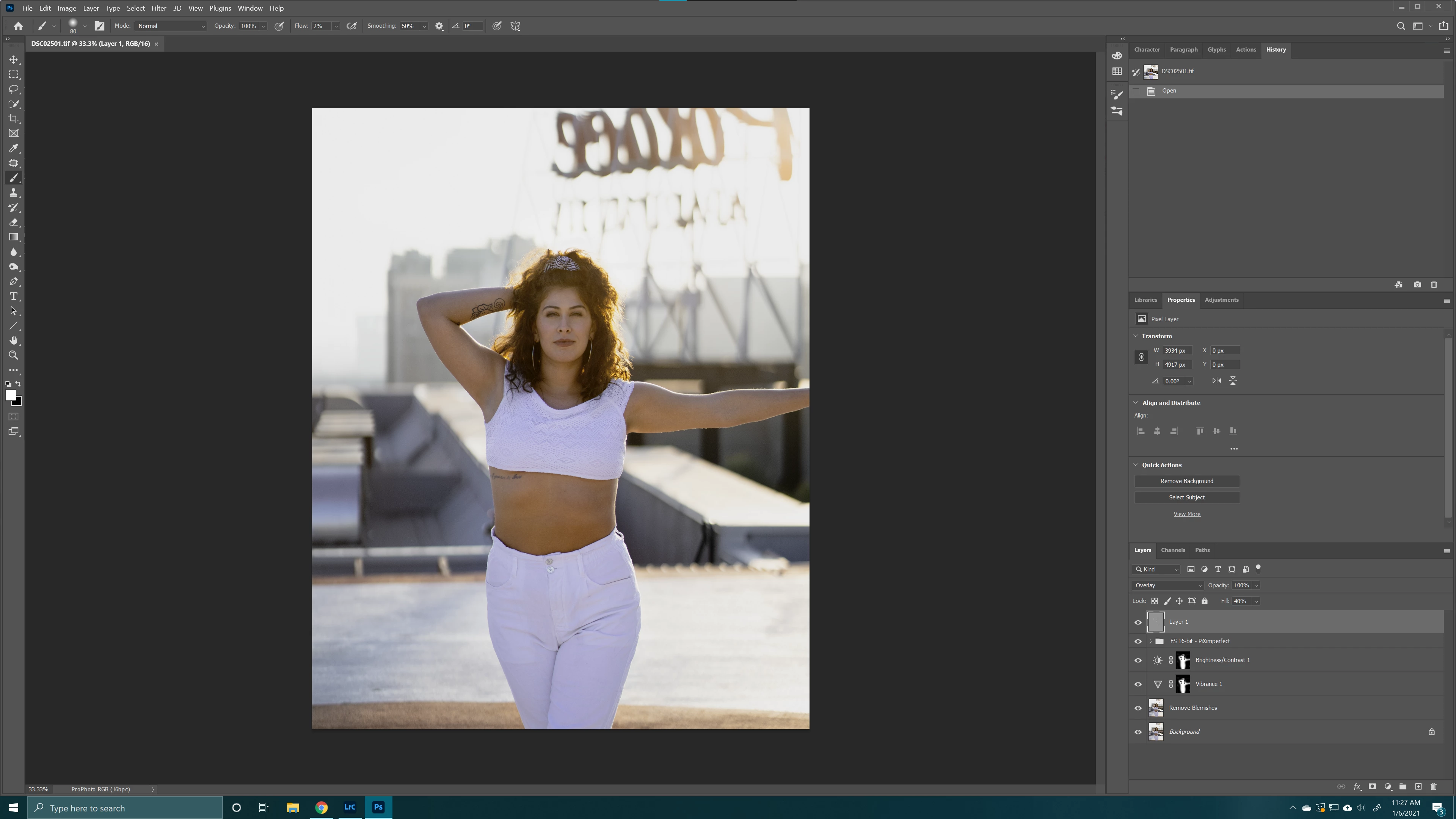
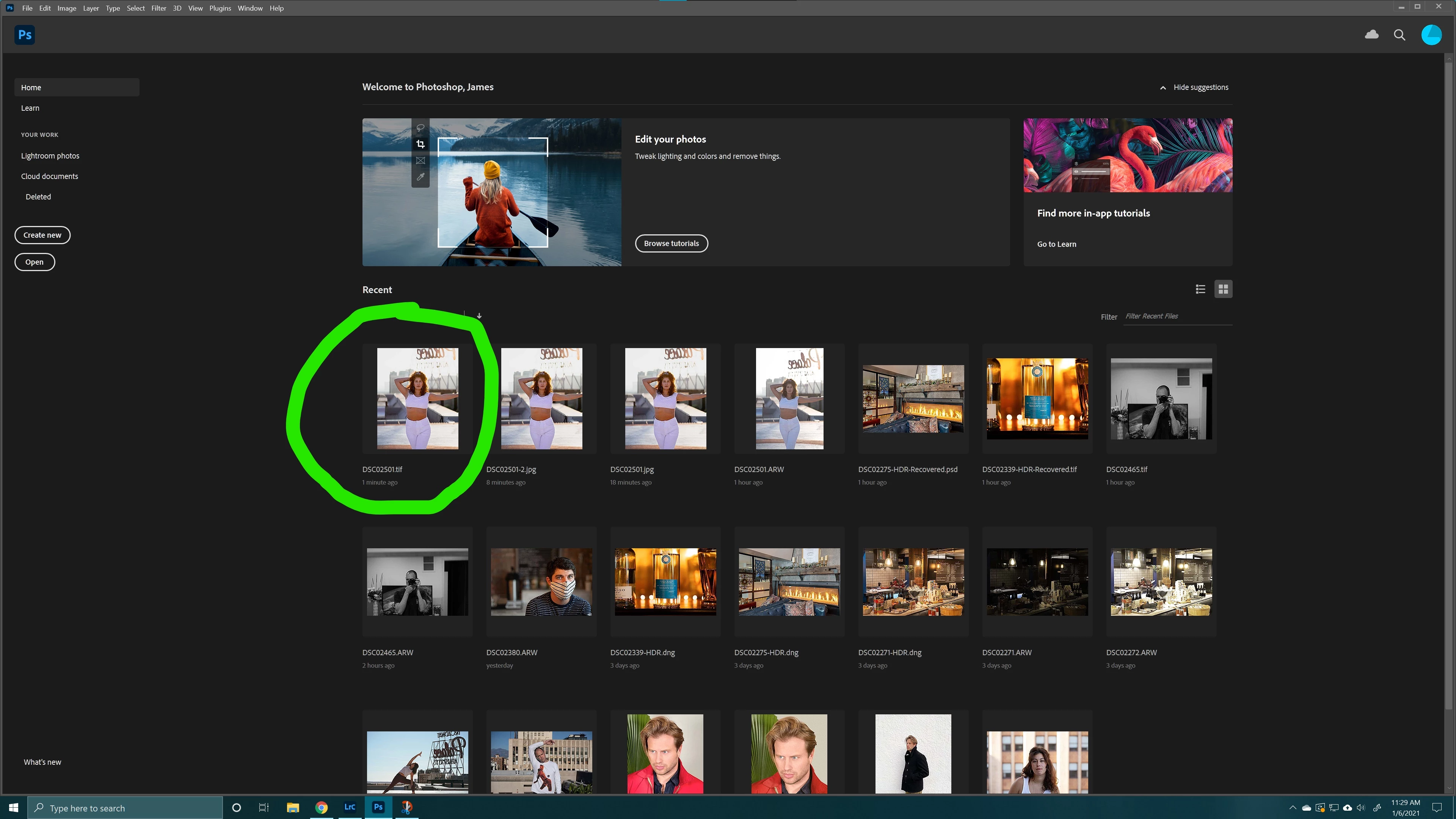
As you can see in the screenshots above, the image is color changes from the thumbnail when I first open Photoshop to my actual working space. When I open in the Windows Photos app, the colors look the same as the thumbnail. The only time the image looks different is in the actual working space inside Photoshop.


My Color Settings preferences have been set to ProPhoto RGB and the images profile has also been set to ProPhoto RGB, there is no mismatching profile here. I don't know what is wrong or how to fix it. Help!?

This topic has been closed for replies.

1 reply

D Fosse
Community Expert
Community Expert
January 6, 2021

Windows Photos does not support color management at all. It will never display correctly, under any circumstances, and can not be trusted.


In Photoshop, the embedded profile will override the working space. There is no need for profiles to match, anywhere, under any circumstances. That's the whole point of having profiles in the first place.


I would strongly advise you to not use ProPhoto until you're fully aware of how this works. If you don't follow strict color management procedure, and always work in an end-to-end color managed environment, ProPhoto is extremely risky and you can quickly get into deep trouble. Stay with sRGB until you get more experience.

Participant
January 6, 2021

Appreciate the advice. 


How do I change/manage the embedded profile? I edited my photo and I want to export the image as I see it in Photoshop.

NB, colourmanagement
Community Expert
Community Expert
January 7, 2021

How do I change/manage the embedded profile?

I edited my photo and I want to export the image as I see it in Photoshop.

Duplicate the original file, save the original

next, working on the copy, in Photoshop's menu go to:

Edit / convert to profile and select the desired destination space profile here.

If you are converting between working color spaces [say ProPhoto and sRGB] then the selected rendering intent here makes no difference to the result [as working space profiles don't contain a perceptual tag]. The default of relative colorimetric will be fine, when using that setting, be sure Black Point Compensation is checked - as it is by default, see below


Rather than exporting the file - you may be best served to generally use "save as" 


I hope this helps
neil barstow, colourmanagement net :: adobe forum volunteer
google me "neil barstow colourmanagement" for lots of free articles on colour management