
Participant
February 1, 2019
Question

Coloring inside a Clipping Mask?

  • February 1, 2019
  • 3 replies
  • 8818 views

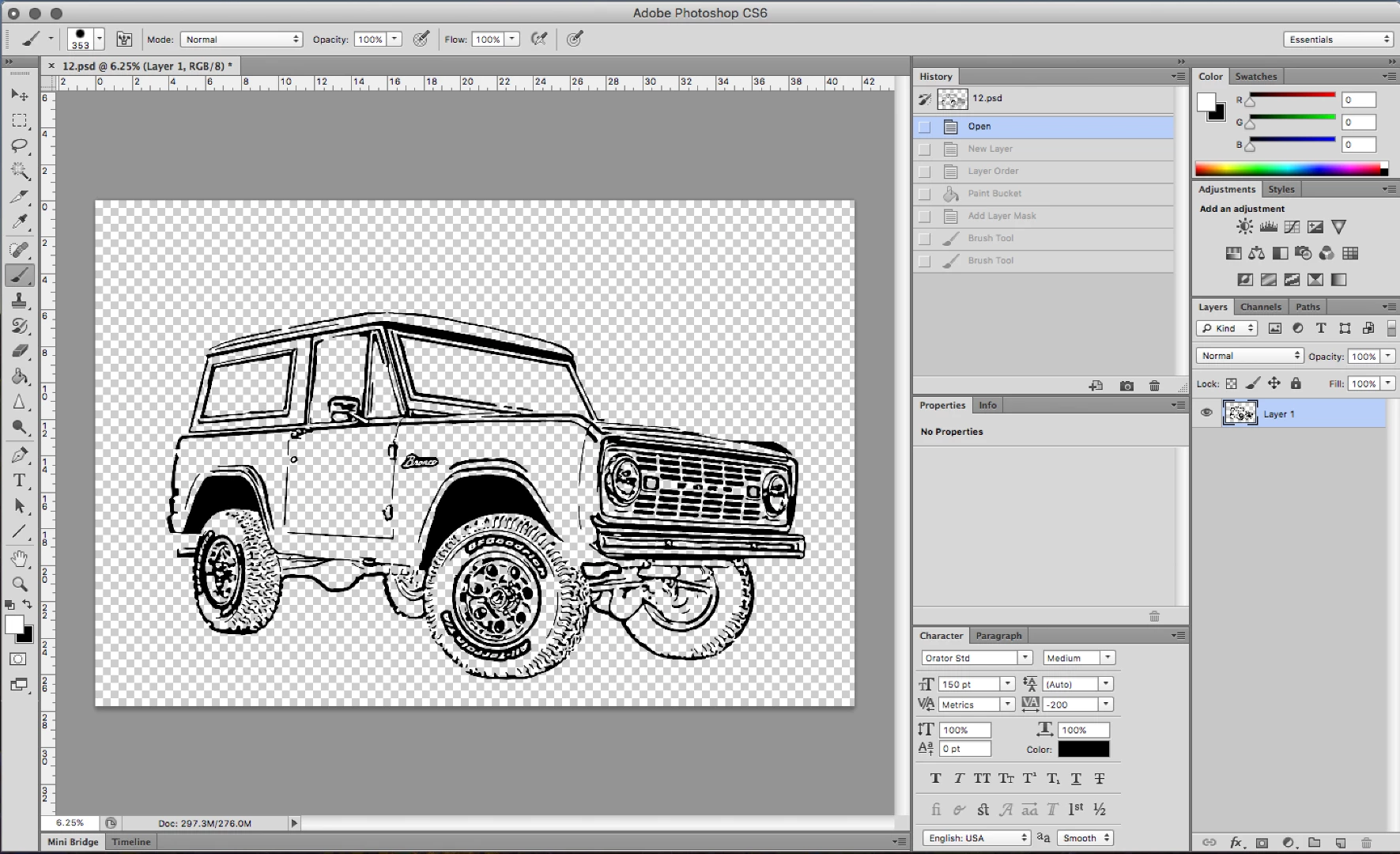
I am new to photoshop and I am trying to color only inside the vehicle without using the paint bucket tool. I believe this can be done with a clipping mask but I'm not sure how to do that or if there is an easier way that would be great too. I also still want the background behind the colored vehicle to be transparent.
This topic has been closed for replies.

3 replies

Norman Sanders
Legend
February 1, 2019

1. Add a blank layer and Edit > Fill it with your chosen car body cclor. Then turn off the layer and return to the image layer.

2. Choose the Quick Section tool and select the car body.

3. Choose the flat color layer and click on the Mask symbol at the bottom of the Layers panel

4. Change the Blending Mode of the layer to Multiply

5. Use a hard edged brush to touch up the mask where the Selection is inaccurate.

Larrance4Author
Participant
February 1, 2019

I tired this and for some reason I still couldn't select where I want the color to be. I played around some more and I ended up just coloring the car in a new layer then merged the car and the color into one layer. Then quick selected the excess color and deleted it. Thanks for the help though!

Norman Sanders
Legend
February 1, 2019

I suggest you don't give up on the method I described because it takes only a moment to change the color or insert a pattern. For example:

  .

Larrance4Author
Participant
February 1, 2019

I would like to know an easy way to clear up the edges instead of physically having to go around and "erase" the excess color.

davescm
Community Expert
Community Expert
February 1, 2019

Hi

A clipping mask can be used to colour the lines - it clips the layer above to the non transparent areas of the layer below. However from your description it sounds like you need to paint in some, but not all, of the transparent areas.

One way would be to use the selection tools on the drawing layer to select the area you want to fill with a particular colour and then add a solid colour fill layer beneath the drawing layer. The colour fill layer will be masked to that selection.  Repeat for the other colours. This will keep your colours editable by just clicking on the solid colour fill layer and changing the colour.

Dave

Larrance4Author
Participant
February 1, 2019

This only allows me to color the black lines since the background I am wanting to color is transparent and I cannot select it.