Participating Frequently
October 22, 2022
Question

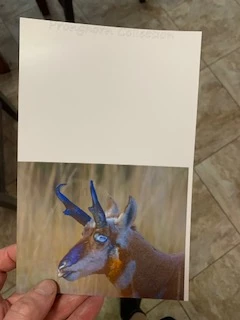
Colors appear like a photo negative & error message

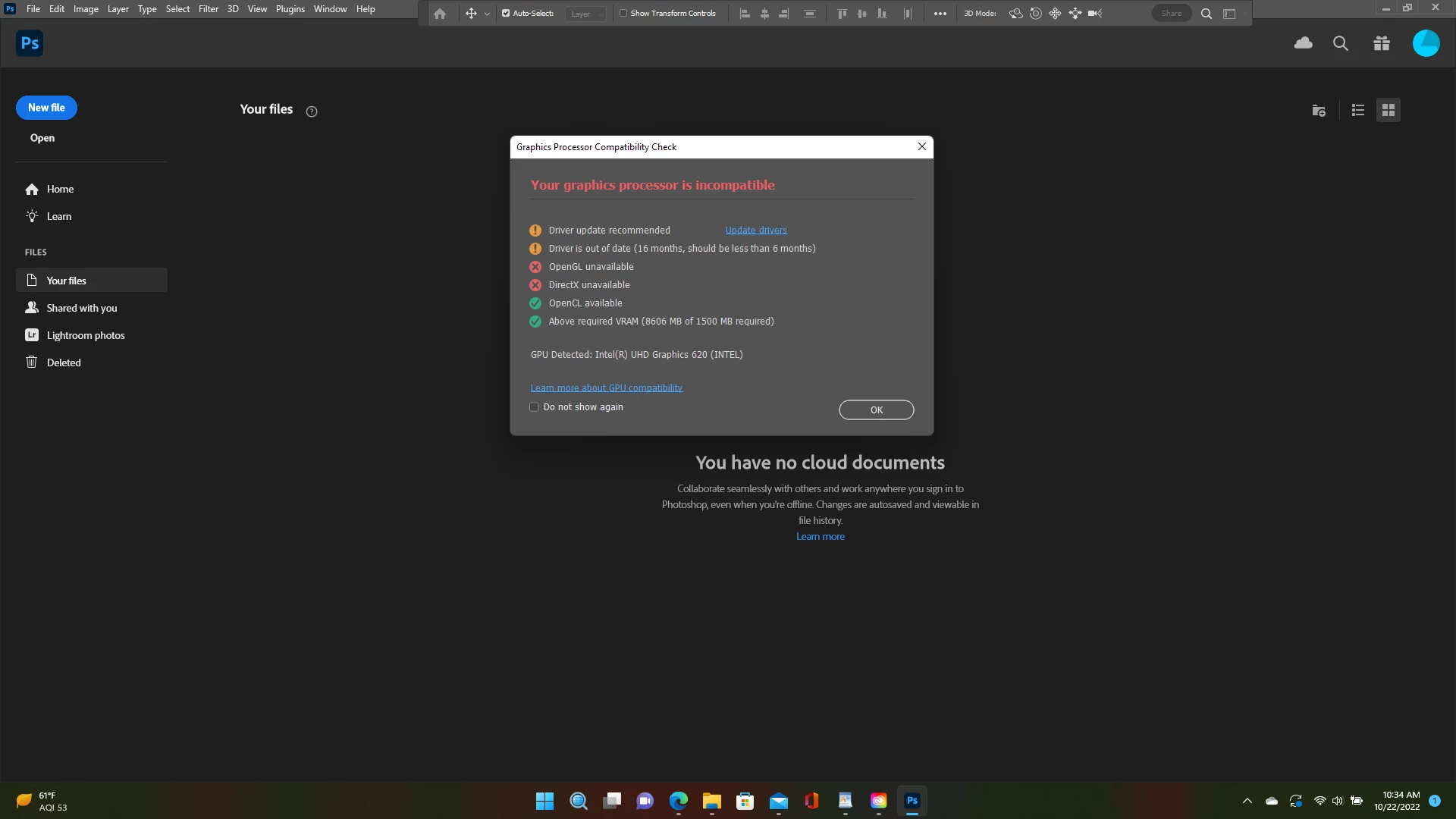
Hello - I make note cards from images I take.  The cards have an image and text.  After a recent update to Photoshop version 24.0 the colors on my images and the text are all messed up.  They look like photograph negatives from film cameras.  I also have been getting this error message.  How can I get this resolved?  Thank you very much in advance.


Ce sujet a été fermé aux réponses.

3 commentaires

NB, colourmanagement
Community Expert
Community Expert
October 25, 2022

It may be time to reset Photoshop

Here are some troubleshooting advice:

https://helpx.adobe.com/photoshop/kb/basic-trouble-shooting-steps.html


Perhaps try resetting Photoshop preferences?

(read this entire post before acting please)

Resetting restores Photoshop's internal preferences, which are saved when Photoshop closes.

If they become corrupt then various issues can occur.


Here’s some info on how to do that:

https://helpx.adobe.com/photoshop/using/preferences.html

Manually removing preferences files is the most complete method for restoring Photoshop to its default state: 

https://helpx.adobe.com/photoshop/using/preferences.html#Manually


The user Library folder is hidden by default on macOS.

To access files in the hidden user Library folder, see here for how to access hidden user library files.

https://helpx.adobe.com/x-productkb/global/access-hidden-user-library-files.html


Unexpected behavior may indicate damaged preferences. Restoring preferences to their default settings is a good idea when trying to troubleshoot unexpected behaviors in Photoshop. check out the video

https://helpx.adobe.com/photoshop/using/preferences.html#reset_preferences


Learn how to access and modify Photoshop preferences and customize per your frequent workflows

https://helpx.adobe.com/photoshop/using/preferences.html


And here’s an earlier forum discussion as an aid to understanding

https://community.adobe.com/t5/photoshop-ecosystem-discussions/quick-tips-how-to-reset-photoshop-preferences/td-p/12502668


You may want to backup your settings and custom presets, brushes & actions before restoring Photoshop's preferences.

Here is general info about that:  https://helpx.adobe.com/photoshop/using/preferences.html#BackupPhotoshoppreferences


I hope this helps
neil barstow, colourmanagement net :: adobe forum volunteer:: co-author: 'getting colour right'
google me "neil barstow colourmanagement" for lots of free articles on colour management

Participating Frequently
October 26, 2022

Thank you.  I will read these and see if I should reset PS.

Brad @ Roaring Mouse
Community Expert
Community Expert
October 22, 2022

First thing in the error is that you need to update the driver for your video card. Have you done that? Windows should have offered to do that for you, but you may hve to hunt it down yourself from the manufacturer of your card.

As for the incorrect rendering, if the card is incompatoble with this new version of Photoshop, it may be the cause. Try turn off "Use Graphics Processor" in your Preferences > Performance > Graphics Processor Settings. Rendering will be slower, but it might solve the issue. Let us know!

Brad @ Roaring Mouse
Community Expert
Community Expert
October 23, 2022

If it's only happenimg when you print, please review your color management settings in the print dialog box. Can you share a screen shot?

Participating Frequently
October 26, 2022

Sorry.  I was out for a while.  Here's a screen shot.


Chuck Uebele
Community Expert
Community Expert
October 22, 2022

I can't read the error message. Does the revered image just happen when you print, or do you see it on the screen?

Participating Frequently
October 23, 2022

Just when I print.

Chuck Uebele
Community Expert
Community Expert
October 23, 2022

What printer do you have? Have you tried going through these steps:

https://helpx.adobe.com/photoshop/kb/troubleshoot-printing-problems.html