Known Participant
January 19, 2021
Answered

Colors change when saving Photoshop file as PDF

  • January 19, 2021
  • 4 replies
  • 14120 views

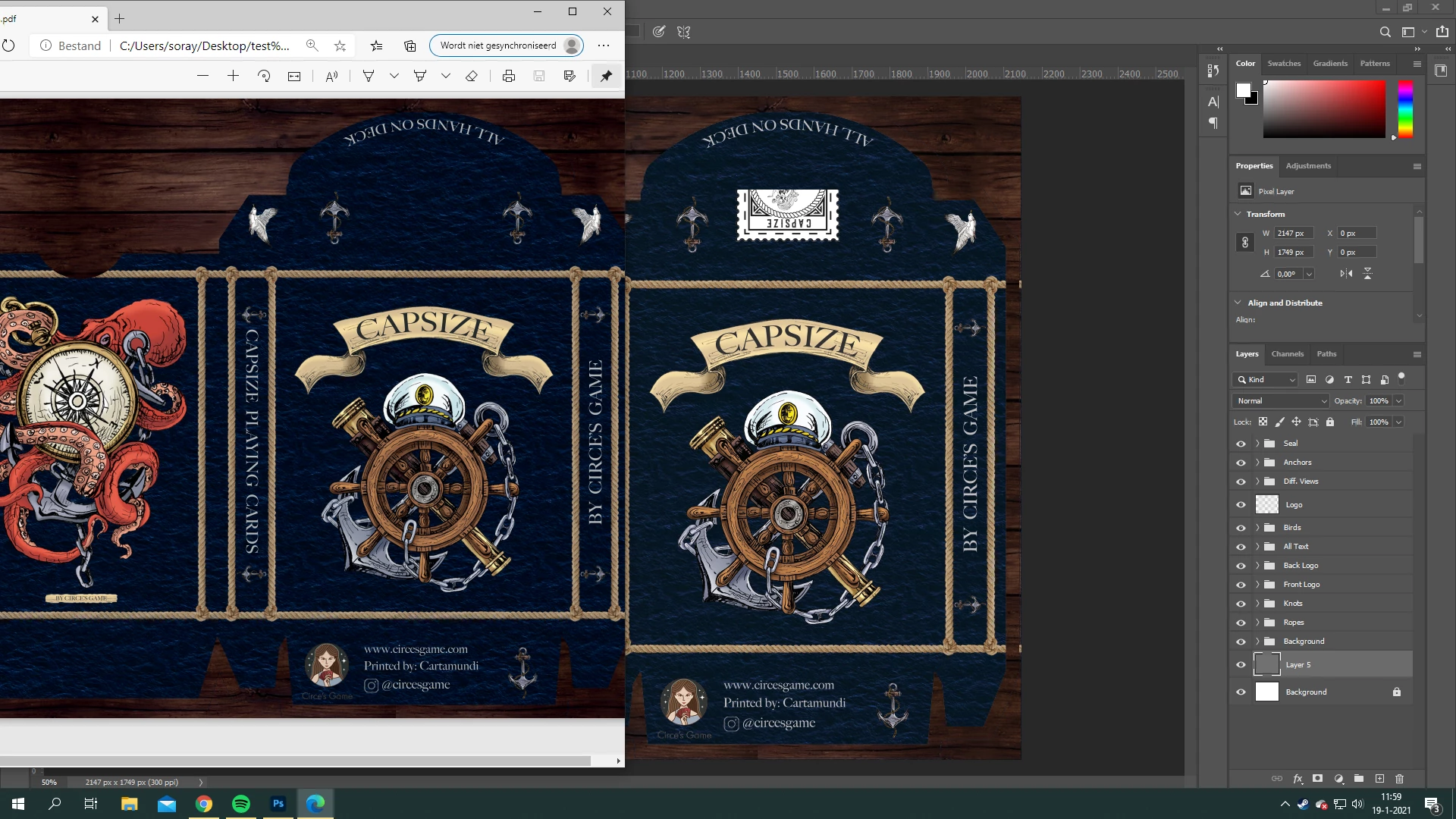
I have a bunch of Photoshop files (all CMYK) that I need to save as a PDF to send to a printer for a colourproof. It is very important that the colours stay exactly as they are in Photoshop. However, whenever I save the Photoshop file as a PDF, the colours change drastically (see image). 


I have tried flattening the image, but this didn't make a difference.


I only have Photoshop (no Illustrator) and I use Windows.


This topic has been closed for replies.
Correct answer rob day

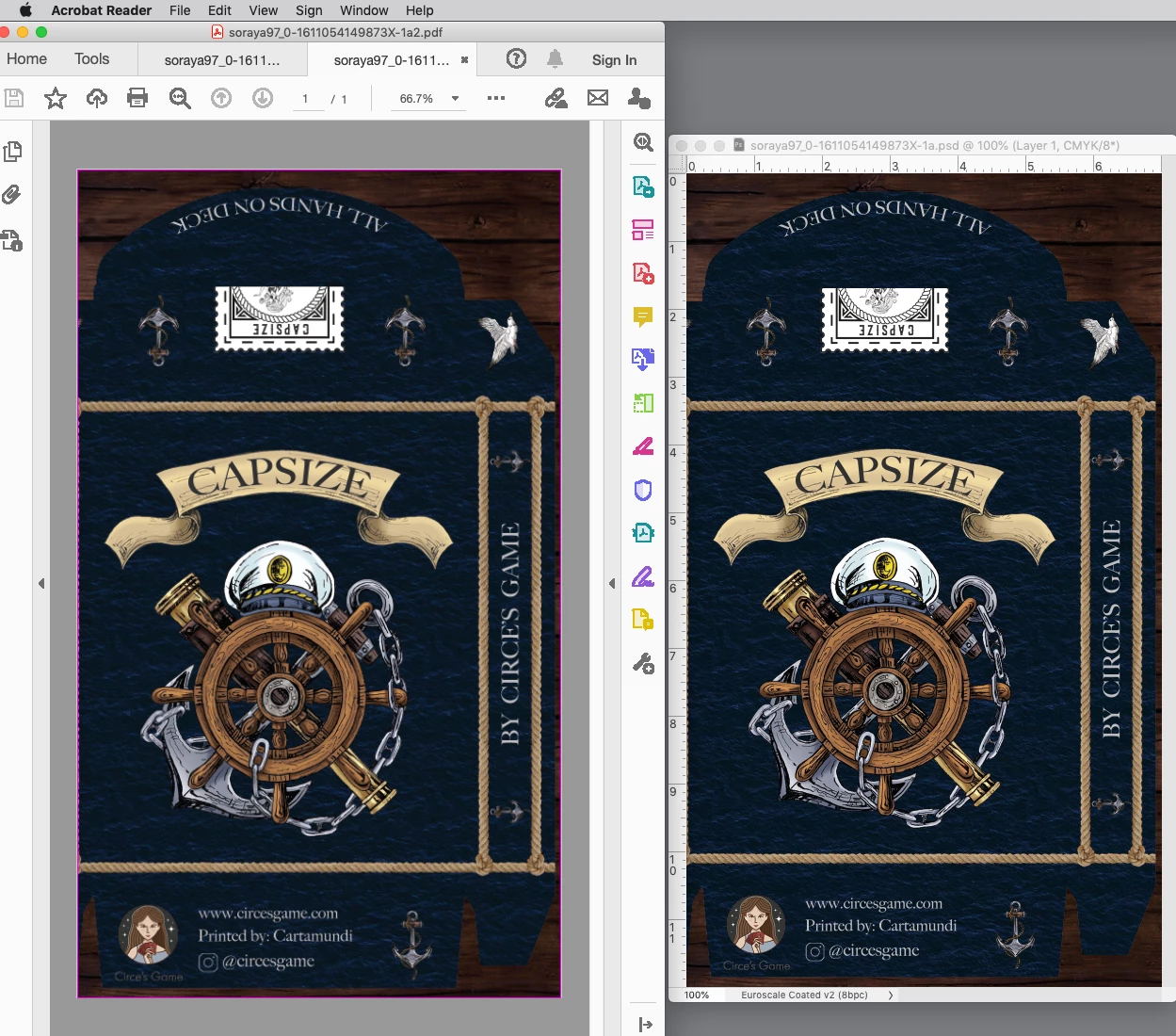
Save As with the PDF/X-1a preset and view with Acrobat Reader, which is a free download. 


https://get.adobe.com/reader/


Reader is color managed and will use the PDF/X-1a’s Output Intent profile for the preview:


4 replies

rob day
Community Expert
rob dayCommunity ExpertCorrect answer
Community Expert
January 19, 2021

Save As with the PDF/X-1a preset and view with Acrobat Reader, which is a free download. 


https://get.adobe.com/reader/


Reader is color managed and will use the PDF/X-1a’s Output Intent profile for the preview:


soraya97Author
Known Participant
January 19, 2021

I opened the file I showed in my post with the free Acrobat reader and it looks the same as my Photoshop! It worked!


Thank you so much!


One question; I have to send this to a printer, how can I make sure that when they open the file it looks the way it does on Acrobat, and not the way it does on Microsof Edge?

D Fosse
Community Expert
Community Expert
January 19, 2021

You still have a problem: your files are untagged. There's no CMYK profile, which means the numbers are undefined. It may display the same on your machine, but no guarantee it will print that way. It probably won't.


You need to find out which CMYK profile to use - ask the printer - and assign that to your files. This is critical! Colors may change a bit, work from that.

c.pfaffenbichler
Community Expert
Community Expert
January 19, 2021

»Also, I use CMYK.«

I didn’t ask about the Color Mode but the Color Space. U.S. Web Coated, ISO Coated v2, …? 


Your image is unprofiled (»Untagged CMYK«), what are the Edit > Color Settings? 

soraya97Author
Known Participant
January 19, 2021

Not sure where to look for the Color space

c.pfaffenbichler
Community Expert
Community Expert
January 19, 2021

As the image gas not been assigned a Color Space it assimes the Working Space – CoatedFOGRA39. 

Now the question remains what are the Acrobat … > Preferences > Color Management settings in Acrobat? 


So you should 

• assign the image the proper profile (or if necessary convert it to the actual target space) and 

• export a meaningful pdf (PDF/X-…). 

You may want ask your print provider about both cases. 

c.pfaffenbichler
Community Expert
Community Expert
January 19, 2021

To be more specific: Did you save a PDF/X? 

If not then the pdf has no OutputIntent and Acrobat’s display is determined by the Color Management Preferences or the Output Preview settings. 

c.pfaffenbichler
Community Expert
Community Expert
January 19, 2021

Please set the Status Bar to »Document Profile« and post a screenshot taken at View > 100% with the pertinent Panels (Layers, Channels, Options Bar, …) visible. 


What is the image’s Color Space? 

What were the pdf settings you used? 

soraya97Author
Known Participant
January 19, 2021

Like this? Not sure if i understood all your instructions, not that good with Photoshop and computers in general.

Also, I use CMYK.

And this is how I saved the pdf: