
Participant
March 21, 2019
Question

colors changed on saved image??

  • March 21, 2019
  • 4 replies
  • 1923 views

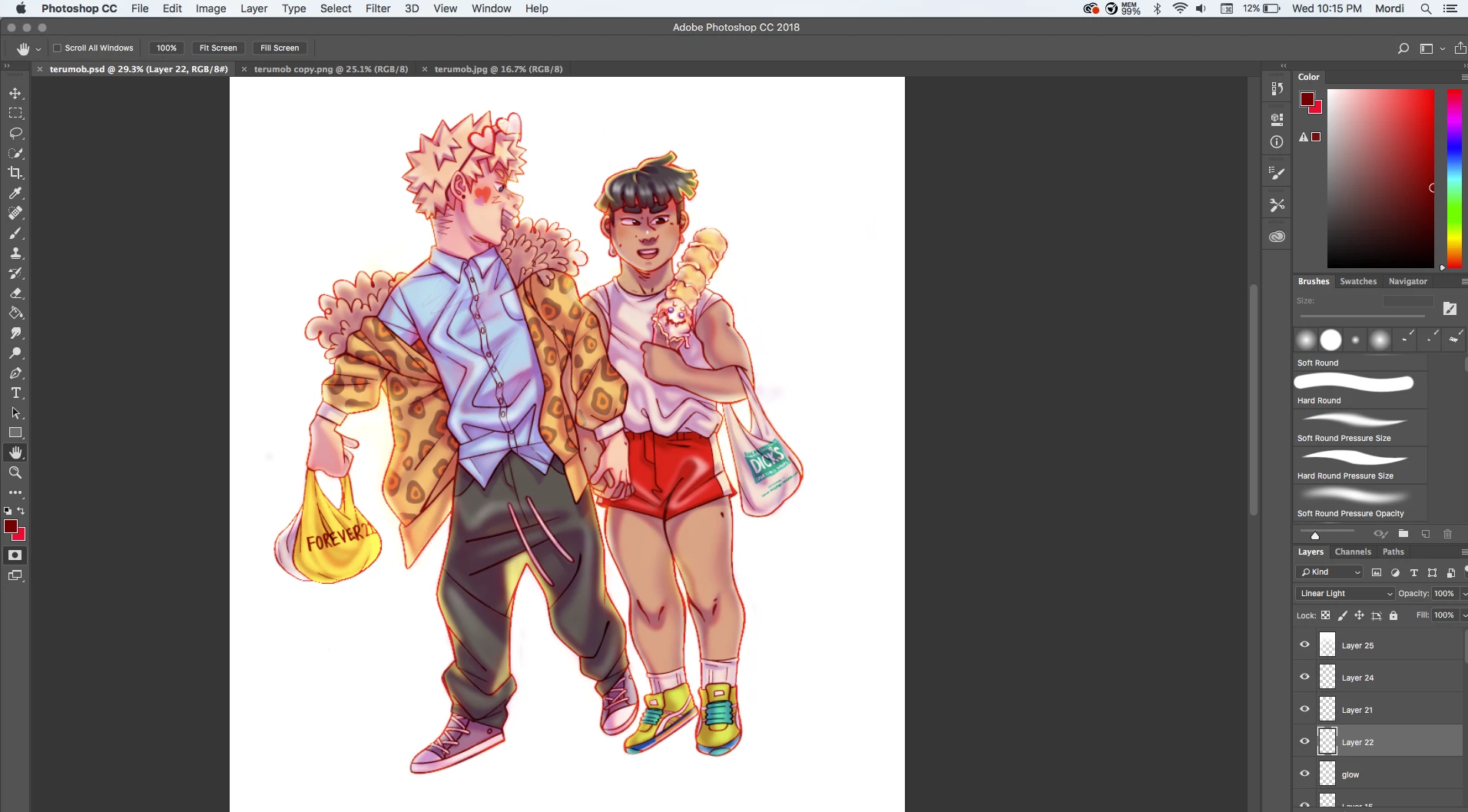
HI GUYS!! I'm kind of new to photoshop! I used sketchbook pro for 7 years and then recently I upgraded to clip studio a few months ago! Now I've been using photoshop for about a week and it's been bomb! I haven't had any trouble up until saving y first piece. When I saved it (attempting to do a jpg and a png to see if it was just format stuff) my colors got messed with? I'm sure it's an easy fix I'm just a noob 😕😕 thank you! here's the photo I've been trying to save
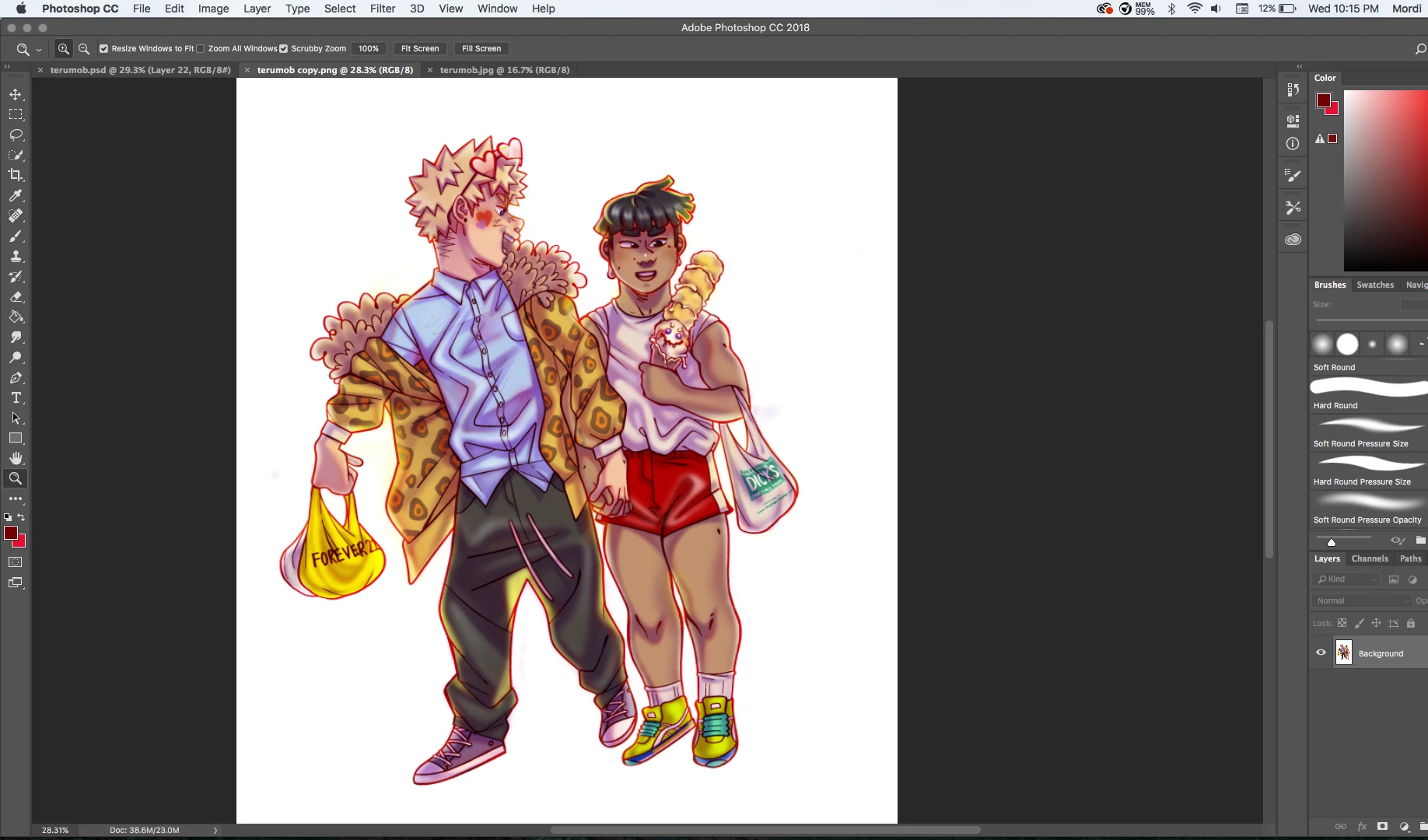
and here's what it looks like after saving. The colors are all muddy and stuff 😕😕
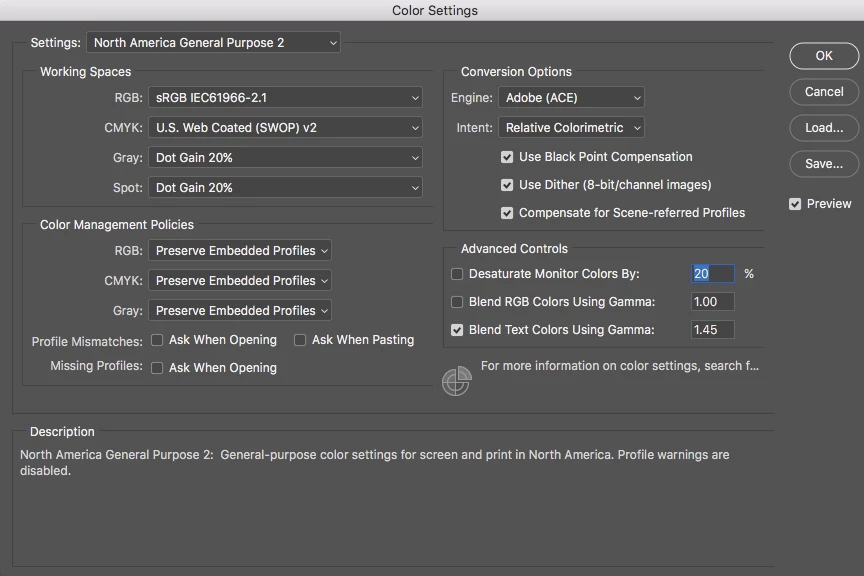
alos here are my color settings if that helps at all!!
This topic has been closed for replies.

4 replies

Per Berntsen
Community Expert
Community Expert
March 21, 2019

The PSD file displays # after the file name, which means that it is untagged – it does not have a color profile.

The PNG file doesn't have the #, which means that it does have a color profile, probably sRGB.

So it seems that you have started out with an untagged image, which disables color management. If you create new files in Photoshop, always assign a color profile, like sRGB.

Try to assign sRGB to the original PSD file, by going to Edit > Assign profile > sRGB.

The colors will now change, and you may need to edit it to make it look right.

Then save as or export as PNG, and make sure to embed the profile. (sRGB). The PNG should now display identically to the PSD.

happie_97
Community Expert
Community Expert
March 21, 2019

I agree with Per Berntsen.  My students just had this issue going from one program to another and this is exactly how we resolved it.

Community Expert
March 21, 2019

As others have said, how are you saving the image?  Are you exporting it for web?

D Fosse
Community Expert
Community Expert
March 21, 2019

Are you saving through Save For Web or Export? Both strip the color profile by default (how I wish they would fix that).

The file must have an embedded color profile to display correctly. Use these settings in Save For Web:

Or these in Export:

Then it will be consistent with Photoshop.

Note that some web browsers and many image viewers don't support color management at all. These will never display entirely correctly and a small difference to Photoshop is normal. In that case trust Photoshop.

Mylenium
Legend
March 21, 2019

No easy fixes and no point in showing us your color management settings - you are effectively not using any, hence your images get neither tagged on saving nor corrected on re-opening. Since it's a complex subject I would suggest you research it on the web. in your case it might be sufficient to set the proof preview to whatever is your monitor color profile.

Mylenium

Steve Werner
Community Expert
Community Expert
March 21, 2019

Moving to Photoshop Forum

Abambo
Community Expert
Community Expert
March 21, 2019

Dull colours may happen when using AdobeRGB colour profile, saving without tagging and opening as sRGB. That's my favorite guess.

ABAMBO | Hard- and Software Engineer | Photographer