
elegant_idealist0D4C
Participating Frequently
December 18, 2023
Question

como mejorar la legibilidad de una Imagen fotocopiada llena de ruido

  • December 18, 2023
  • 2 replies
  • 560 views

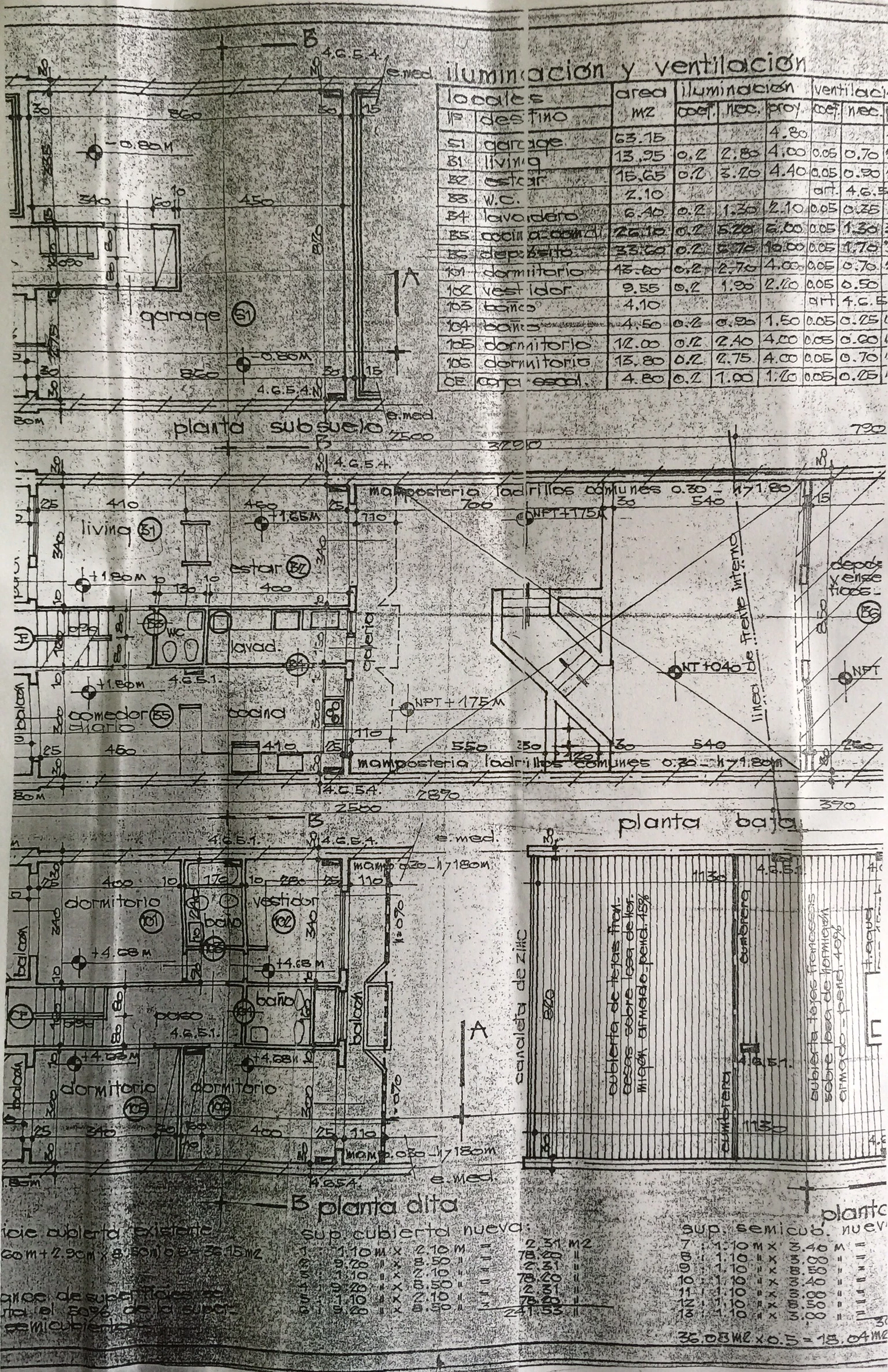
Hola a todos, vengo a la comunidad para preguntar si alguien sabe como puedo retocar esta imagen de tal forma que quede lo más limpia posible.  Me han pasado fotos de una fotocopia de un plano y muchas img estan granuladas y se hace dificil la legibilidad de los números  y textos. 
Con la AI existe alguna forma de limpiarla lo mejor posibe?
desde ya Muchas Gracias por su tiempo !! 
This topic has been closed for replies.

2 replies

didiermazier
Community Expert
Community Expert
December 19, 2023

I would suggest

Convert to grayscale

Curves > Adjust black and white points

Not perfect  but better

elegant_idealist0D4C
Participating Frequently
December 19, 2023

Hi didiermazier!  I will try it!  Thank you so much for your time.  🙂

didiermazier
Community Expert
Community Expert
December 19, 2023

you are welcome

Myra Ferguson
Community Expert
Community Expert
December 19, 2023

I'd recommend a combination of some adjustment layers, merging and duplicating the result, and apply a blend mode to that. You may also want to make some minor manual adjustments with the Dodge and Burn tools. Here's my result:


Here's what I did:

  1. Add a Levels adjustment layer by going to the 4th icon at the bottom of the Layers panel and selecting Levels... or by going to Layer > New Adjustment Layer > Levels...
  2. Use the following settings:


  3. Because the image is still RGB, you can use the Black & White adjustment layer to remove more noise. Add a Black & White adjustment layer by going back to the 4th icon at the bottom of the Layers panel and selecting Black & White... or by going to Layer > New Adjustment Layer > Black & White...
  4. Use the following settings:


  5. Shift + select the image layer and the two adjustment layers.
  6. Duplicate them by either using Ctrl (Windows) or Command (macOS) + J or by going to Layer > New > Layer Via Copy.
  7. Merge these duplicates while they are selected by using Ctrl (Windows) or Command (macOS) + E or by going to the Layers panel menu (the hamburger menu in the upper right of the Layers panel) and selecting Merge Layers.
  8. Set the Blend mode for this merged layer at the top of the Layers panel to Multiply.
  9. I also made a soft brush of 150 px for the Dodge tool set to Midtones to remove more noise
  10. And I used a soft brush of 150 px for the Burn tool set to Midtones to darken some of the text on the right.
elegant_idealist0D4C
Participating Frequently
December 19, 2023

Hi Myra,  thank you so much for your answer.  I will do some of your recommendations !!  i really appreciate it!!

Myra Ferguson
Community Expert
Community Expert
December 19, 2023

You're very welcome. 🙂