

Constrain free transform horizontally/vertically but NOT proportionally
Like everyone else I am still adjusting to the new transform behavior in Photoshop. As much as possible I try to adapt to changes in software so that I don't become a dinosaur incapable of using a clean install of any application, so I purposefully haven't used the hack to revert the settings.
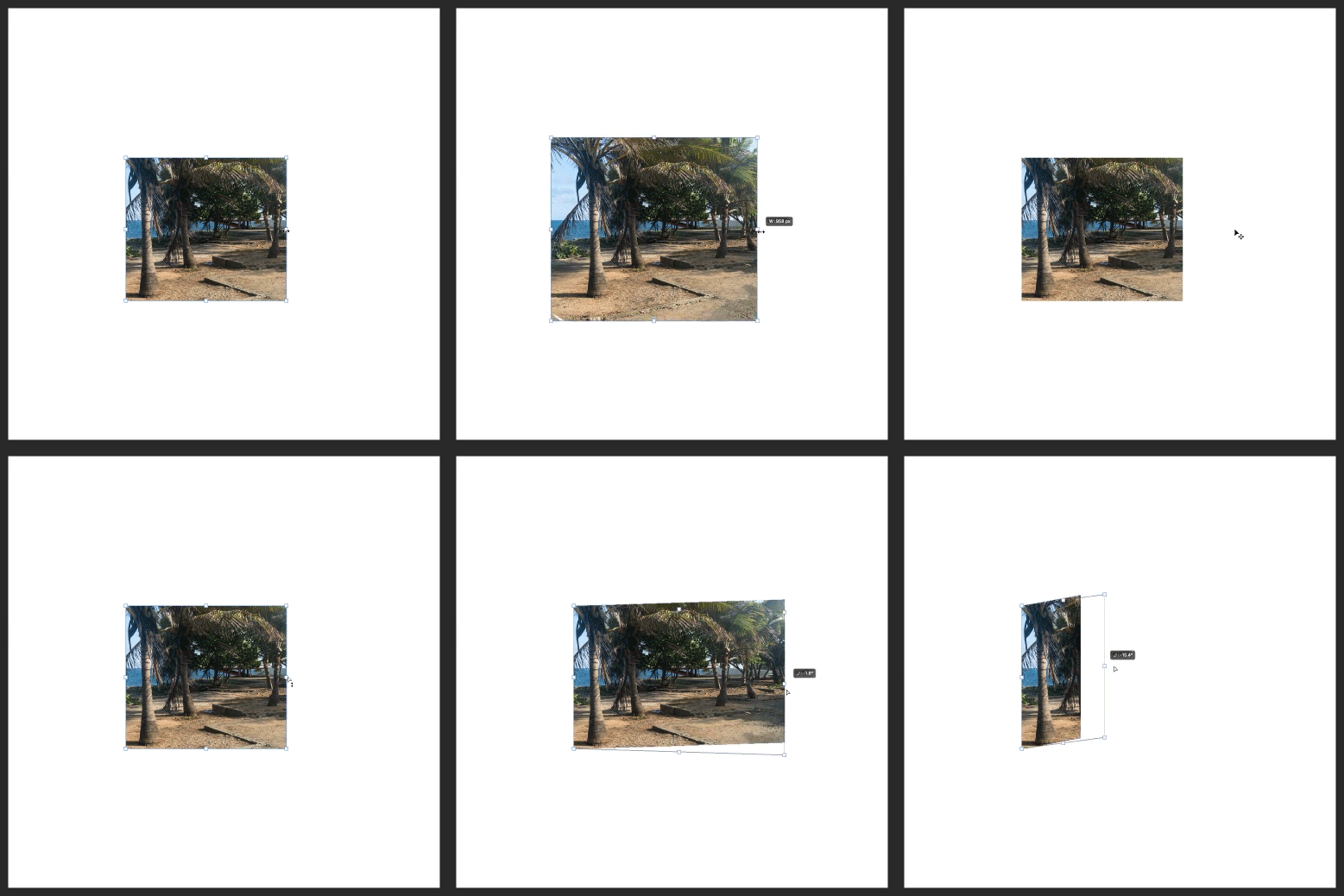
The problem I'm running into is that I cannot free transform an object to, say, stretch it horizontally. Oddly, the side transform handles don't allow me to stretch the object I'm transforming; they also constrain proportions. To me, this isn't logical or consistent with what those handles mean in most applications.
See below. I want to take this square layer mask and make it a rectangle. When I just grab the middle-right handle, the whole layer mask scales proportionally. When I hold down every combination of other keys, it will stretch, but I have no way of keeping my stretching only horizontal. I want to end up with a RECTANGLE not a PARALLELOGRAM. Obviously, there are workarounds, particularly with rectangular layer masks, but the "stretch" functionality is something I use constantly that was there in previous versions. How do I do this now?
For the record, I think the new behavior is probably more logical than the old(you more often want resizing to be constrained), but after this many decades it probably wasn't worth changing. Also, none of the other Adobe apps have followed suit.
 AdChoices