
MahaB82A
August 16, 2025
Answered

Content-Aware Tracing Tool

  • August 16, 2025
  • 3 replies
  • 497 views

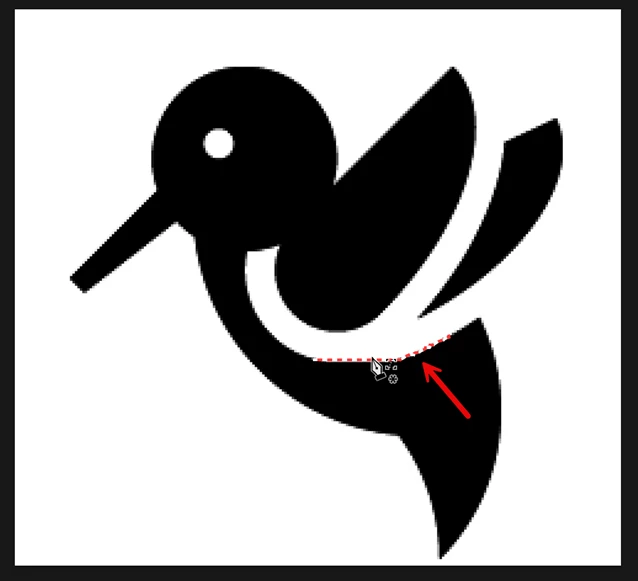
I want to use Content-Aware Tracing Tool to convert this low-resolution logo into a high-resolution vector.


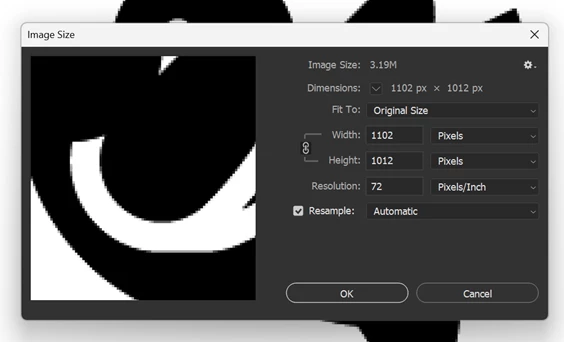
When I activated this tool only part of the edge is traced because the image is very much rasterized. Suitable values are required in Image Size to trace entire edge. I tried many values, but I am unable to find it. How to fix this? File is uploaded as well.
Convert to Vector


Correct answer davescm

From such a low resolution shape an automated tool may struggle as the anti aliasing is large in comparison to the shape.


Two other alternatives are :
1.  Just to use the pen tool to quickly draw a smooth vector path.

2. Try Capture which is one Photoshop's most hidden features. Open the library panel and click the + icon at the bottom of the panel. Then choose Extract from Image. Next, choose Shapes and adjust the Detail and Smooth on Save settings.
Save it to libraries where it will be appear as a vector shape, ready to use.

Dave


3 replies

Conrad_C
Community Expert
Community Expert
August 16, 2025
quote

Will not above second method make Content-Aware Tracing Tool redundant?

By @MahaB82A


This is just my opinion, but I think the Content-Aware Tracing tool was already redundant.

What you can do with the Content-Aware Tracing tool has, for many years, already been much easier to do with the Magnetic Lasso tool. You can click or just casually drag the Magnetic Lasso tool along any reasonably defined edge, and it will snap to it.


Furthermore, for a high-contrast hard-edged example like the one posted, it might be even faster and easier to select it instantly, by tone (Select > Color Range) or using a tool such as the Magic Wand or Quick Selection. This type of subject has such well-defined high-contrast edges that there should be no need for Content-Aware or AI selection technology. The simplest, oldest selection tools should work well with it, and then to compensate for the low resolution convert the selection to a path and clean that up.

davescm
Community Expert
davescmCommunity ExpertCorrect answer
Community Expert
August 16, 2025

From such a low resolution shape an automated tool may struggle as the anti aliasing is large in comparison to the shape.


Two other alternatives are :
1.  Just to use the pen tool to quickly draw a smooth vector path.

2. Try Capture which is one Photoshop's most hidden features. Open the library panel and click the + icon at the bottom of the panel. Then choose Extract from Image. Next, choose Shapes and adjust the Detail and Smooth on Save settings.
Save it to libraries where it will be appear as a vector shape, ready to use.

Dave


MahaB82A
MahaB82AAuthor
August 16, 2025

Will not above second method make Content-Aware Tracing Tool redundant?

davescm
Community Expert
Community Expert
August 16, 2025

Not really. It's good to have a range of tools for different images.

Dave

jane-e
Community Expert
Community Expert
August 16, 2025

@MahaB82A 


Try the steps in this help page for Technology Previews:

https://helpx.adobe.com/photoshop/using/technology-previews.html

  • Enabling this tool allows you to make paths or shapes following the edges in an image.
  • To enable, check Enable Content-Aware Tracing tool in Preferences > Technology Previews.
  • To use, select the Content-Aware Tracing tool from the tool palette. If you cannot find it grouped with other Pen tools, you may need to add the tool using the Customize Toolbar option.
  • The Content-Aware Tracing tool also requires Use Graphics Processor to be enabled in Preferences > Performance.


If you have Illustrator, use Image Trace to convert raster to vector. In addition, Adobe has a free online tool to convert to .svg:

https://www.adobe.com/express/feature/image/convert/svg


Jane