
Convert color range selection to "Clean, Hard edge" selection?
I am trying to create forest cover bitmap from aerial photos and getting stymied by something in Photoshop. Here is process and issues:
1. load a geotiff image. Convert background to layer and delete non-data areas(ie. areas outside the aerial photo bounds that are just solid color background)
2. load a color range and inspect it for minor adjustments. Hit Ok to accept the selection.
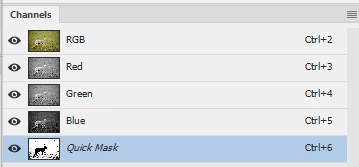
3. Now, with a rough selection of forested areas, I turn on "Edit in quick mask mode"
4. In quick mask mode I "paint" out areas that were miscategorized in the initial color range selection.
5. Turn off quick mask mode and have my final desired selection.
6. Here is where the problems start: at this point I create a new, empty layer with the selection still active and attempt to fill the selection with solid black using either the edit-fill command, or the paint bucket tool set to 100 opacity and 100 tolerance. What I get is a mixed greyscale fill in the selection areas, and, there is an unwanted linear gradient from left to right so that the rightmost 25% of the image looks like its opacity has been turned down about 50%.
What the heck am I missing?
Is there a clean, simple way to get from my completed selection in step 5 to a solid black fill in all the selection, with hard edges?
THanks,
Tom
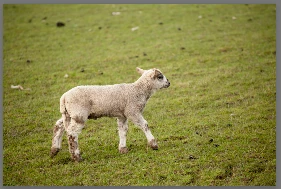
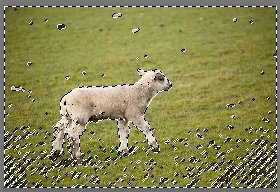
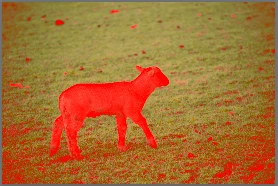
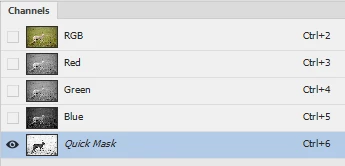


 changes to

 AdChoices