
Participant
October 3, 2021
Answered

Convert Layer with mask into layer (no mask)

  • October 3, 2021
  • 1 reply
  • 775 views

Hi there 

Really silly question. 

I have layer with mask which I want to convert to be just a layer.

My regular step will be create one new layer on top and Command E to merge down. It will then create a layer with my shape and no more mask. Easy. 

Is there any way to make it using shortcuts? Just convery layer with mask into a layer without the extra step? 


Cheers


This topic has been closed for replies.
Correct answer Stephen Marsh

File Info > Basic > Copyright Status


You can set this and other metadata via a Metadata Template in Adobe Bridge and batch apply it to multiple images.


This could also be set via an action, script or 3rd party software such as ExifTool.

1 reply

Chuck Uebele
Community Expert
Community Expert
October 3, 2021

Right click on the layer mask and select "Apply".

Participant
October 3, 2021

 .... so easy! It was killing me 🙂 

Thank you so much for taking the time to entertain my question. Much appreciated. 


May I ask one more thing instead of opening new post? Let me try my luck.
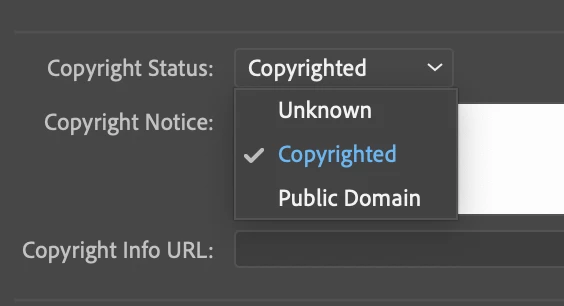
When I edit some files, I see Copy Right symbol before the file name. I check the file Information, I looked around my mac's "get info" and I can't find the place where I could add it so when you edit my file you will see the symbol on the tab. Any idea? 


Cheers 


Stephen Marsh
Community Expert
Stephen MarshCommunity ExpertCorrect answer
Community Expert
October 4, 2021

File Info > Basic > Copyright Status


You can set this and other metadata via a Metadata Template in Adobe Bridge and batch apply it to multiple images.


This could also be set via an action, script or 3rd party software such as ExifTool.