
benw14491516
Participant
October 25, 2015
Answered

Converting GIF to video

  • October 25, 2015
  • 2 replies
  • 70989 views

I have 2 layers (pictures) that I have made into a GIF using Photoshop, but the program I must upload this file to doesn't accept animated GIFs. Is there a way I can make the GIF into a video file using photoshop to keep the quality high? I just want the two photos to alternate every .8 seconds and go on a loop for about 1 minute, but when I convert the frame animation to video timeline, it doesn't alternate between the two photos at that rate I want it and it doesn't play for 1 minute.
This topic has been closed for replies.
Correct answer War Unicorn

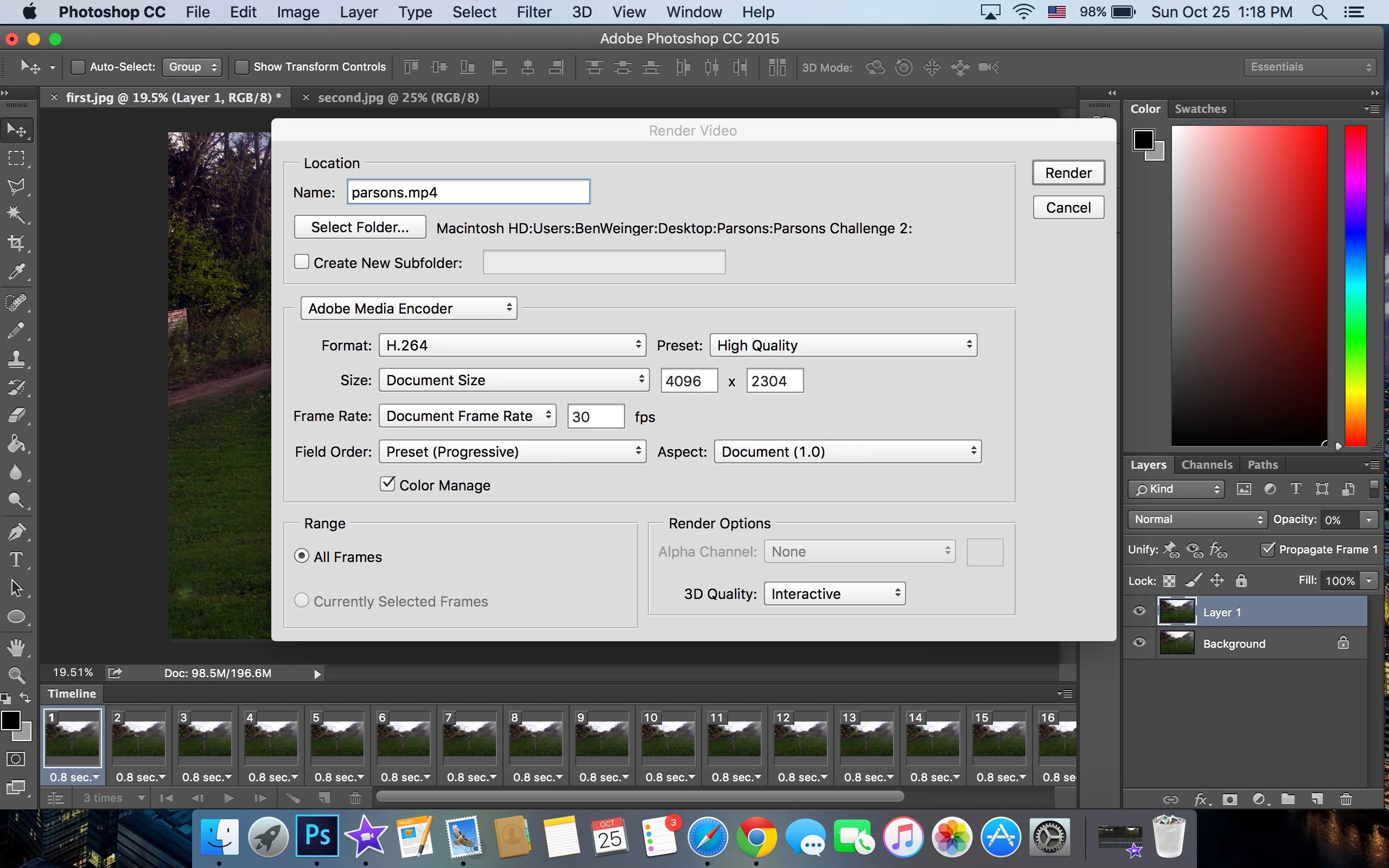
Hi, I tried that, but it says "the dimensions or frame rate are too large." I don't want to mess anything up, so what should I do?


That's far too big. Try resizing the layers first before exporting as MP4, say around 600 pixels wide to start. (Image > Image Size on the menu bar.)

2 replies

yanwarcak
Inspiring
November 17, 2020

Can we loop the MP4 just like the Gif is looped?

War Unicorn
Community Expert
Community Expert
October 25, 2015

Odd. Are you using an NLE? Most NLEs (nonlinear editors) should accept animated GIFs and play them properly, where you can then convert it into a proper video file. (Mine does anyway.)

Photoshop can do this too, but it's nowhere near as functional as, say, a true NLE like Premiere (as you've found out).

benw14491516
Participant
October 25, 2015

I'm pretty new to Photoshop and don't really know any lingo yet...I'm just trying to make a GIF for a college application project, and the website I need to submit the project to doesn't accept animated GIFs. I've tried using online converters from GIF to MP4 but the MP4 it makes is just black...I just want the two pictures I have to switch back and forth for about a minute. I've tried iMovie but I can't get the pictures to switch fast enough on a constant rate like GIFs do. Any ideas?

War Unicorn
Community Expert
War UnicornCommunity ExpertCorrect answer
Community Expert
October 25, 2015

Hi, I tried that, but it says "the dimensions or frame rate are too large." I don't want to mess anything up, so what should I do?


That's far too big. Try resizing the layers first before exporting as MP4, say around 600 pixels wide to start. (Image > Image Size on the menu bar.)