May 20, 2022
Answered

copy and paste from Ai to Ps

  • May 20, 2022
  • 2 replies
  • 598 views

Hi,


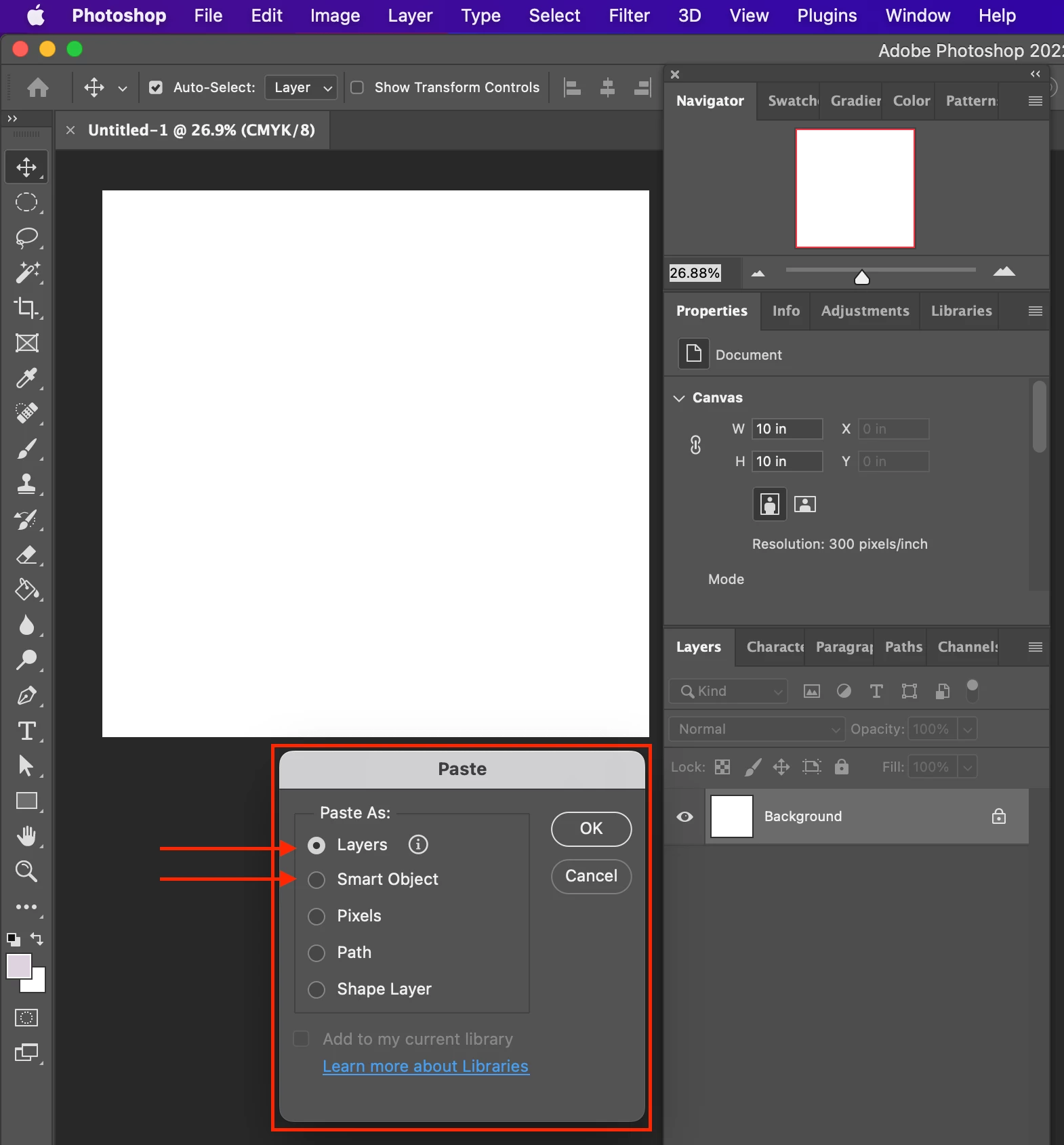
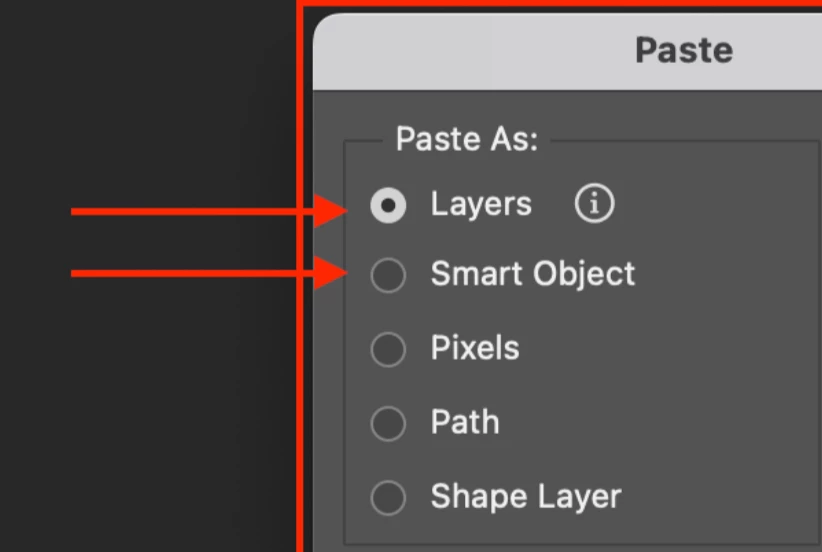
When I copy and paste from Ai to Ps, I encounter two options, as seen in the screenshot below.

What's the difference?


When I export to png on Ai, there is an issue of resolution.

It's the reason why I want to:

- copy and paste from Ai to Ps

- export to png on Ps


Hosun
 

This topic has been closed for replies.
Correct answer jane-e

@24523962 wrote:

When I copy and paste from Ai to Ps, I encounter two options, as seen in the screenshot below. What's the difference?


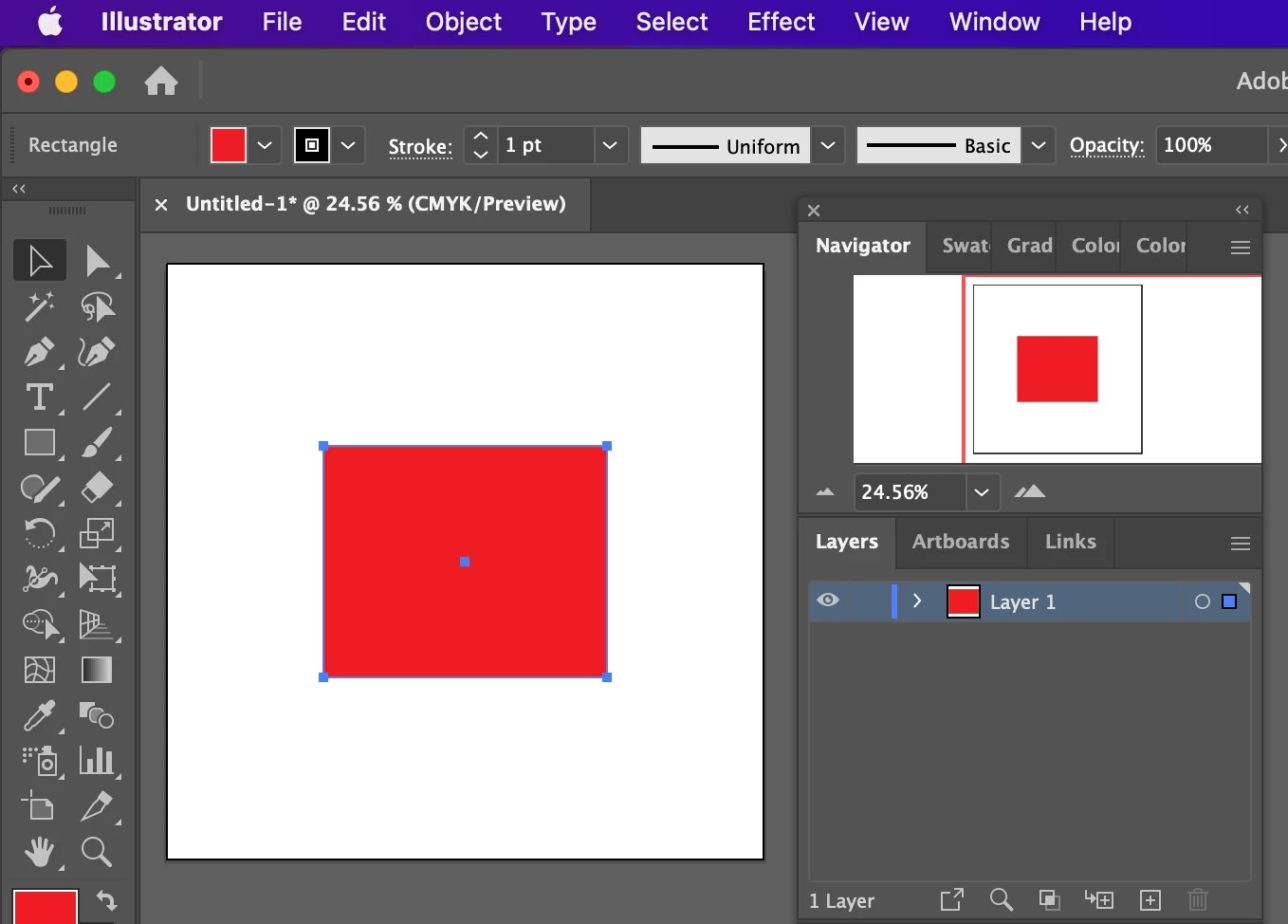
Your illustrator example has one rectangle on one layer "Layer 1". Try creating one or two more layers with one or more objects on each. Then paste as Layers in PS and look in Photoshop's Layers panel to see the layers. 


A SO in PS allows you to perform non-destructive editing on the contents. See this help file for details:
https://helpx.adobe.com/photoshop/using/create-smart-objects.html


You will get a better PNG from Illustrator than from bringing your vector shapes in PS (which rasterizes them), but try both and see what you think.


Jane


2 replies

jane-e
Community Expert
jane-eCommunity ExpertCorrect answer
Community Expert
May 20, 2022

@24523962 wrote:

When I copy and paste from Ai to Ps, I encounter two options, as seen in the screenshot below. What's the difference?


Your illustrator example has one rectangle on one layer "Layer 1". Try creating one or two more layers with one or more objects on each. Then paste as Layers in PS and look in Photoshop's Layers panel to see the layers. 


A SO in PS allows you to perform non-destructive editing on the contents. See this help file for details:
https://helpx.adobe.com/photoshop/using/create-smart-objects.html


You will get a better PNG from Illustrator than from bringing your vector shapes in PS (which rasterizes them), but try both and see what you think.


Jane


Kevin Stohlmeyer
Community Expert
Community Expert
May 20, 2022

The option you are seeing is a new feature in the latest release.

https://helpx.adobe.com/photoshop/using/whats-new/2022-2.html

Either should work for your process, but I'm more wondering about your comment about "an issue with resolution" when exporting a PNG format from Illustrator directly?

When you Export As... you can choose your resolution specifically with "other" - you don't have to use the presets given.