link2aadi
Participant
December 18, 2020
Question

Copying Images between Two Canvas in Photoshop - Pixelate

  • December 18, 2020
  • 1 reply
  • 254 views

Hello, I hope you guys are doing well. 
I'm a begineer and a day back I came across a problem while working in Photoshop.


1- My Source Image File (Pictuer of A Shoe) is 6016 x 4016 (72ppi)
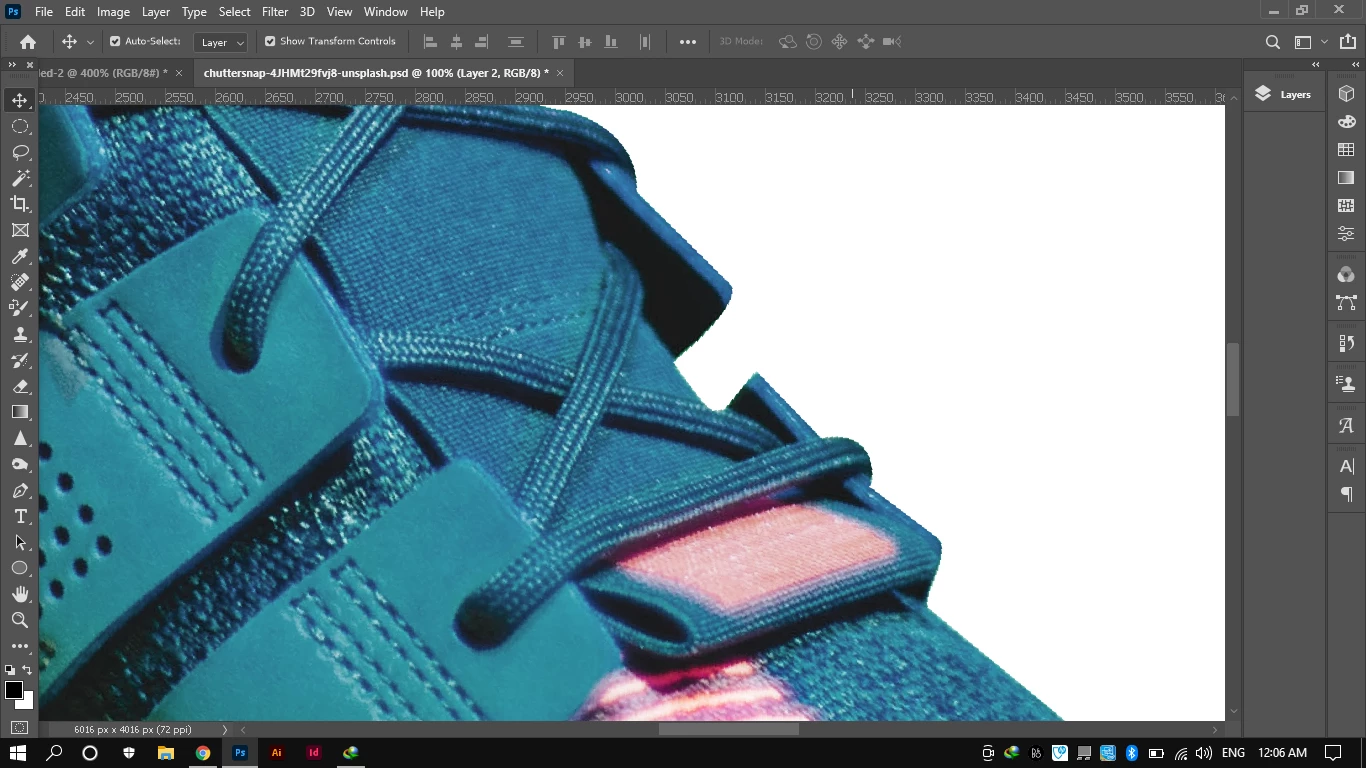
 

When I remove its BG and copy to other Canvas that is 550 x 370 (72ppi) , It became pixelated. Edges distorted/pixelated.
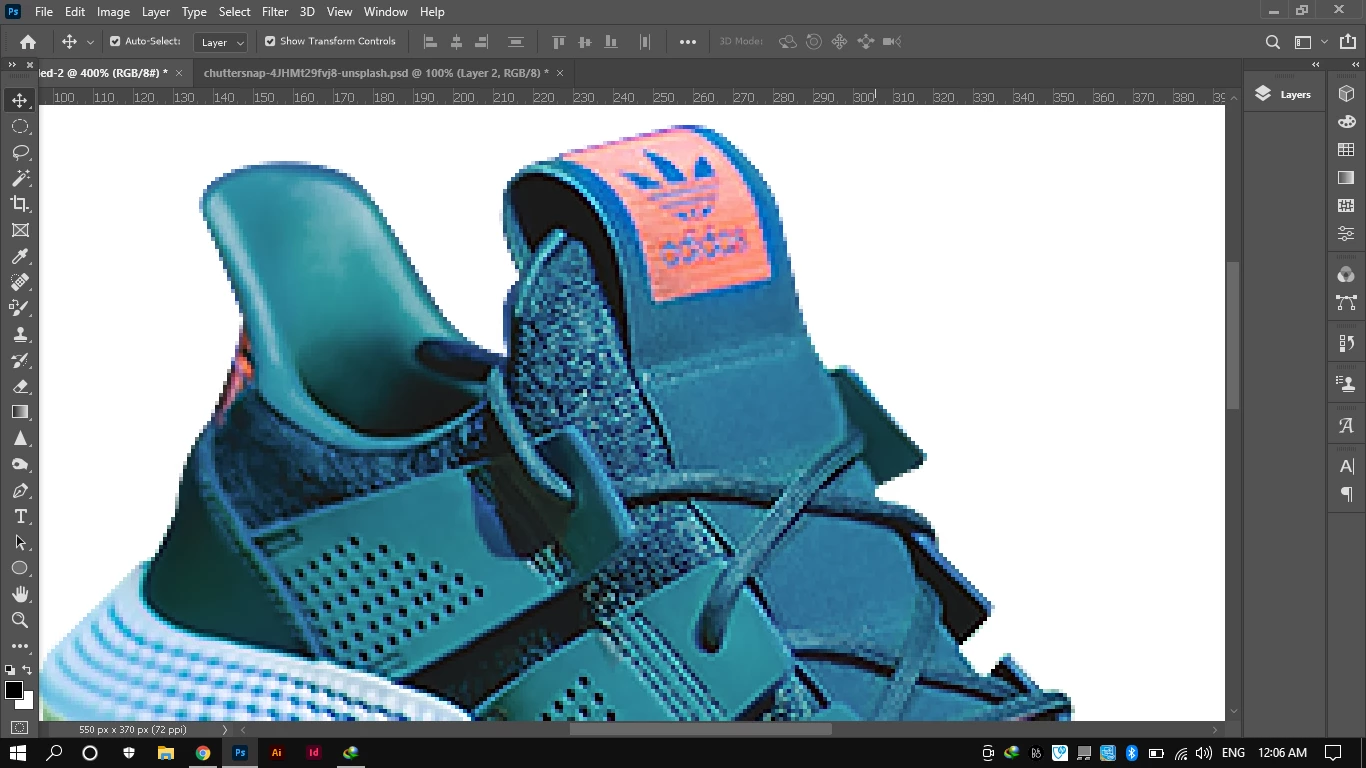


I tired different way (Smart Object, PNG,ai File, Canvas Resizing, Image Resing, Free Transformation etc) but Nothing is Working.


2- How can I move it between different Canvases within Photoshop?


Furhter Guidance is Appreciated. ❤️  


-Aadi

This topic has been closed for replies.

1 reply

davescm
Community Expert
Community Expert
December 18, 2020

550 x 370 pixels is the problem. That is a tiny image and if you zoom greater than 100% you are going to see pixels - no way around that other than increasing the pixel size of that second canvas before pasting.


Dave

link2aadi
link2aadiAuthor
Participant
December 18, 2020


I've used this Documnet Size. Correct me If I'm making any mistake . 🙂  

davescm
Community Expert
Community Expert
December 18, 2020

You are missing my point. PPI is irrelevant here, it is just a number stored alongside the image data that will be used to calculate the size on paper when printing or convert text size from points to pixels.

If you zoom greater than 100% you will see pixels. Your image at 550 x 370 is going to look small at 100% zoom on screen. Making it larger on screen means you have zoomed beyond 100% and you will see the pixels.

One more thing to make sure of though, check Preferences - General and make sure that interpolation is not set to nearest neighbour, as that would make resizing worse.