
Participant
August 1, 2025
Answered

create a text path on an elipse

  • August 1, 2025
  • 2 replies
  • 360 views

Hello!

I am trying to create an elipse as a path so I can make curved text.  I read that I need to select the elipse them select path from the options bar but I can not find this option anywhere!  Where can I find the option if it's not on the options bar?  Is this a bug?  Ay help appreciated!
Correct answer jane-e


You're welcome @ReneeD  😊


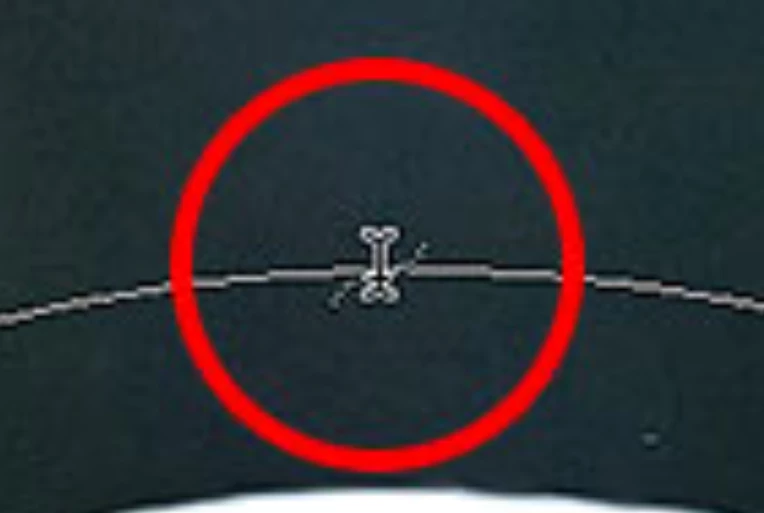
Position the text cursor on the edge of the path until it looks like this image, then click and start typing.

Jane

2 replies

Conrad_C
Community Expert
Community Expert
August 2, 2025
quote

Thank you!!!  I was using the selection elipse... the dotted one.... the solid one worked!  Now... when I type the text and try to slide it is disappears depending on where I try to position it.  Any idea why?  (I'm getting there.... baby steps!)  Thanks!

By @ReneeD


This is a very tricky thing in Photoshop, even for those who know the steps.


Like jane-e said, pay attention to what the mouse pointer looks like, because that tells you what’s going to happen if you click or drag. This is important in more than one way, as you’ll see in the demo below. Notice how when I move the Type tool pointer back and forth across the path, it changes appearance. When the pointer looks like a dashed box, it’s about to make a new text layer. When it looks like a dashed circle, it’s about to type inside the ellipse shape layer. But when it looks like the dashed wavy line that jane-e showed, clicking will add placeholder text along the path, and you can then start typing to replace the placeholder text. 


After that, you have to pay attention to the pointer appearance again, as you’ll see when I slide the text along the path and flip it across the path. As you hover the Path Selection tool pointer over the path, when it looks like the I-beam with a triangle pointing left or right, dragging from that point will adjust the left/right margin of the text by sliding it. Dragging across the path flips it. If the left and right margins are too close together, there might not be room for the text so it disappears.


jane-e
Community Expert
Community Expert
August 1, 2025

@ReneeD 


The option for "Path" is the dropdown on the left. Choice are Shape, Path, and Pixels.

Jane

ReneeDAuthor
Participant
August 1, 2025

Thank you!!!  I was using the selection elipse... the dotted one.... the solid one worked!  Now... when I type the text and try to slide it is disappears depending on where I try to position it.  Any idea why?  (I'm getting there.... baby steps!)  Thanks!


jane-e
Community Expert
jane-eCommunity ExpertCorrect answer
Community Expert
August 1, 2025


You're welcome @ReneeD  😊


Position the text cursor on the edge of the path until it looks like this image, then click and start typing.

Jane