Jimbo.Actual
Participant
April 26, 2025
Answered

Create Action to Combine Photos

  • April 26, 2025
  • 3 replies
  • 1844 views

Howdy folks,


Hope all is well!


So, I've just been given a collection of just under 200 vinyl records from my dad to try and sell. After recording all their names/years and taking photos of both the front and back of each record, I am now ready to prep a nice package to send to some potential buyers.


That said, I currently have 382 photos to work through... I've renamed them all in the following manner: "Record1_front" ... "Record1_back" /// "Record2_front" ... "Record2_back". What I'm doing is opening a canvas in Photoshop that is twice the width of one photo, placing both the "front" and "back" files onto the canvas, placing the front on the left and the back on the right, then saving in a different folder with just the name "Record 1" /// "Record2".


Is there a way to automate this process for every image in my folder?


Appreciate your time and help!


James
Correct answer Stephen Marsh

@Jimbo.Actual 


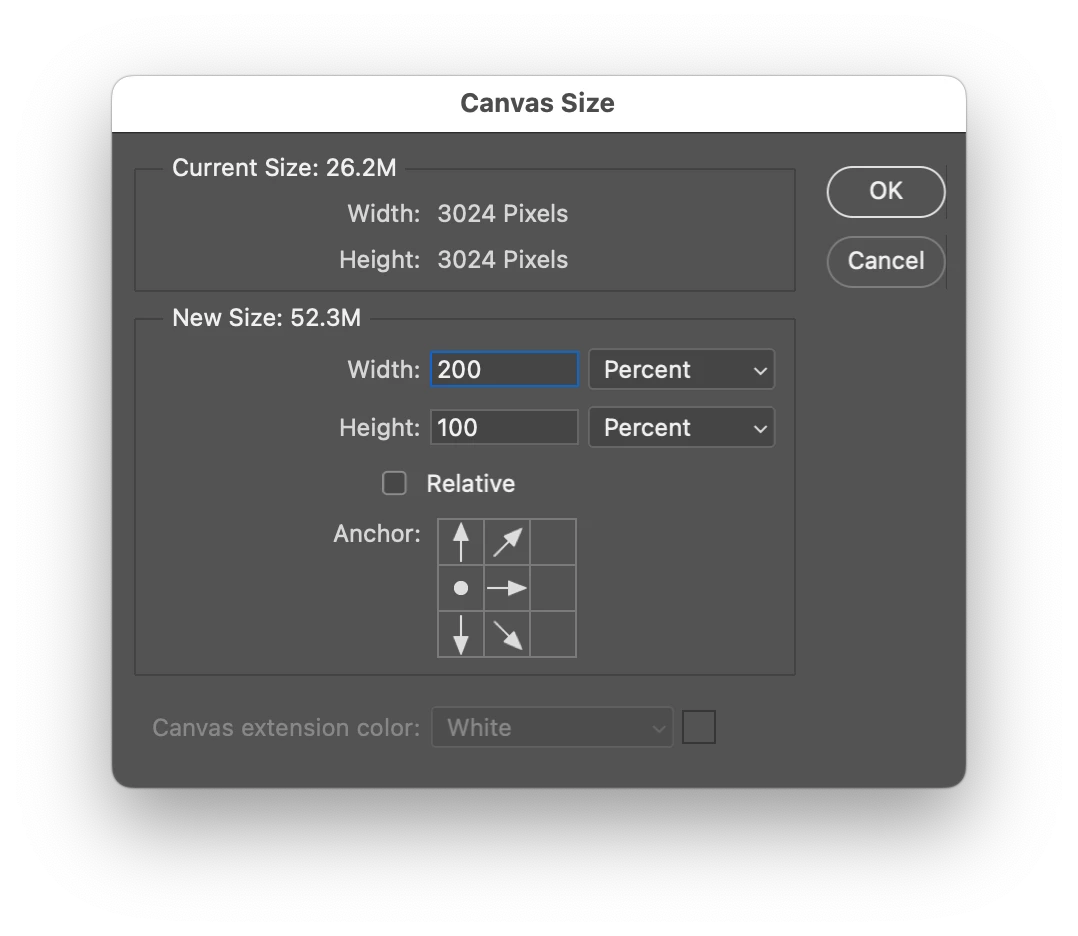
This is what I was referring to for the canvas size:


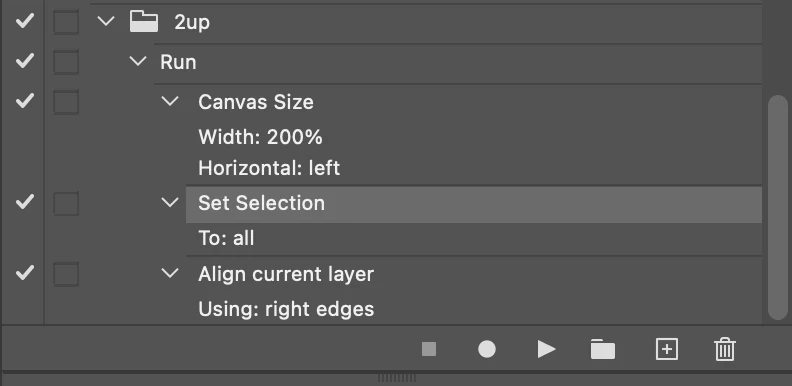
Here is the action, it only needs 3 steps:


1) Canvas Size

2) Select All

3) With the move tool active, use the Align option to the right, you could also add a fourth vertical alignment step if needed. You could also add a fifth step using Image > Image Size to resize smaller on the width or height as these are 6048 x 3024 px sized.


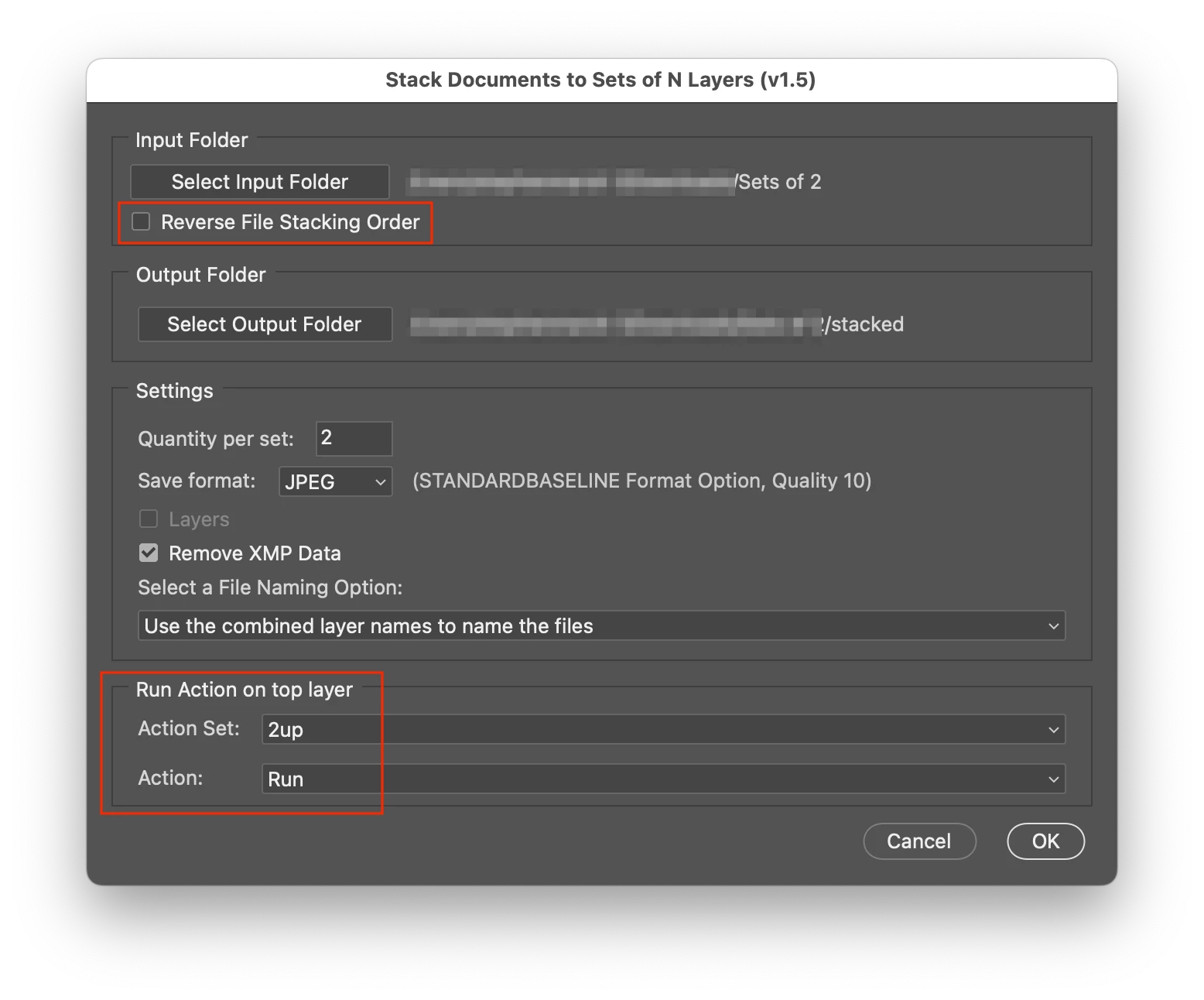
Here is the script setup to run the batch stacking into sets of 2 files:


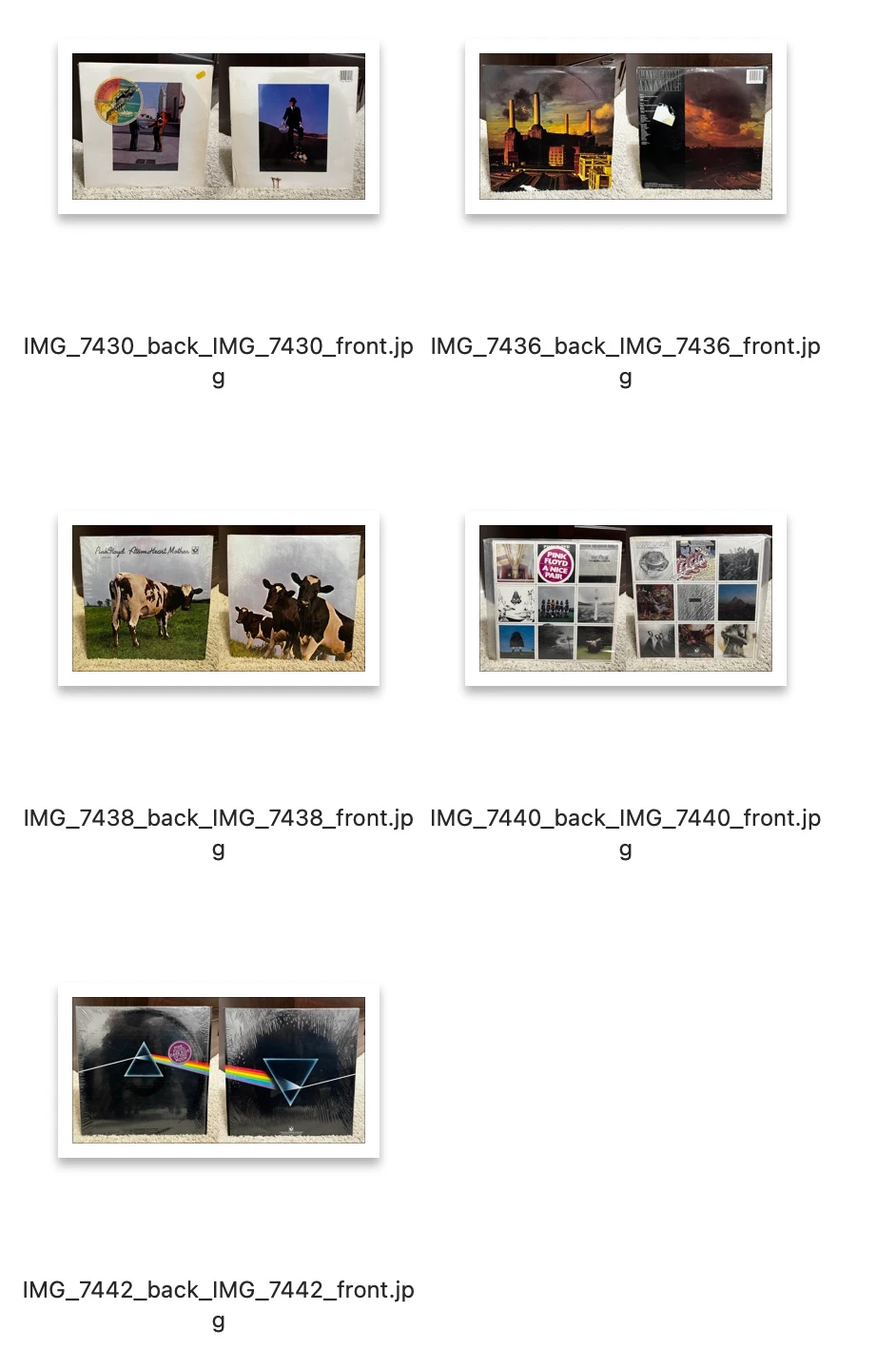
Finally, here is the result:


3 replies

Stephen Marsh
Community Expert
Community Expert
April 28, 2025

@Jimbo.Actual – so how did you go?

Jimbo.Actual
Participant
April 28, 2025

Hey, good morning Stephen.


Thanks for sending over such a detailed breakdown!


I've had a pretty busy weekend, but I will hopefully be able to try it out either tonight or tomorrow. I will let you know either way.

Stephen Marsh
Community Expert
Stephen MarshCommunity ExpertCorrect answer
Community Expert
April 26, 2025

@Jimbo.Actual 


This is what I was referring to for the canvas size:


Here is the action, it only needs 3 steps:


1) Canvas Size

2) Select All

3) With the move tool active, use the Align option to the right, you could also add a fourth vertical alignment step if needed. You could also add a fifth step using Image > Image Size to resize smaller on the width or height as these are 6048 x 3024 px sized.


Here is the script setup to run the batch stacking into sets of 2 files:


Finally, here is the result:


Stephen Marsh
Community Expert
Community Expert
April 26, 2025

@Jimbo.Actual 


You'll need a script to open in sets of 2 alphabetically sorting files, such as:


Or if there were two separate source/input folders for the fronts and backs:


The scripts simply stack one file above the other as layers, the scripts have an option to run an action on each stack. You will need to record an action that does what you need (increasing canvas size to 200% on the width with a middle left anchor point, select all, move tool align right centre etc.
Jimbo.Actual
Participant
April 26, 2025

Hey Stephen,


Thanks so much for the quick response!


I think I followed everything you mentioned up until recording an action... middle-left anchor point, select all, move tool align right-center, etc.

I had to stop myself from writing out about a dozen questions lol. To sum it up, I'm not sure how to record an action for what I'm trying to do. All files are located in the same folder.

Stephen Marsh
Community Expert
Community Expert
April 26, 2025
quote

Hey Stephen,


Thanks so much for the quick response!


I think I followed everything you mentioned up until recording an action... middle-left anchor point, select all, move tool align right-center, etc.

I had to stop myself from writing out about a dozen questions lol. To sum it up, I'm not sure how to record an action for what I'm trying to do. All files are located in the same folder.


By @Jimbo.Actual


You're welcome.


Please attach or post links to 2-3 sets of the images that you wish to stack (4-6 files).