Exit
  • Global community
    • Language:
      • Deutsch
      • English
      • Español
      • Français
      • Português
  • 日本語コミュニティ
  • 한국 커뮤니티
0

Create Patterns Adjustment Layer not working

Participant ,
Aug 25, 2021 Aug 25, 2021

Hello,

I'm working with Photoshop 2021 and Windows 10.

I created an adjustment layer for patterns.

When the dialog box appeared, I went to Legacy Patterns & More, then to Legacy Patterns, and I selected a pattern from the library.

The preview box in the dialog box shows the correct pattern.

When I click OK, the pattern is a grid not the actual pattern.

I tried other patterns from other libraries and the result is the same.  For example, I went to the patterns within Trees.  The preview shows the trees.  After clicking OK, trees isn't being displayed instead it's a grid.

Can someone help me out?

Thank you in advance.

TOPICS
Windows
789
Translate
Report
Community guidelines
Be kind and respectful, give credit to the original source of content, and search for duplicates before posting. Learn more
community guidelines

correct answers 1 Correct answer

Adobe Employee , Aug 25, 2021 Aug 25, 2021

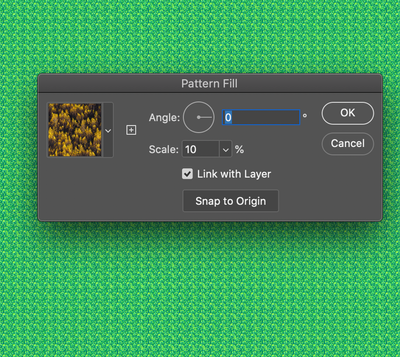
I suspect your "Scale" setting is very low (mine looks similar if set to 10%) - Try a scale setting of 100%.

JeffreyTranberry_0-1629920997277.png


Translate
Adobe
Adobe Employee ,
Aug 25, 2021 Aug 25, 2021

Can you post a screen shot or video of what you're seeing? I'm not seeing anything off with Pattern layers.

Translate
Report
Community guidelines
Be kind and respectful, give credit to the original source of content, and search for duplicates before posting. Learn more
community guidelines
Participant ,
Aug 25, 2021 Aug 25, 2021

Hi,

Certainly.  This is the best I can do.  In this example, the layer shows the pattern of a tree but the document shows a grid not trees.


Translate
Report
Community guidelines
Be kind and respectful, give credit to the original source of content, and search for duplicates before posting. Learn more
community guidelines
Adobe Employee ,
Aug 25, 2021 Aug 25, 2021

I suspect your "Scale" setting is very low (mine looks similar if set to 10%) - Try a scale setting of 100%.

JeffreyTranberry_0-1629920997277.png


Translate
Report
Community guidelines
Be kind and respectful, give credit to the original source of content, and search for duplicates before posting. Learn more
community guidelines
Participant ,
Aug 25, 2021 Aug 25, 2021

Oh, my goodness. I'll give that a try.  Sometimes a second pair eyes is very helpful. 

Thank you!

Translate
Report
Community guidelines
Be kind and respectful, give credit to the original source of content, and search for duplicates before posting. Learn more
community guidelines
Participant ,
Aug 25, 2021 Aug 25, 2021
LATEST

Hi,

Yes, setting the scale to 100% worked.

 Thank you again. 

Translate
Report
Community guidelines
Be kind and respectful, give credit to the original source of content, and search for duplicates before posting. Learn more
community guidelines