


- Home
- Photoshop ecosystem
- Discussions
- Re: Create transparant tshirt image
- Re: Create transparant tshirt image

Copy link to clipboard
Copied
Hello,
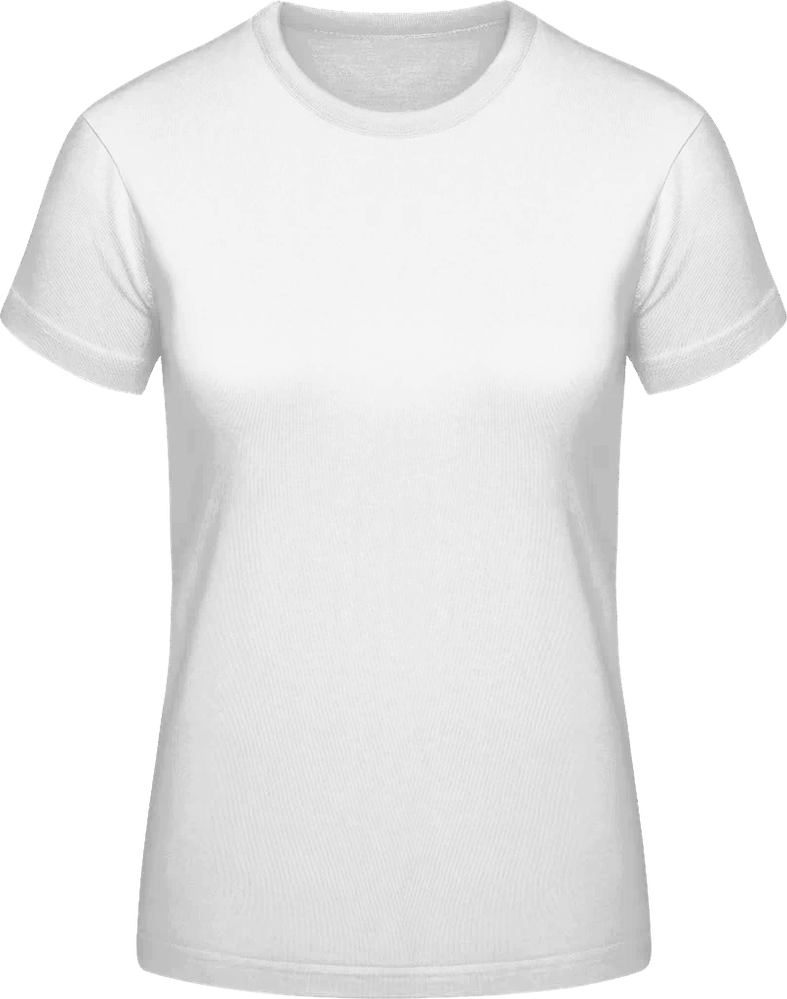
Does anybody know how I can create a product image like this tshirt below?
This image can I use on webpages and give them different colors if I change the background from the webpage.
I tried multiply blend mode but this does not work.

Thanks a lot for helping


 1 Correct answer

Like this:
1. Duplicate the shirt layer
2. make a selection of the shirt by using the magic wand and clicking on the
white area around the shirt
3. save the selection to a channel for future use, then Select>Deselect
4. select the bottom layer and add a color fill adjustment layer with black as the color
(Layer>New Fill Layer>Solid Color)
5. select the top shirt layer and go to Layer>Layer Style>Blending Options
6. move the right This Layer slider to the left just enough so s
...

Explore related tutorials & articles
 20
Replies
20
20
Replies
20


Copy link to clipboard
Copied
Your question is not clear to me. What is exactly your request regarding Adobe Photoshop? Can you give us more details? Do you want to remove background or something else?
I just downloaded your example image.
You may be able to do trick using transparency.
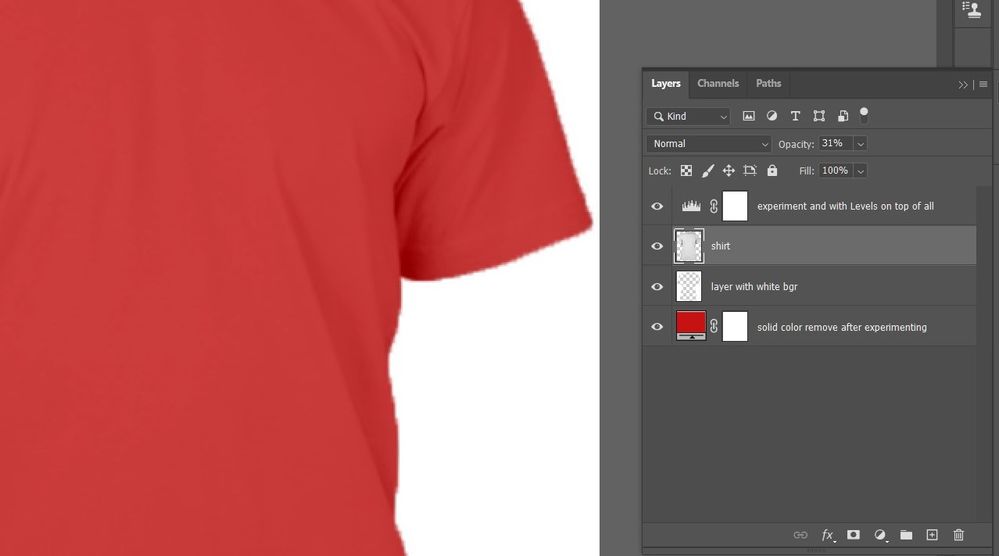
Before using Transparency separate shirt from background, unlock background layer or promote it to normal then select shirt and press Ctrl + Shift + J. Lower transparency of layer with shirt to 25% for example, experiment. Create at the very bottom layer filled with color and experiment. remove bottom most layer when you finish experimenting.
Save as PNG.

Copy link to clipboard
Copied
I'm going to guess that you want to use the same image of the t-shirt and show it in different colours.
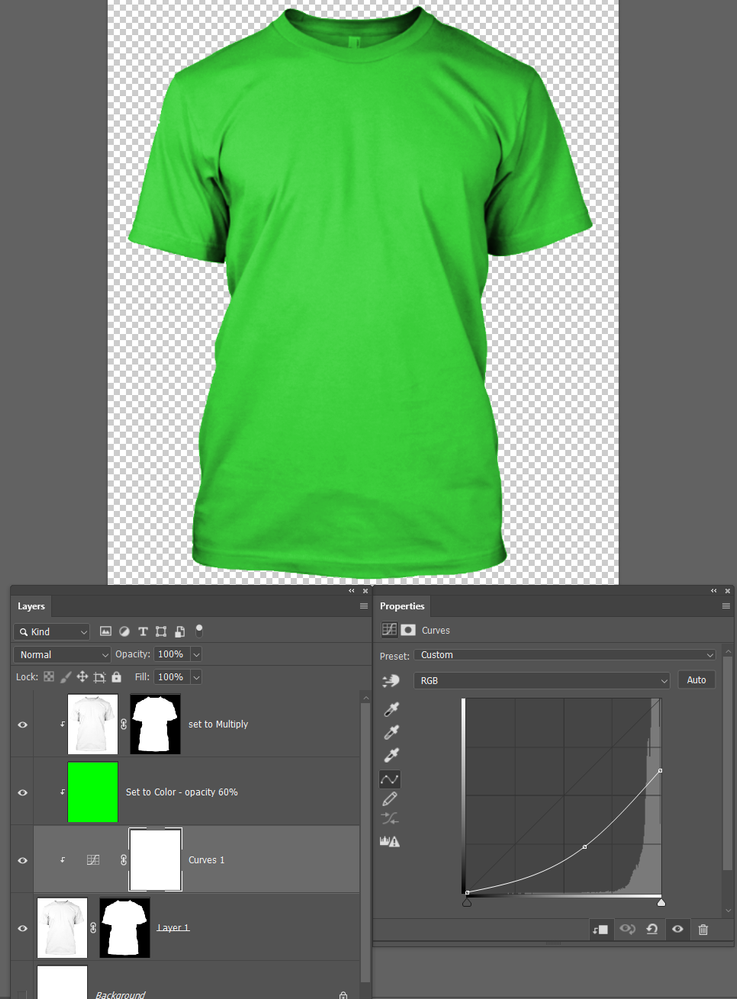
Colorizing does not work on objects that full white or full black. In fact it has the most effect on 50% grey. So we need to use something like a curves adjustment layer to achieve that. Note that as well as bringing down the white tones, I have also applied a dip in the middle of the curve to darken the shading. I have also clipped the curvesa layer to the t0shirt layer.

Now we can add a layer, fill it with colour and set its blend mode to colour. It was too intense so I reduced its opacity to 60%
To increase the shading effect we can use a copy of the t-shirt set to Multiply. Not I have pulled down the curves layer a bit more for best effect.
Let us know if we are off the track, giving as much inforation as you can.
Copy link to clipboard
Copied
I'll add this recent video from the Photoshop Training Channel on transfering shading to composited elements.
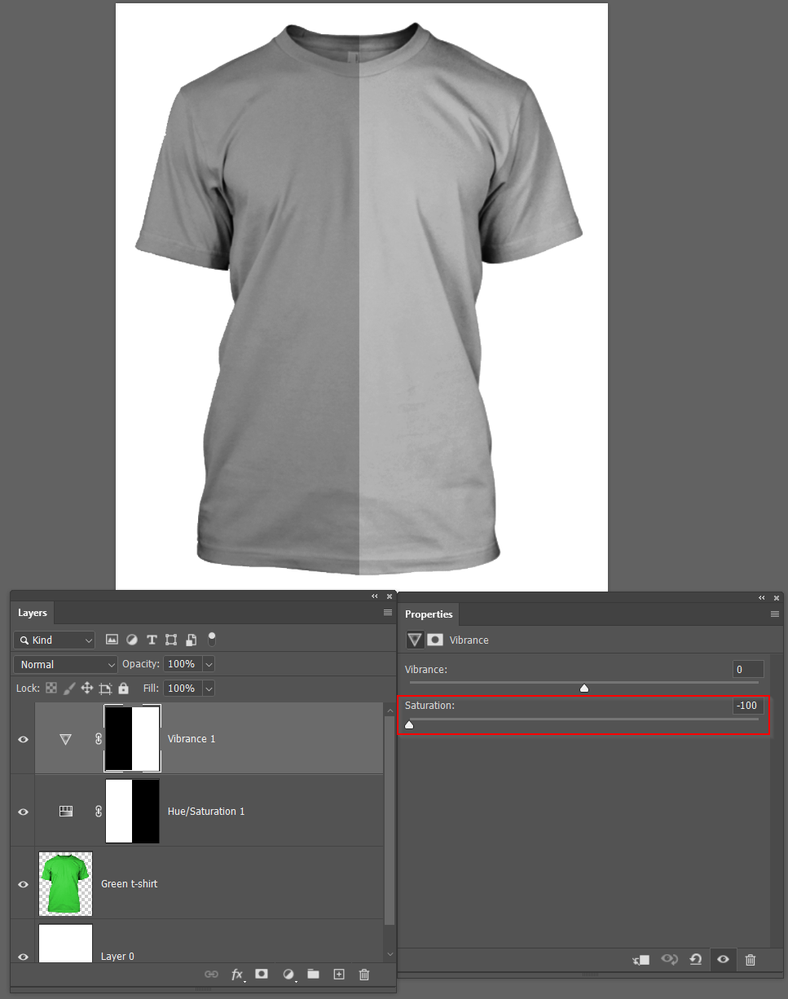
Jesus Ramirez nearly always has information that is new to me, and that information is often hugely effective and changes the way I use Photoshop. In this case I discovered that desaturating using a Vibrance adjustment layer has an important difference to using Hue Saturation. To make that clear, I am referring to using the Saturation slider and not the Vibrance slider in the Vibrance adjustment layer. You can see a marked difference in the results. Desaturating with the Vibrance layer on the right has produced significantly greater contrast making it much better for transfering its shading.
Copy link to clipboard
Copied
you are close, but if you downloaded. the image Ellen shared, you will see that the negative space is white, and the foreground is transparent with exceptions of the shading. So you can create a new solid layer with any color, and as long as it is behind the layer, the shirt will look great since it has all shading in the top transparent layer.
its a new technique I have been seeing for fashion companies since it makes it easy to post a shirt in literally ANY color using the exact same file! no more having to use sliders to change and try to match the colors. I'm not sure how its done... but Im following this post!
Hope that makes more sense.
cheers,
mark
Copy link to clipboard
Copied
you are close, but if you downloaded. the image Ellen shared,
By mark@headTrix

Mark, I've been unable to save images from this forum for a wee while now. If I click to expand an image I get a black screen, and no option to copy or save. The same thing is happening with Edge and Chrome for me. Are you not having this issue?
Copy link to clipboard
Copied
Copy link to clipboard
Copied
HI Trevor,
I was able to download the file when I originally saw this post.... however... I just clicked, and NOW I am only seeing a black screen! Weird!
Not sure what happened?
cheers,
mark
Copy link to clipboard
Copied
Hue/Saturation offers Colorizing option.
Copy link to clipboard
Copied
but if they are able to create what they are looking to create, they dont need to use Hue/Saturation, all they will need to do is add a solid colored layer under the shirt and BOOM, it will be the color of the layer. Much easier then trying to adjust Hue/Saturation
cheers,
mark
Copy link to clipboard
Copied
It was related to 'Colorizing does not work on objects that full white or full black.'.
Copy link to clipboard
Copied
I believe this is the key sentence by OP to adress:
"This image can I use on webpages and give them different colors if I change the background from the webpage."
What OP really want in my opinion is to put image with transparency inside container and to allow users, for example, to change background color for container what will result in different color for Tshirt. Maybe OP simply wants to set bgr color of container and to have that color for Tshirt but that should be end goal not to change color in Photoshop.
If you are confused by blending modes that is probably related to blending modes using CSS I believe (mix-blend-mode - CSS: Cascading Style Sheets | MDN (mozilla.org) not blendings in Photoshop.
Copy link to clipboard
Copied
Hi there,
Thanks for the reply.
I have another image and this must be the same as the image in the original post.
There is transparancy on the tshirt.
If I try this by the image of this post I get an solid color by exporting the project.
In the attachment also the PSD file
Copy link to clipboard
Copied
I am sorry but I do not understand what are you talking about and what is actual problem.
This is what I was talking about https://drive.google.com/file/d/1IpqByiCg2i87GlcH8P5zeg_QcxQmRY-9/view?usp=sharing
Double click on bottom layer thumbnail and change color.
Copy link to clipboard
Copied
There are a bunch of posts to your thread now, so can you help us out with some more information?
Copy link to clipboard
Copied

Copy link to clipboard
Copied
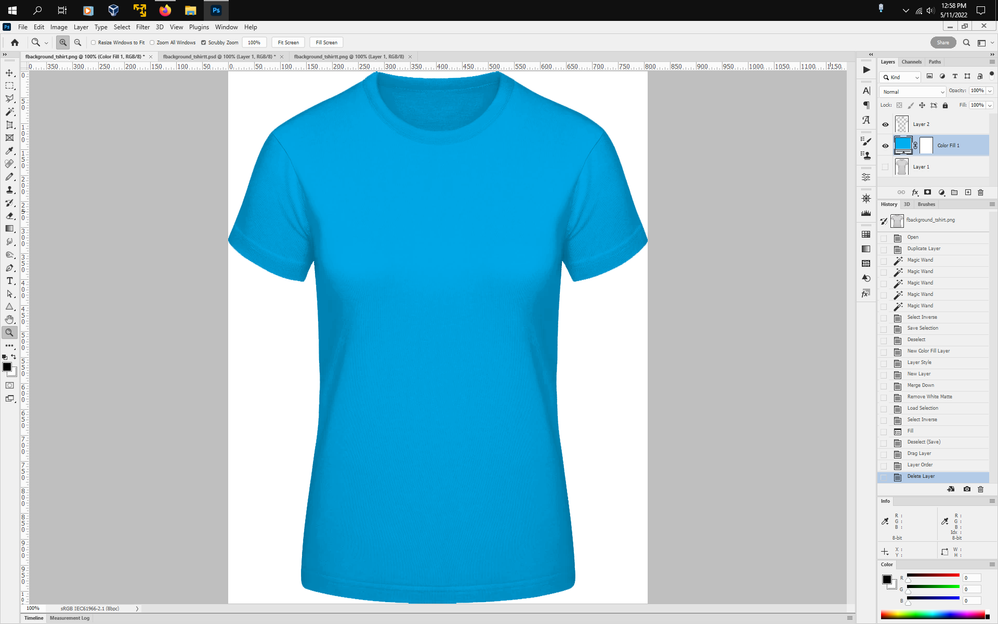
Yes this is what she is looking for. Really not sure why everyone is having trouble understanding. She is looking to create another image like the one above, that is transparent and the colors can be changed whether on a website with a background color change or in a photoshop file so she can add new colors.
So how did you do it Jeff? I tried using blend if but it seemed to get rid o f the white and shadows.
Cheers,
mark
Copy link to clipboard
Copied
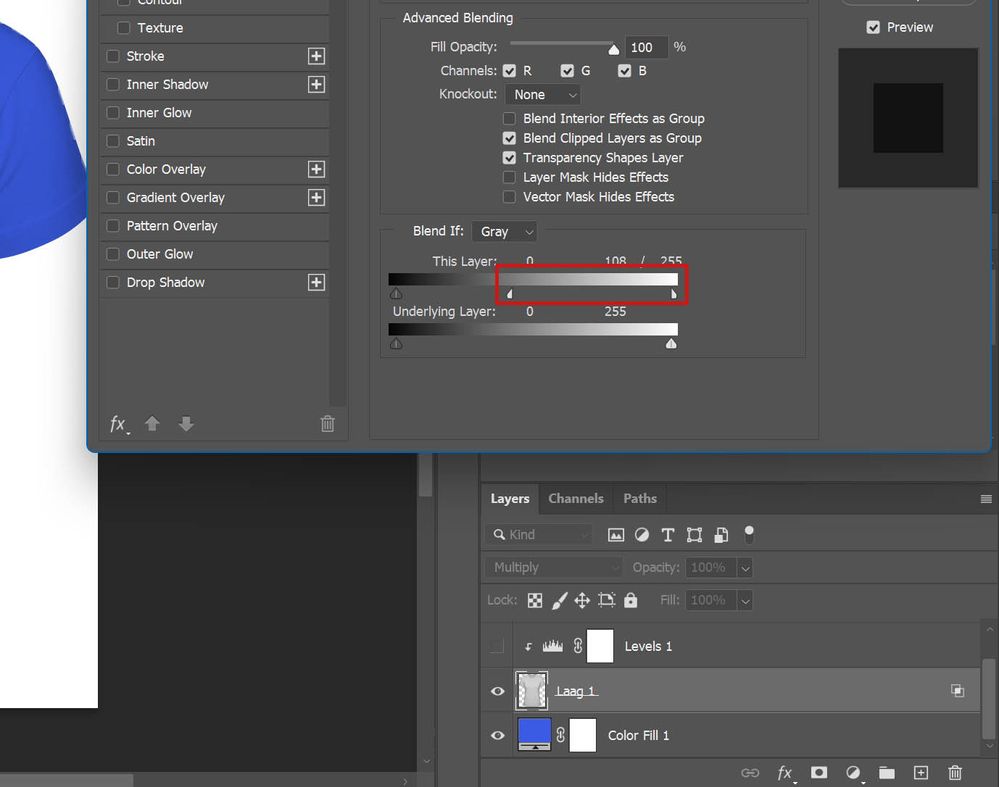
Try splitting right handle on This Layer using Alt + click and drag as on screenshot below. You must isolate shirt on separate layer to use Blend If as suggested below.
Copy link to clipboard
Copied
Hi Jeff,
Yes this is where I am looking for. Please can you tell me how you do this with a new image?
Copy link to clipboard
Copied
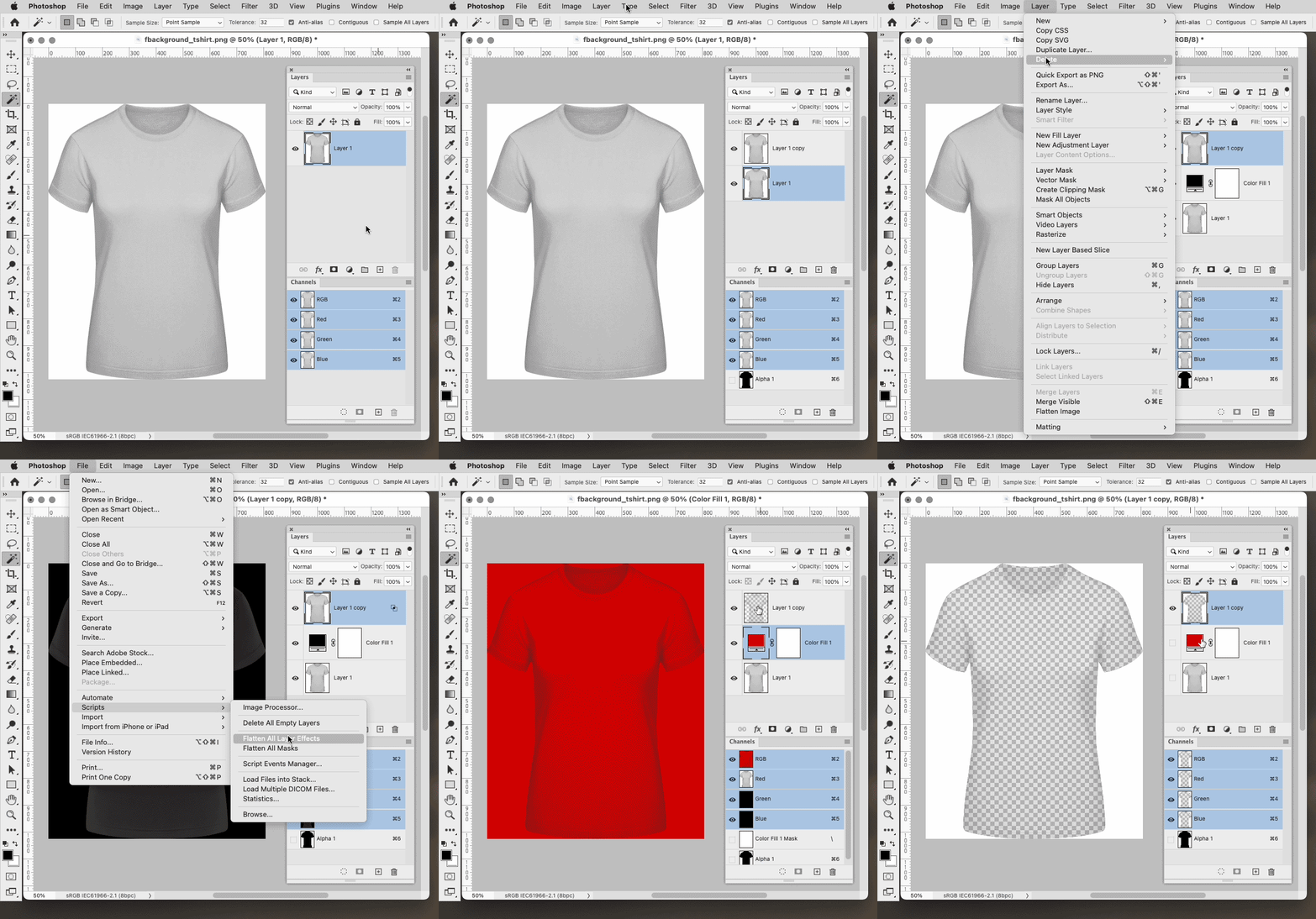
Like this:
1. Duplicate the shirt layer
2. make a selection of the shirt by using the magic wand and clicking on the
white area around the shirt
3. save the selection to a channel for future use, then Select>Deselect
4. select the bottom layer and add a color fill adjustment layer with black as the color
(Layer>New Fill Layer>Solid Color)
5. select the top shirt layer and go to Layer>Layer Style>Blending Options
6. move the right This Layer slider to the left just enough so see black around the shirt, the
hold down the Alt or Option key and click on the left part of the slider to split it and move
it all the way to the left
7. go to File>Scripts>Flatten All Layer Effects
8. go to Layer>Matting>Remove White Matte
(the image should turn black)
9. change the color fill layer to another color other than black
10. select the top shirt layer and load your saved selection from the
channel you saved earlier
(Ctrl or Cmd click on the channel in the channels panel to load the selection)
11. Go to Edit>Fill>Contents>White
12. Select>Deselect
13. turn off the visibility of the bottom two layers and File>Save As>PNG with
smallest file size
(click on the eye to the left of each layer thumbnail in the layers panel to turn
off the visibility)
Copy link to clipboard
Copied
The 7th step is equivalent of adding a layer below selected, then merging the above to the new one. I'm saying that as both methods take 3 clicks - one in File menu, second in Layers panel.


Find more inspiration, events, and resources on the new Adobe Community
Explore Now
 AdChoices

