
Answered
Creating an image sequence from video in Photoshop
Using Photoshop to create an image sequence from video
It is possible to use Photoshop to create an image sequence from a video, in other words to convert video to a sequence of images.
I covered how to do this using Premiere Pro in this post but it is easy to do the same without leaving Photoshop.
In that post I covered using a timelapse but here it is standard video.
Here is the process.
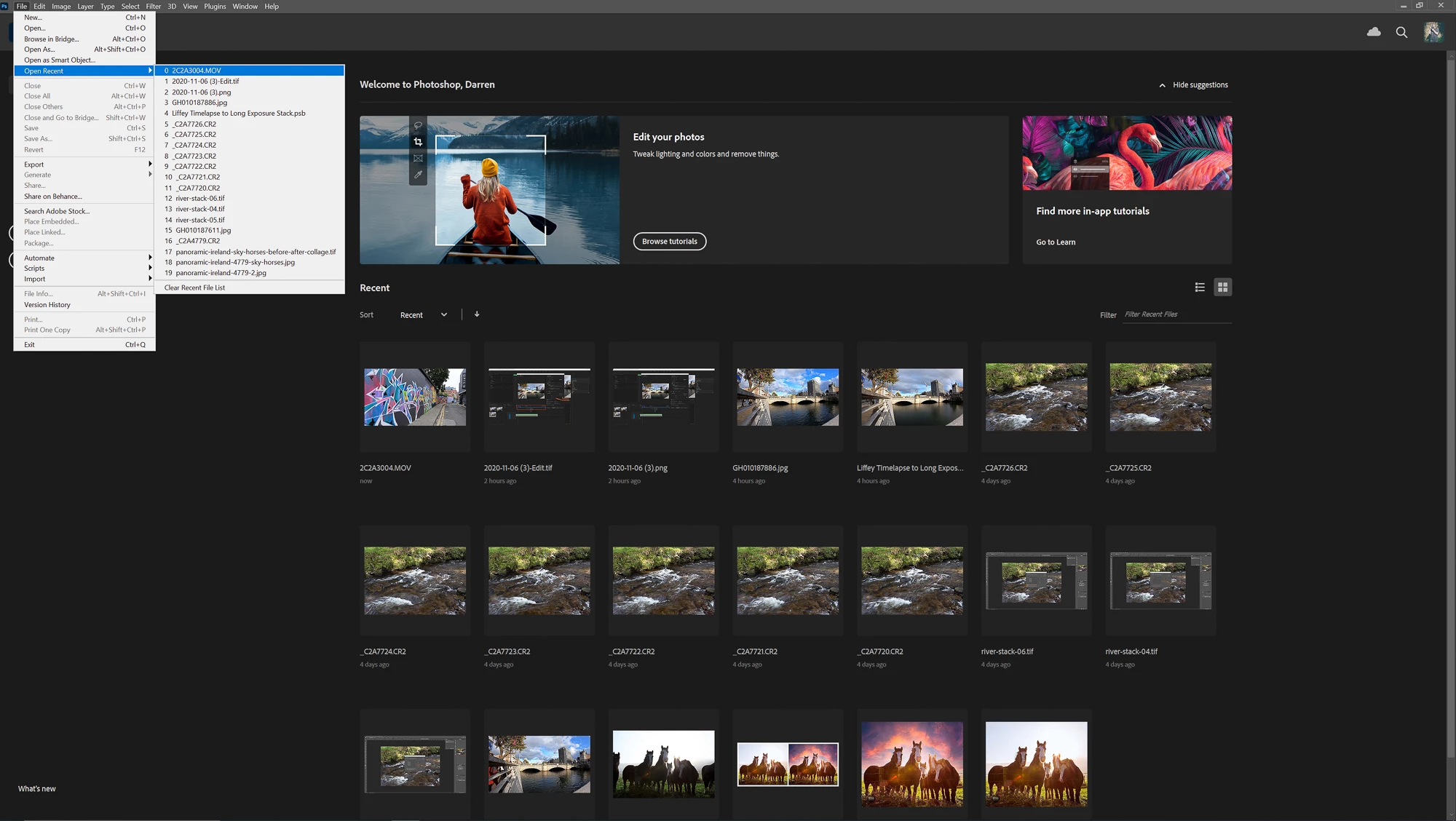
❶ Open your video in Photoshop
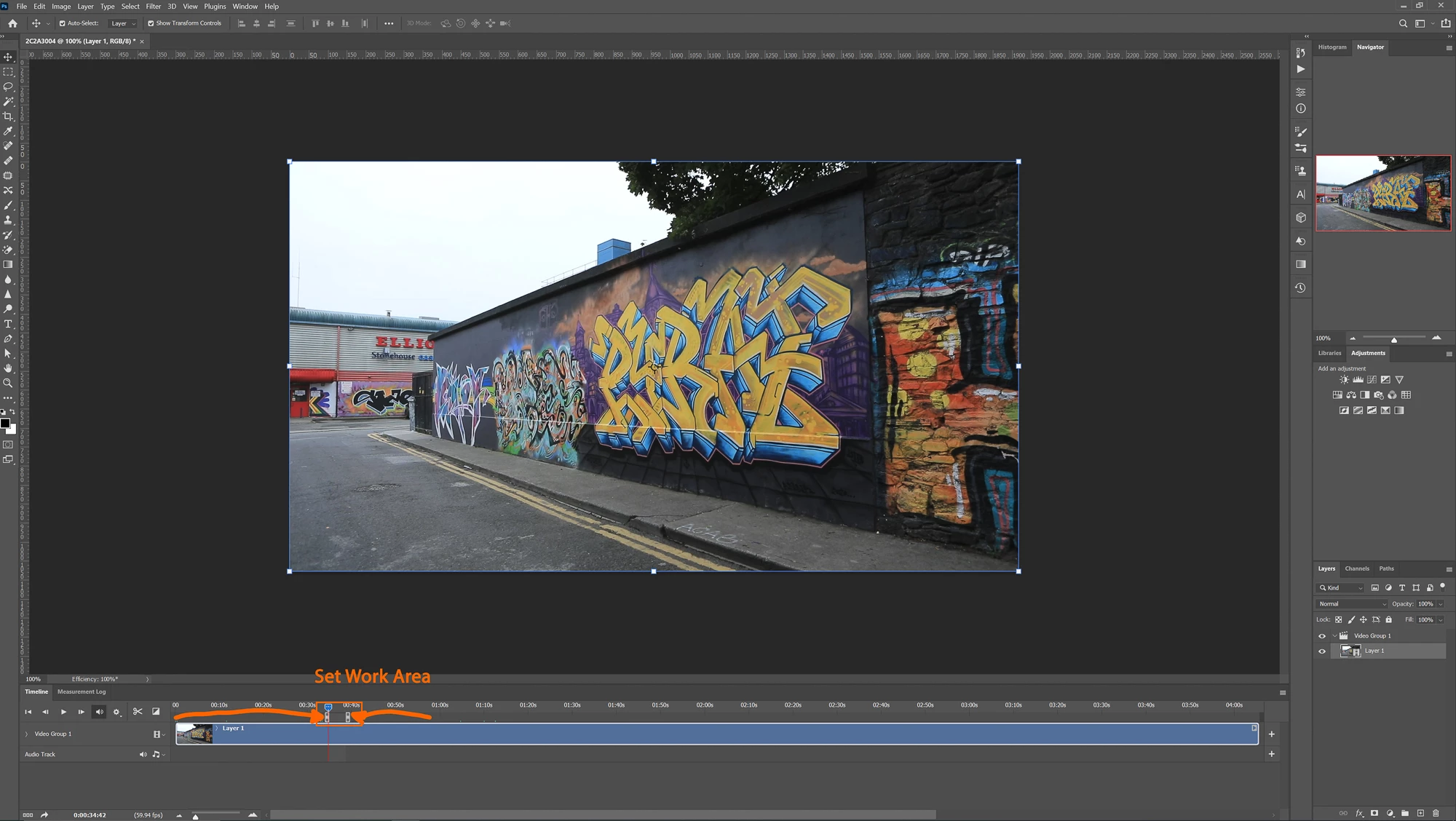
- The Timeline window should display below your video, if it doesn’t then go to Window>Timeline
- Drag the sliders at left and right to set a work area, here I have chosen approximately 6 seconds but you could use the whole video clip
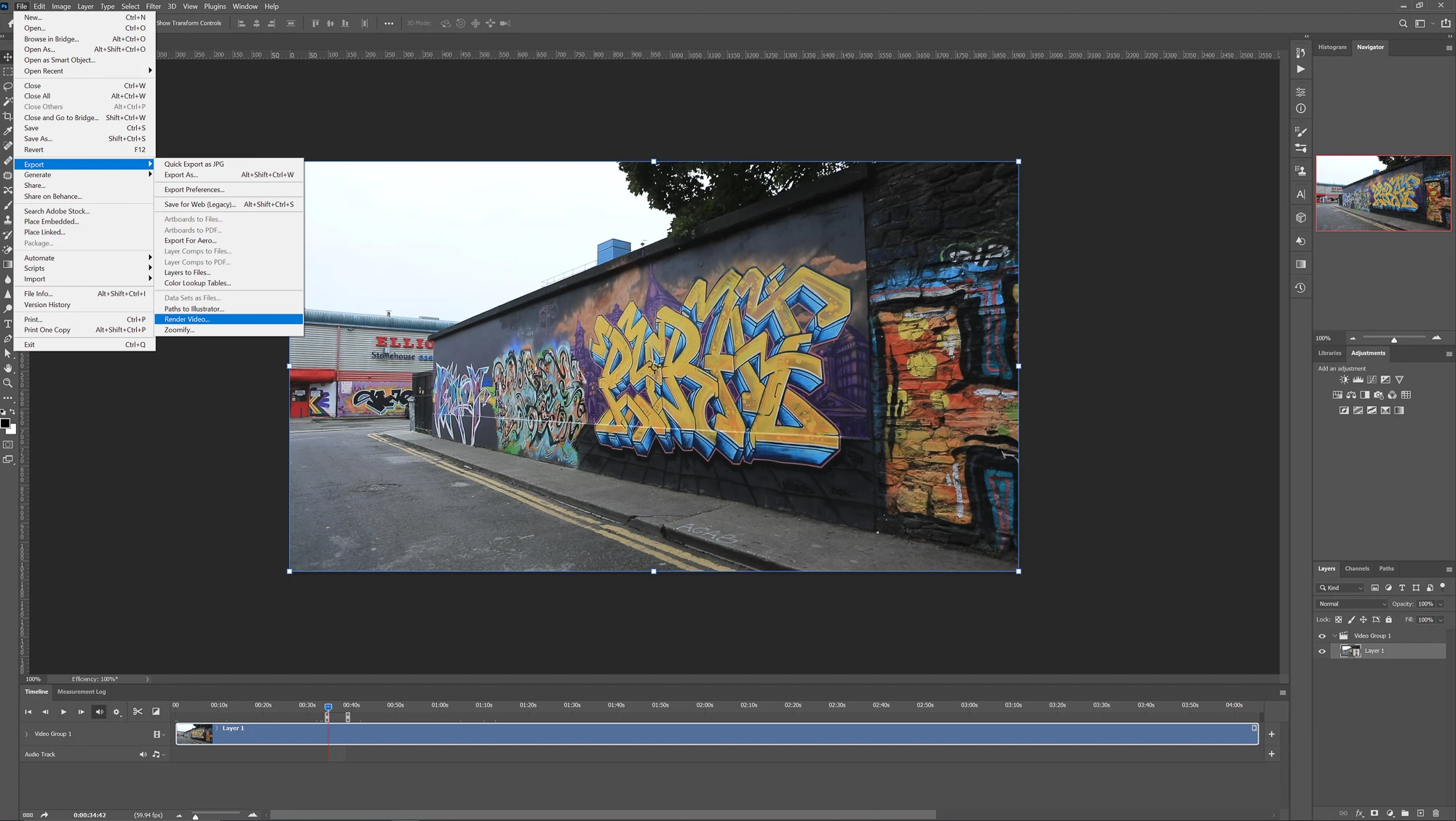
❷ Render Video
- Go to File>Export>Render Video…
- Click on Adobe Media Encoder and then choose Photoshop Image Sequence
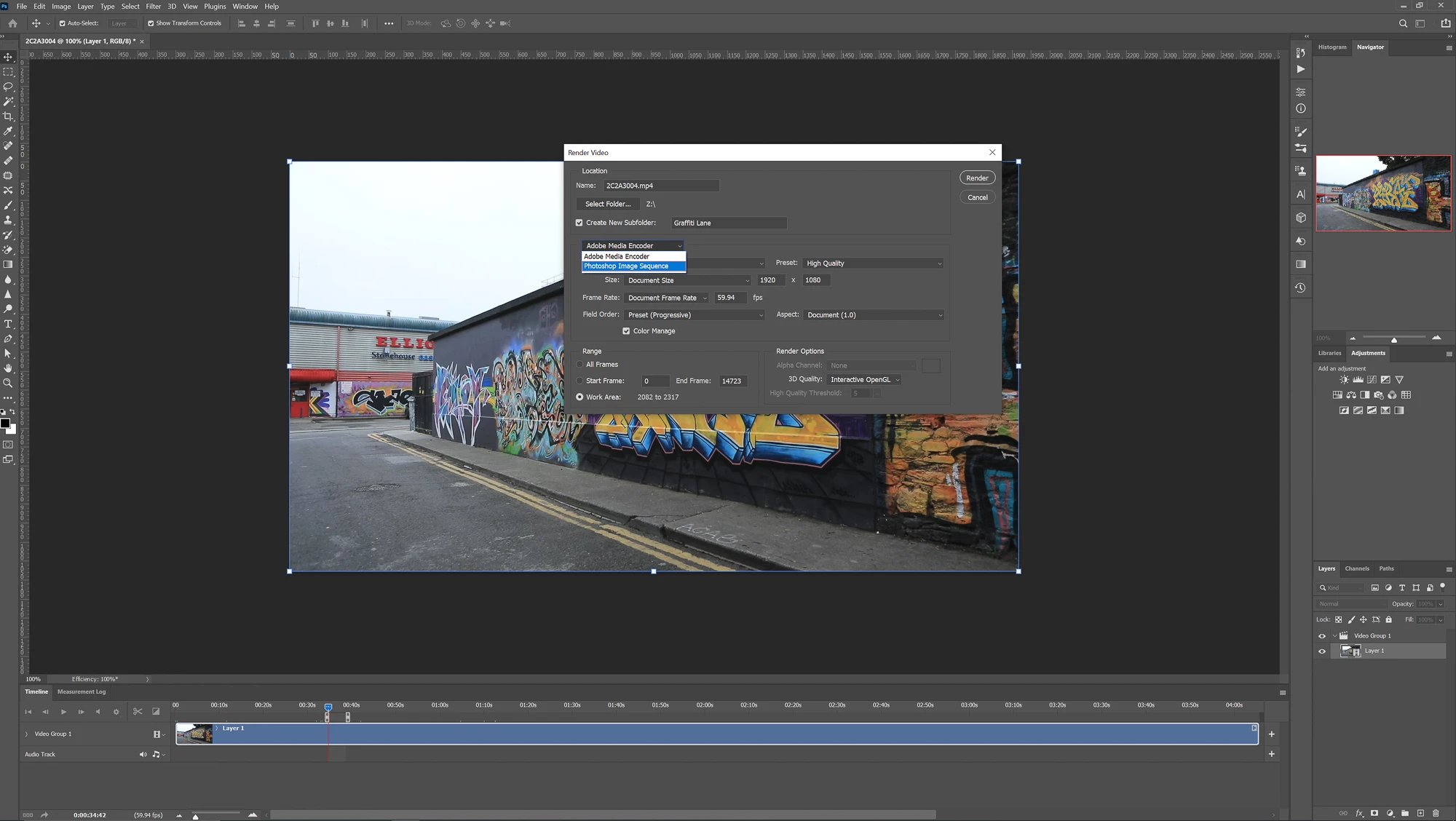
- Here you can confirm various settings, you can choose the Range - set here to be the work area from Step ❶ or you can choose All Frames or even a selection.
- I have left Frame Rate to be the same as the original Canon file by choosing Document Frame Rate
- Adjust the JPEG quality settings if necessary
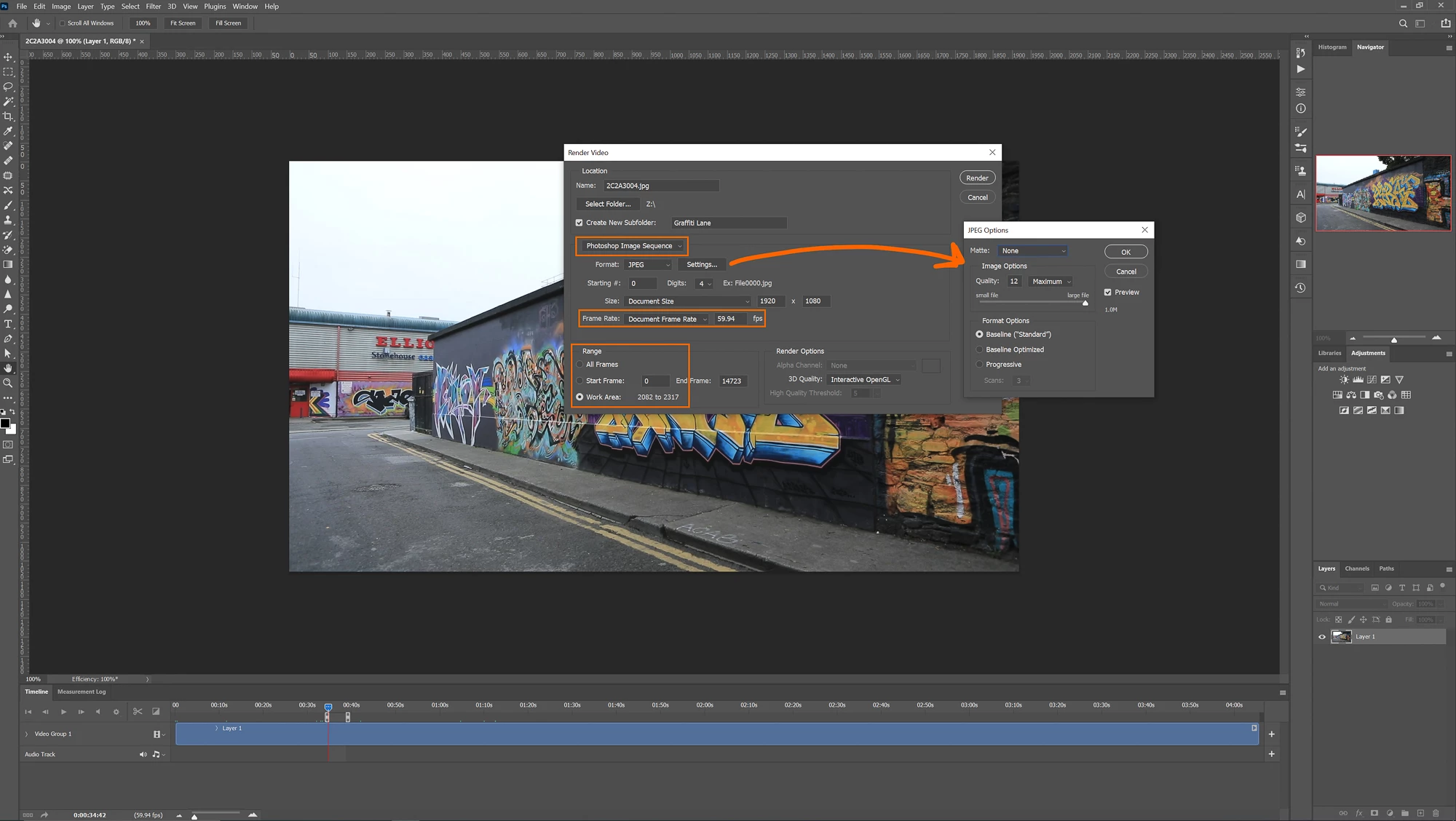
- Click on Render
❸ Check Folder
- Here this folder contains the individual frames, for working from
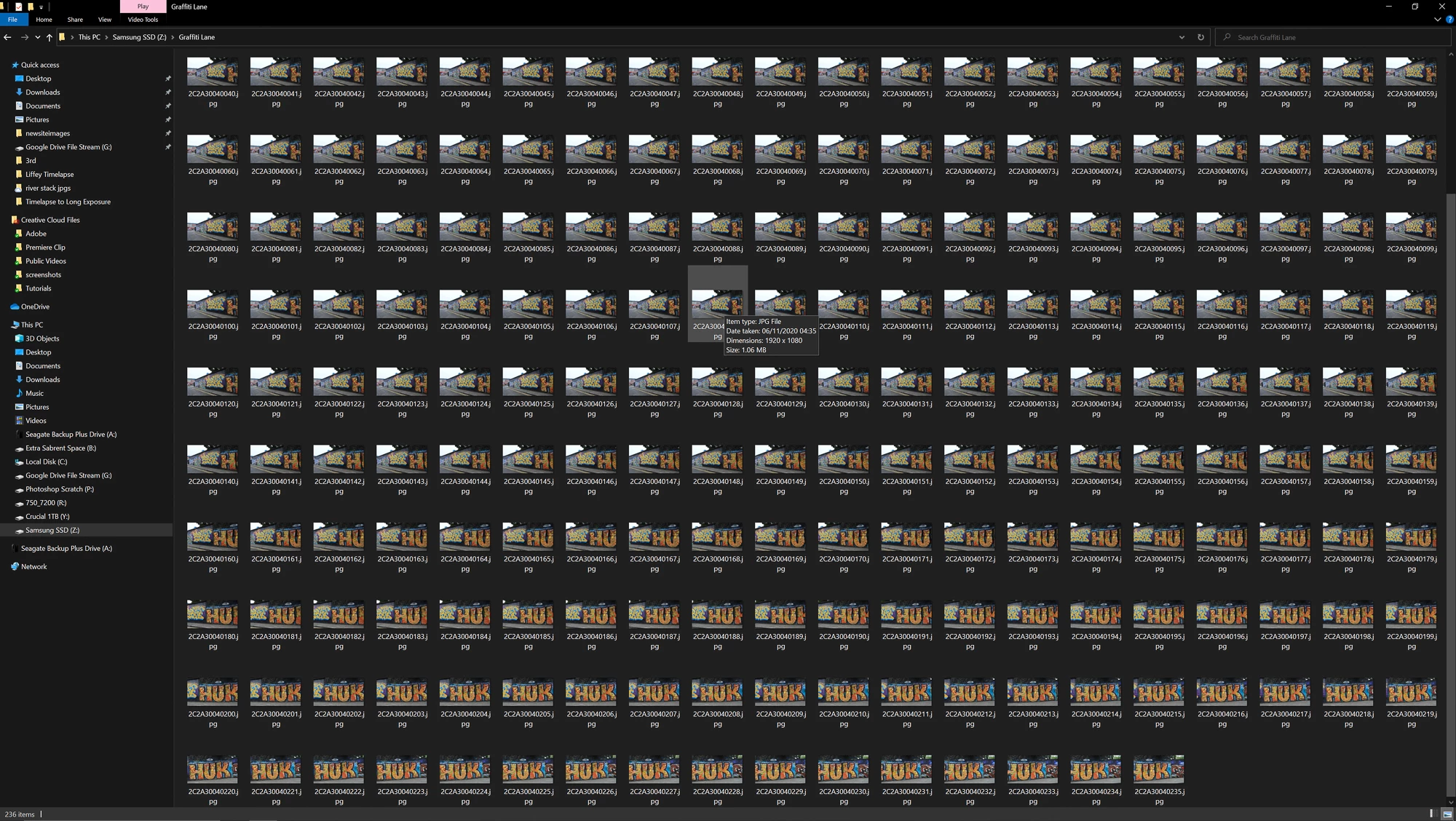
If you need to create images from a piece of moving footage, then this method can help to narrow down a section to work from or, as mentioned in the post link above, to create a long exposure from a video - see here.
 AdChoices