
Known Participant
February 1, 2020
Answered

Creating animations

  • February 1, 2020
  • 3 replies
  • 4934 views

I need to create a few animations for a slideshow.  I am working in the Photoshop Timeline.

I have figured out how to make a scrolling image by placing the image in a few areas of the background, then Tweening so that they flow along smoothly.

Now I want to create an animation that begins with my image in a very small size in the center, against a colorful background, then gradually expands until it fills the background.  I have figured out that I can do this by creating many files with the image at increasing sizes against the background, then use Files > Scripts > Load Files into Stack.  But WOW this is tedious!  I will need a huge number of files to make the animation flow nicely.  I tried Tweening and it created a mess.

So I am looking for a better way to do this...is there one?

Thanks...
This topic has been closed for replies.
Correct answer davescm

Hi

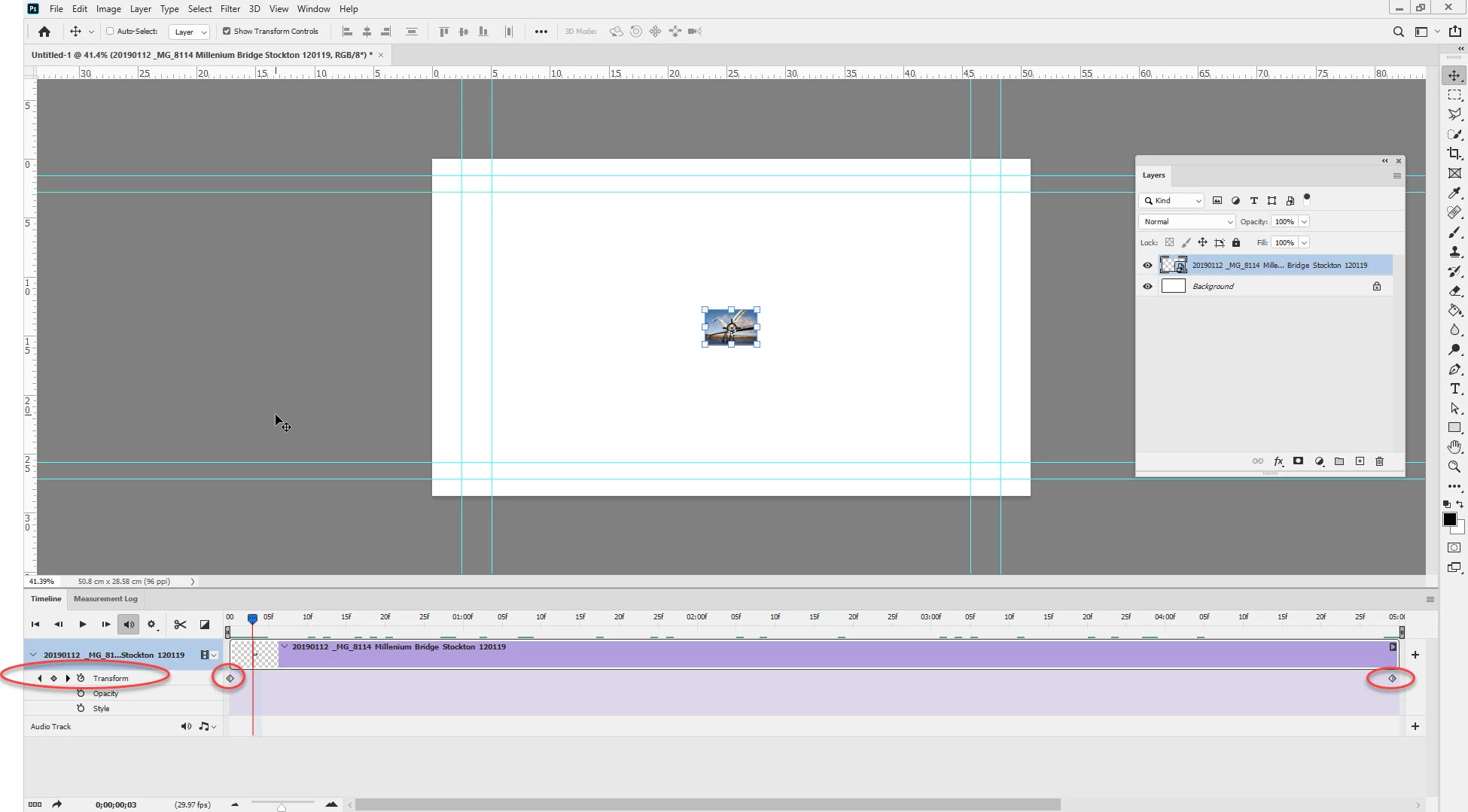
Use the video timeline. Put your picture in a smart object and keyframe the transform property. A keyframe tells the image what position or scale the image should be at that point. So you want at least one at the beginning with the image scaled as you want it to start, and one at the end with the image scaled as you want it to finish. You can add others in between if you want specific movement.


Dave

3 replies

davescm
Community Expert
davescmCommunity ExpertCorrect answer
Community Expert
February 2, 2020

Hi

Use the video timeline. Put your picture in a smart object and keyframe the transform property. A keyframe tells the image what position or scale the image should be at that point. So you want at least one at the beginning with the image scaled as you want it to start, and one at the end with the image scaled as you want it to finish. You can add others in between if you want specific movement.


Dave

cranberryAuthor
Known Participant
February 8, 2020

Thanks so much!

I have been experimenting for a few days and now I understand the difference between Frame and Video Timelines and which one to use for which effect.   Lots of trial and error involved, of course.

I REALLY appreciate your advice!

cranberryAuthor
Known Participant
February 11, 2020

The video time line is marked in seconds  you control the motion  with the transforms  you set  at key frames at some time offset in the time line.  The Frame rate is used more for smoothness and data rate .  More frames higher frame rate smoother motion small transitions more data needs to be streamed.  Video encoding and decoding is very completely full frames are not  normally transfer to reduce data transmission. When the transfer rate can not be meet is when you hear and see glitches. usually you will hear some glitch before you see a video problem. Lower Frame rate means fewer frames bigger transitions jumper motion lower data streaming rate.  Video duration the same the number of frames and amount of data required is much different.


Animated Gif made from Video time lines are poorer then rendered Videos. Gif Color support is very poor compared to video.   Gif supports 256 mapped colors at best. A rendered video from a Frame Animation Time line will most likely have better color than an Animated gif  Video encoding has better color support so could use the colors you have in the documents layers

Earth Animated Gif 360x360 480 Frames

[ Earth Gif ]

Earth Animated MP4 640x360 1439 Frames


Let's see if I understand correctly:

-- While I am creating in the Video Timeline, and I play the video, I am seeing just an imperfect Preview, which may or may not look smooth.  The real video won't be created until I Render it.

-- As I begin to create, I choose the Duration of the final video.

-- When I Render it, and choose a Frame Rate, Photoshop will automatically create the correct number of frames to fill the video.

-- For smooth motion, a good Frame Rate for rendering is 30 fps.


I will want my final videos to be in mp4 format.  Any problems with that?

It sounds to me like I really don't have a use for Frame Animation--correct?

Thanks!


JJMack
Community Expert
Community Expert
February 2, 2020

Frame animation Tween only supports layers position and opacity. Does not support animating layer size and rotation via trabsforn.  So the animation you want to make in a Frame animation time line would require many layer with you object at various sizes and rotation so you can make frames using those different layers.


A video animation on the other hand will support smart object layer being animated via layer transform. An object Object size and rotation should be able to be animated via layer transform. 3D layers layer rotation can also be animated by rotating 3D meshes.  You may want to look at using a video time line rather then a Frame animation time line.

JJMack
cranberryAuthor
Known Participant
February 2, 2020

Thanks for the responses.

I do not have Premiere Pro.

JJMack---this might be too complicated for me.  I have found 2 articles on the web for step-by-step instructions on using the Video Timeline and will explore that info.

JJMack
Community Expert
Community Expert
February 2, 2020

Photoshop Video time line is not very complicated.  But you need to convert layers to smart object layers. Smart object layer and 3d layers can be animated in a video time line.


For Frams animations Actions and scripts can be use to duplicate a layer then scale and rotate the dupped layer. To help create layers to be add to the animation as frames.


JJMack
lambiloon
Community Expert
Community Expert
February 2, 2020

Hi Photoshop is limited for this purpose you have to use Premiere Pro for this.....Regards

Ali Sajjad / Graphic Design Trainer / Freelancer / Adobe Certified Professional